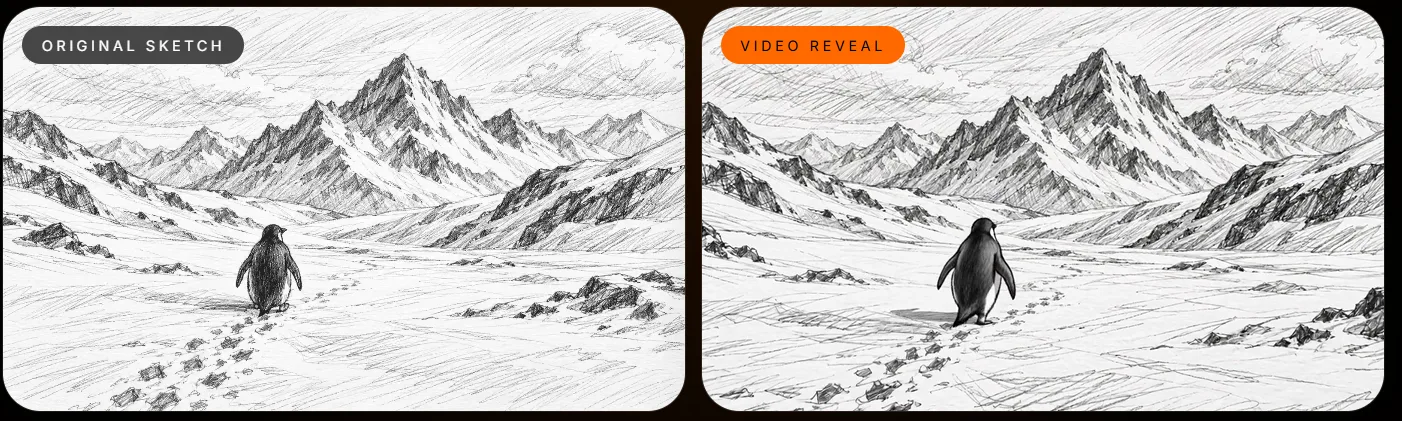
A sketch can be turned into an animated video, this can add some movement to the scene. Whether it’s a scene of a building, product design or landscape, a sketch can be turned into a cinematic reveal, concept presentation and subtle animation.
Sketch to motion AI can be used to create a video from a sketch. To ensure you get a useful output, think about what part of the piece you would like to animate and what should remain the same. It’s also important to consider how you want the camera to move.
What is Sketch to Motion AI?
Sketch to motion AI is when you create a video from a sketch or drawing. This gives a composition to your piece and the prompt tells the AI how you want to animate it. This will include the movement, mood and style.
For example if you have a hand-drawn pavilion with trees around you can tell the AI to slowly pan the camera, animate the leaves gently and give it a warm afternoon light. The video can be used as a concept.
Sometimes the AI won’t be perfectly consistent. Some objects may change shape, the background can move and there may be some differences in how certain pieces are interpreted. It’s important to watch the whole video.
How to Prepare your Sketch
The quality of your sketch will impact your final outcome. A complicated sketch doesn’t mean it’ll be better.
Before creating your video, make sure:
The subject is clear.
Avoid unnecessary lines that cause confusion.
Make sure your composition is balanced so that your main subject can be seen throughout the camera movement.
Know what you want to keep consistent.
If your modern chair sketch has too much overlap between the legs or the backrest isn’t clear, the video may alter the design. Try keeping it simple to clearly show what you wanted to convey.
How to Create a Video from your Sketch using Xelta
1. Visit the Sketch to Motion tool.
2. Upload your sketch or draw.
Use your own drawing or draw using the tools provided. Try to keep it simple, focusing on the subject and composition.
3. Create a prompt.
Tell the AI what you want to happen. Include the camera movement, animation of the environment, lighting and anything important that you want to stay consistent.
If you’re animating a product, you could ask for the camera to move slowly and keep the shape and sizing of the product consistent. If it’s a landscape scene you might just want a gentle movement in the surrounding leaves.
4. Select your video settings.
Choose your aspect ratio, length and resolution. Consider where you’re going to display your video. A landscape scene and a vertical social media clip will need different aspects.
Visit Xelta’s Sketch to Motion page to see what aspects they offer (16:9, 9:16, 1:1). Different resolutions and lengths are also available. Use your current interface to see what’s on offer.
5. Generate your clip.
Watch your whole video. Consider if it matches what you wanted. Does the subject have the right shape? Is the background okay? Is the speed of the animation right?
6. Improve one thing at a time.
If the camera is moving too fast, keep your camera simple. If the subject is changing shape, emphasise what you want to keep consistent. If it looks too busy, try reducing the amount of animation.
You can find out more about the process here.
Example Prompt – Animating an Architectural Sketch
If you’ve drawn a small modern pavilion with trees around it and want to create a short concept video showing the structure without changing the design.
Prompt:
Animate this architectural sketch. Keep the roofline, sizing, columns and openings consistent. Slowly pan the camera. Animate the leaves on the trees slightly. Add warm late afternoon light. Keep the building consistent. Don’t add any new buildings. Keep the original composition.
This prompt asks for 4 clear things to happen. The subject, camera movement, animation of the environment and what should stay consistent.
If your roofline or windows are changing, try emphasising that you want them to stay consistent. Try not to add too many styling elements.
Common Mistakes when using Sketch to Motion
Too many actions
A short video may not convey multiple complex animations. Start with 1 main animation and add more if it helps.
Unclear image.
If the lines aren’t clear this can cause inconsistency. Keep it simple.
No consistency.
The first frame may look good but later frames can have distortion. Watch the whole video to ensure nothing is changing. Are the sizing’s staying consistent? Are the edges warped? Are any new objects appearing?
Wrong aspect ratio.
Ensure you select the right aspect ratio for where you’re going to display it. Think about how it’ll be shown on screen.
No quality checks.
The video may have unexpected animation and change some key details. Always check the video.
When is it useful to use Sketch to Motion AI?
It’s useful to use this when you’re in the early stages of a project and want to showcase your ideas.
Designers can use this to show product concepts, architects can use it to see how they can reveal their designs and creative teams can animate storyboard scenes. This can help make discussions around animation clearer.
If your project needs every frame to be exact or there needs to be a high level of consistency, then you should treat the video as a base to edit.
Also, human images aren’t supported on Xelta’s Sketch to Motion page. Choose a non-human subject.
FAQ
Can I animate a simple sketch?
Yes! As long as your sketch is clear this will give you a good starting point. Your prompt will tell the AI how you want your subject and surroundings to move.
Do I need any animation experience?
No, there is no traditional animation required. However you will need to tell the AI what you want to happen and check the video.
What aspect ratio should I use?
A common aspect ratio is 16:9 for landscape scenes. A lot of vertical videos on mobile use 9:16. 1:1 can also be used. Consider where you’re going to display it.
Will my sketch stay the same?
Not necessarily. The AI may change the shapes, sizing and background details. Make sure you tell them what you want to stay consistent and check the video.
Can I animate a human?
Human images and videos aren’t supported on Xelta’s Sketch to Motion page. Try using a non-human subject.
Create an Animated Concept from your Sketch
To get the best out of your sketch to motion, make sure your sketch is clear and you know what you want to animate. Create a short draft and check the whole video. Improve your prompt based on the most important issue.
Try to animate your sketch to make it clearer what you wanted to convey.