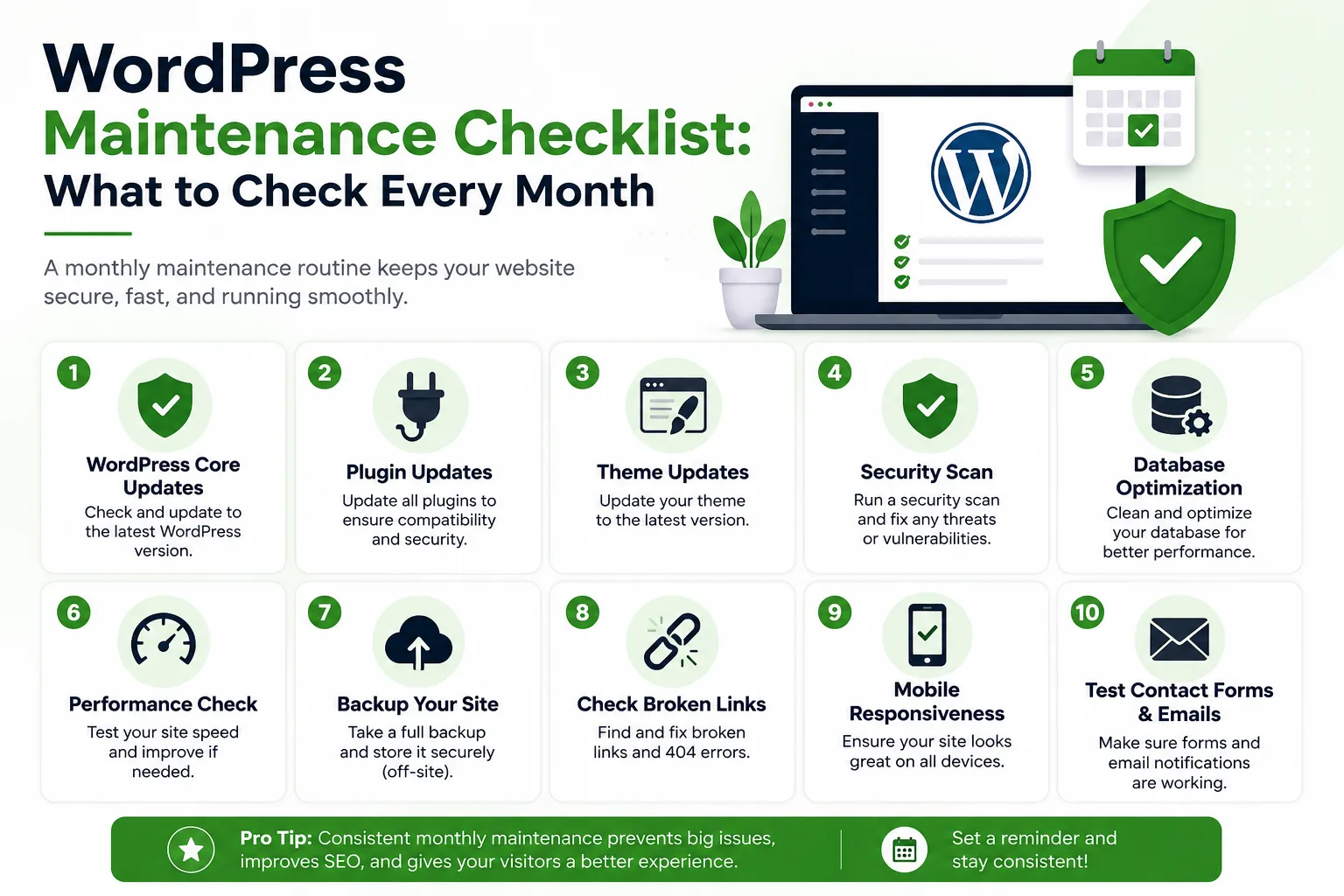
Keeping a WordPress website healthy doesn't require hours of daily work, but it does require consistency. This checklist breaks down exactly what to check each month so your site stays secure, fast, and functioning properly.
1. Core, Theme, and Plugin Updates
- Check for WordPress core updates and apply them after confirming compatibility
- Update all active plugins, removing any that are no longer needed or maintained
- Update your active theme, and check the changelog for any breaking changes before updating
2. Backups
- Confirm your automated backup system is actually running successfully
- Store backups off-site, not just on the same server as your website
- Test restoring a backup occasionally to confirm it actually works when needed
3. Security Checks
- Run a malware scan using a trusted security plugin
- Review user accounts and remove any that are no longer needed
- Check for failed login attempts and consider limiting login attempts if you see repeated attacks
- Confirm your SSL certificate is active and not close to expiring
4. Performance Review
- Run a page speed test and compare it to previous months
- Clean up unused images, plugins, and post revisions cluttering your database
- Check if a caching plugin is active and configured correctly
5. Broken Links and Errors
- Scan your site for broken internal and external links
- Check your 404 error log for pages people are trying to reach that no longer exist
- Fix any broken images or missing media files
6. Forms and Functionality
- Submit a test entry through every contact form on your site
- Check that email notifications from forms are actually being received
- Test any booking, payment, or interactive features to confirm they still work correctly
7. Content and SEO Basics
- Review analytics to see which pages are getting traffic and which aren't
- Check that your XML sitemap is updating correctly
- Look for any new broken links in recently published content
8. Uptime Monitoring
- Review your uptime monitoring reports for any unexpected downtime
- Investigate the cause of any outage and address it before it happens again
Frequently Asked Questions
Can I skip a month if nothing seems wrong? It's not recommended. Many issues, like a failed backup or a slow-building security vulnerability, aren't visible until something actually breaks.
How long does a full monthly checklist take? For a typical small business website, a thorough monthly review usually takes one to two hours, though it varies based on site size and complexity.
Do I need special tools for this checklist? A good security plugin, a backup plugin, and a page speed testing tool cover most of what's needed. Many WordPress maintenance services bundle these together.
What's the most commonly skipped item on this list? Testing that backups actually restore correctly. Many businesses assume backups are working simply because no error message appeared.
Final Thoughts
A consistent monthly routine catches small problems before they become expensive ones. Whether you handle this yourself or hand it off to a professional, the key is doing it regularly, not just when something visibly breaks.
If you'd like a professional to handle this checklist for you every month, get in touch here, or learn more about working with a WordPress developer in Calicut.