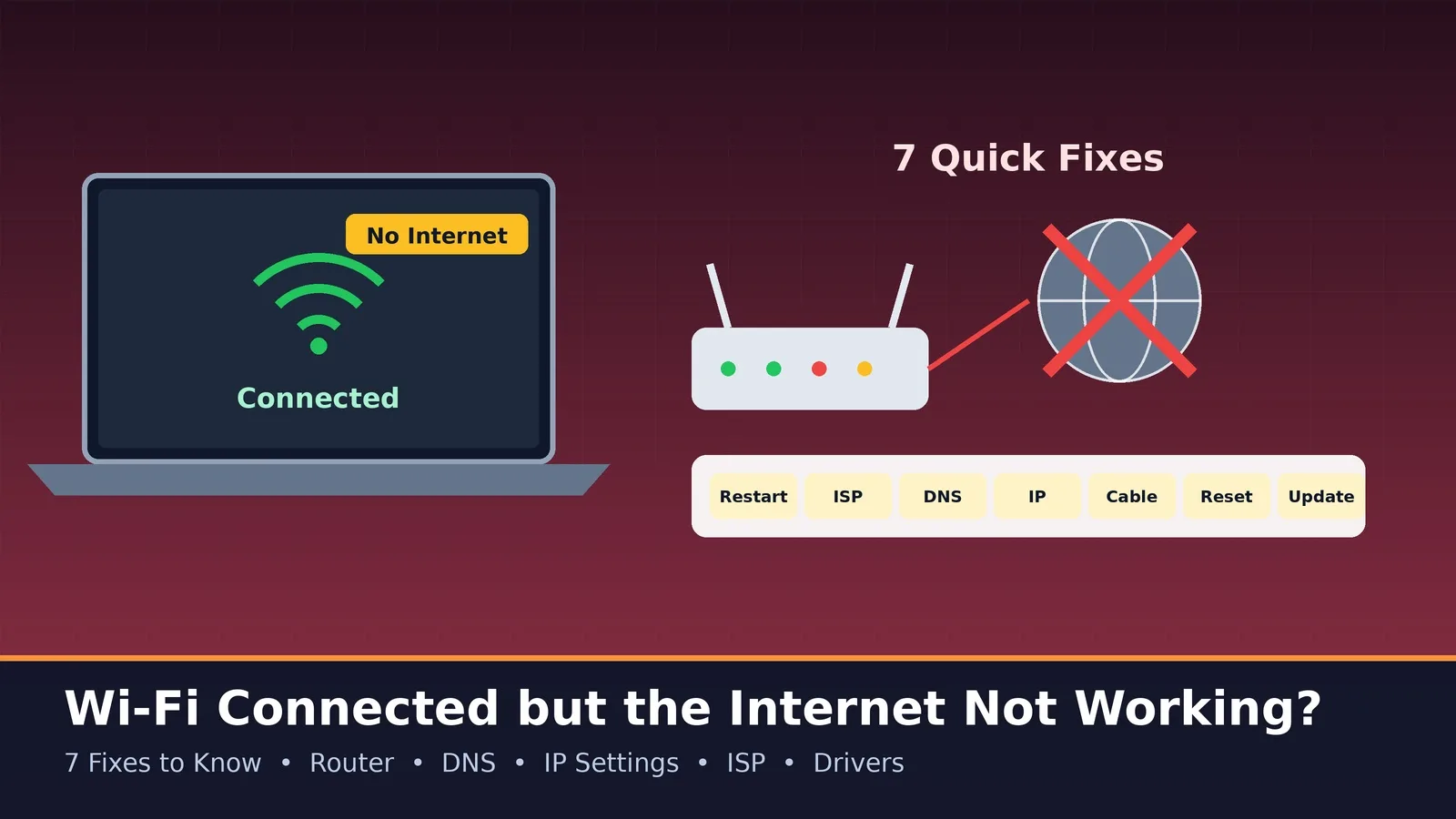
It is one of the most frustrating problems: the Wi-Fi icon shows full bars, but nothing loads. Why is your Wi-Fi connected but the internet not working? This guide explains the common reasons and gives 7 fixes to know, ordered from the quickest checks to the more technical steps that IT support engineers use every day.
Why Does This Happen?
A Wi-Fi connection only means your device is talking to the router. The router still needs a working link to your internet provider, and your device needs a valid IP address and working DNS to reach websites. A problem at any of these points gives you the 'connected, no internet' message.
Fix 1: Restart Your Router, Modem and Device
Turn off the router and modem, wait about 30 seconds and turn them on again. Wait a few minutes for the lights to settle, then restart your phone or computer. This simple step solves many temporary glitches.
Fix 2: Check Whether Other Devices Are Affected
Try another phone or laptop on the same Wi-Fi. If all devices fail, the problem is probably the router or your internet provider. If only one device fails, focus on that device. Also check your provider's app or website for outage notices, or call their support.
Fix 3: Test with Ping to Separate Network and DNS Problems
Open Command Prompt or Terminal and try these tests:
- ping 192.168.1.1 (or your router's address) checks the connection to the router.
- ping 8.8.8.8 checks whether you can reach the internet by address.
- ping google.com checks whether names are being resolved.
If pinging 8.8.8.8 works but google.com does not, the problem is DNS. If neither works, the connection to the internet is down.
Fix 4: Change DNS Servers and Flush the Cache
Set your device or router to use a reliable public DNS service, such as 8.8.8.8 or 1.1.1.1, and run ipconfig /flushdns on Windows to clear old records. This often fixes websites that will not load while the connection itself is fine.
Fix 5: Renew the IP Address
Check your address with ipconfig. If it starts with 169.254, the device did not receive an address from the router. Run ipconfig /release followed by ipconfig /renew, or disconnect and reconnect to the Wi-Fi network. Make sure the router's DHCP service is enabled.
Fix 6: Look for VPN, Proxy, Firewall or Login-Page Issues
- Turn off any VPN or proxy and test again.
- Check whether your security software or firewall is blocking connections.
- In hotels, offices and cafés, open a browser and look for a login page (captive portal) that must be accepted first.
- Make sure the date and time on your device are correct, since wrong time can break secure connections.
Fix 7: Update Drivers, Reset Network Settings or Check Hardware
Update the Wi-Fi driver and the router's firmware. On Windows, you can use the network reset option, and on phones you can reset network settings. Check cables between the modem and router, and try a wired connection to see whether the issue is Wi-Fi itself. If the problem continues, contact your provider, because the fault may be on their side.
Quick Checklist
- Reboot router, modem and device.
- Test another device.
- Ping the router, 8.8.8.8 and a website name.
- Change DNS and flush the cache.
- Renew the IP address.
- Disable VPN or proxy and check for a login page.
- Update drivers or reset network settings, then call the provider if needed.
Watch More:- Wifi Connected but Internet Not Connected?
Conclusion
A connected Wi-Fi network does not always mean a working internet connection, but a methodical approach quickly finds the cause. Work step by step from the simplest fix to the more technical ones, and you will solve most cases yourself.