
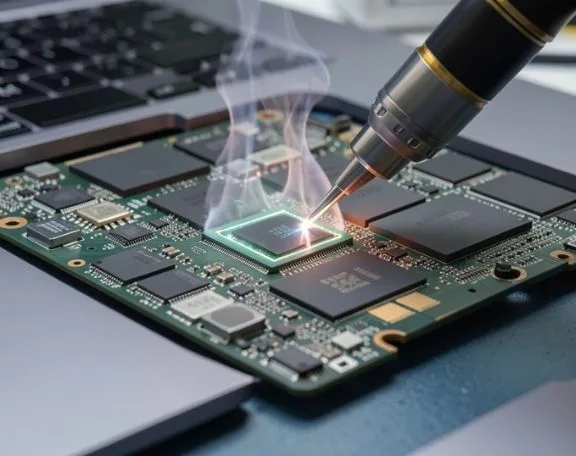
There's nothing more frustrating than watching your MacBook's battery percentage drop rapidly, especially when you're in the middle of important work. You unplug your device with a full charge, and within a couple of hours, you're scrambling to find the nearest outlet. If you've been experiencing this issue, you're definitely not alone. Many MacBook users across Australia face this common problem, and fortunately, there are concrete reasons why it happens and practical solutions to extend your battery life. Understanding the root causes behind rapid battery depletion can save you considerable time, money, and stress. In this comprehensive guide, we'll explore the most common culprits behind fast battery drain, from background processes to aging hardware. Whether you're a student burning the midnight oil at a Melbourne café or a professional working remotely, maintaining optimal battery health is essential for productivity. If you've tried basic troubleshooting without success, you might benefit from professional assistance—many residents in Melbourne turn to trusted MacBook repair Melbourne services to diagnose and resolve persistent battery issues. By the end of this article, you'll have the knowledge to identify what's draining your battery and the confidence to take action.
Melbourne's Tech-Savvy Community and MacBook Ownership
Melbourne, Australia's creative capital, has become a thriving hub for technology professionals, designers, and entrepreneurs. With its vibrant startup scene and world-class universities, the city is home to thousands of MacBook users who rely on their devices for work, study, and creative pursuits. The city's café culture—famous worldwide—means many locals work remotely from coffee shops, making battery performance a critical concern. This local context underscores why understanding MacBook battery health matters to the Melbourne community.
Common Reasons Your MacBook Battery Drains Quickly
Background Applications and Processes
One of the most common reasons your MacBook battery depletes faster than expected is the excessive number of background applications consuming power. When you open your Mac, numerous apps launch automatically—email clients, messaging apps, cloud services, and browser extensions all run simultaneously in the background. Each of these applications is working hard to stay updated and connected, pulling energy from your battery continuously.
Your web browser is particularly notorious for draining battery life. Modern browsers like Chrome are known to be resource-intensive, especially if you have multiple tabs open or poorly optimized extensions running. Similarly, streaming services, video conferencing applications, and productivity software all demand significant processing power. The cumulative effect of these running processes can reduce your battery life by 40-50% compared to a clean system.
To address this, review your Activity Monitor—press Command + Space, type "Activity Monitor," and check which apps consume the most CPU and energy. Close unnecessary applications, disable browser extensions you don't actively use, and prevent non-essential apps from launching at startup through System Preferences.
Display Brightness and Screen Time
Your MacBook's display is one of the most power-hungry components on the device. Keeping your screen brightness at maximum levels will significantly accelerate battery drain. If you're working in a brightly lit environment, such as a Melbourne outdoor café, you might instinctively crank up the brightness—but this choice comes at a serious battery cost.
Additionally, screen timeout settings matter tremendously. If your Mac never enters sleep mode because you're continuously active, it remains in a power-hungry waking state. Modern MacBooks are designed to intelligently manage display brightness based on ambient light using the ambient light sensor, but you can optimize this further manually.
Reducing brightness to comfortable working levels can extend battery life by 15-20%. Enable automatic brightness adjustment in System Preferences > Displays, and consider enabling Dark Mode, which consumes less power on MacBook screens, particularly on newer models with OLED-like displays.
Battery Health Degradation
Like all rechargeable batteries, MacBook batteries have a limited lifespan. Over time, their capacity diminishes—it's a natural electrochemical process that cannot be prevented, only delayed through proper care. Apple batteries typically maintain 80% of their original capacity after 1000 charge cycles. If your MacBook is several years old, battery degradation could be the primary culprit behind rapid drain.
You can check your battery health by holding Option and clicking the battery icon in the menu bar. If it shows "Service Recommended" or "Replace Soon," your battery is significantly degraded and requires professional attention. For residents seeking reliable solutions, a MacBook repair Melbourne technician can perform a battery replacement, restoring your device to excellent condition.
Graphics-Intensive Activities
Running graphics-heavy applications—video editing software, 3D rendering programs, gaming, or streaming 4K video—forces your MacBook's GPU to work at maximum capacity. This creates substantial heat and dramatically increases power consumption. If you're a content creator working on demanding projects, your battery might drain noticeably faster during active work compared to browsing or document editing.
Connectivity Features
Wi-Fi, Bluetooth, and location services constantly communicate with other devices and services. While they provide essential functionality, they also consume battery power. Bluetooth connectivity to wireless mice, keyboards, or headphones maintains an active connection that drains energy. Similarly, Wi-Fi searching for networks and location services determining your precise position use power continuously.
Disabling features you're not actively using can meaningfully extend battery life. If you're working without internet access, turn off Wi-Fi. If your Bluetooth devices are out of range or not needed, disable Bluetooth temporarily. These simple adjustments can add an hour or more to your battery endurance.
Practical Solutions to Improve Battery Life
Optimize Your Settings
Navigate to System Preferences and access Battery settings. Enable Low Power Mode—this intelligent feature reduces your MacBook's performance slightly while dramatically extending battery life. It's perfect for situations when you need your device to last throughout the day without access to a charger.
Additionally, reduce the screen brightness to the lowest comfortable level, shorten the time before your display sleeps, and ensure fast user switching isn't draining background resources.
Manage Startup Applications
Review which applications launch automatically when you start your Mac. Many programs default to auto-launching, and their cumulative impact is significant. In System Preferences > General > Login Items, remove unnecessary applications from your startup sequence. This simple action can improve startup speed and overall system efficiency.
Keep Your Software Updated
Apple regularly releases macOS updates and application patches that include battery optimization improvements. Older versions of software often run inefficiently, consuming more power than necessary. Keeping your system updated ensures you benefit from the latest power management enhancements.
Monitor Temperature
If your MacBook feels hot, it's working harder and consuming more power. Excessive heat suggests background processes are overtaxing your system. Ensure proper ventilation—never block the vents, and avoid using your MacBook on soft surfaces like beds or pillows that trap heat.
When Professional Help Is Necessary
If you've implemented these strategies and your battery still drains excessively, hardware issues might be responsible. Faulty batteries, malfunctioning charging circuits, or degraded internal components require professional diagnosis and repair. Expert technicians have specialized tools to test battery health accurately and identify hardware problems invisible to users.
For Melbourne-based MacBook users experiencing persistent battery issues, consulting a reputable MacBook repair Melbourne service provider ensures your device receives proper care from experienced professionals who understand Apple's technology intimately.
Conclusion
Rapid MacBook battery drain is frustrating but often entirely manageable with the right knowledge and approach. Whether the culprit is background applications, excessive brightness, battery aging, or intensive activities, identifying the cause is the crucial first step toward resolution. Start by optimizing your settings, managing running processes, and monitoring battery health. However, if problems persist despite these efforts, don't hesitate to seek professional assistance. A qualified technician can quickly diagnose and resolve hardware issues that prevent DIY solutions from working. By taking proactive steps today—through proper maintenance, smart settings adjustments, and timely professional support when needed—you can ensure your MacBook remains a reliable, long-lasting companion that powers your productivity and creativity for years to come. Whether you're a Melbourne professional, student, or creative, a healthy MacBook battery is an investment in uninterrupted work and peace of mind.