
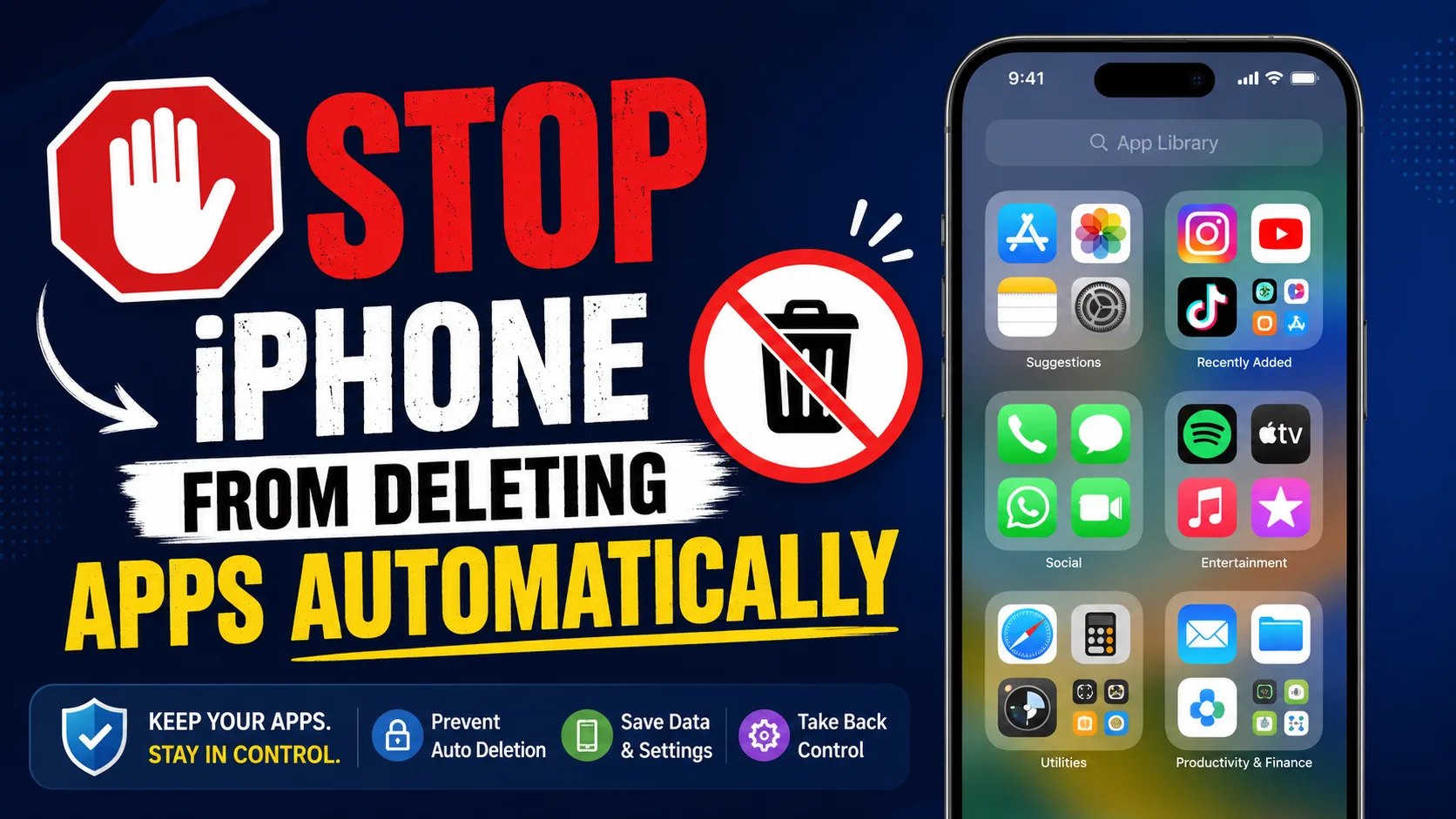
Why iPhones Automatically Delete Apps
Apple includes a feature called Offload Unused Apps to help users save storage space on their iPhones. When enabled, the feature automatically removes apps that are not used frequently while keeping their documents and data intact. This allows users to reinstall the app later without losing important information.
While this feature can be useful for people with limited storage, it may not be ideal for everyone. Many users prefer to keep all their apps available at all times, especially if they use certain applications occasionally for work, travel, banking, or entertainment. Discovering that an app has been automatically removed can be inconvenient and frustrating.
Fortunately, Apple makes it easy to disable this feature in just a few steps.
What Is Offload Unused Apps?
Offload Unused Apps is a storage management feature available on iPhones running modern versions of iOS. Instead of deleting an app completely, the system removes the app itself while retaining user data, settings, and documents.
When you need the app again, you can tap its icon and reinstall it from the App Store. Although this helps free up storage, it requires an internet connection and may cause delays when you need immediate access to the app.
Users who rely on certain applications for occasional tasks often prefer to disable automatic app deletion to avoid interruptions.
How to Turn Off Automatic App Deletion on iPhone
Disabling automatic app deletion takes only a minute. Follow these simple steps:
- Open the Settings app on your iPhone.
- Scroll down and tap App Store.
- Locate the Offload Unused Apps option.
- Toggle the switch to the Off position.
Once disabled, your iPhone will stop automatically removing apps that are rarely used. All installed applications will remain on your device unless you manually delete them.
How to Check If the Feature Is Currently Enabled
If you are unsure whether your iPhone is automatically offloading apps, checking the setting is simple.
Navigate to Settings, select App Store, and look for the Offload Unused Apps option. If the switch is green, the feature is active. If the switch is gray, automatic app deletion is already disabled.
It is a good idea to review this setting periodically, especially after major iOS updates or when configuring a new device.
Benefits of Keeping Automatic App Deletion Disabled
Many users choose to disable automatic app deletion because it offers greater convenience and control.
One major benefit is instant access to all installed apps. You do not need to wait for downloads or worry about having a stable internet connection when opening an infrequently used application.
Another advantage is consistency. Business apps, travel tools, banking applications, and educational resources remain available whenever you need them. This can be particularly helpful during emergencies or when traveling.
Keeping apps installed also helps avoid confusion for users who may not realize that an app has been offloaded rather than permanently deleted.
Alternative Ways to Free Up iPhone Storage
If storage space is the reason your iPhone is removing apps, there are several alternatives that can help free up space without enabling automatic app deletion.
Start by reviewing large media files such as videos, screenshots, and downloaded content. Removing unnecessary files can quickly recover significant storage.
You can also clear browser data, delete old messages with large attachments, and remove apps that you no longer need manually. Using cloud storage services for photos and videos can further reduce storage pressure.
Regular storage management gives you more control over your device while ensuring important apps remain available.
When It May Be Time to Upgrade Your iPhone
If storage limitations continue to be a problem despite regular cleanup, upgrading to a newer device with greater capacity may be the best solution.
Modern iPhones offer improved performance, enhanced cameras, longer battery life, and more storage options. Consumers looking for value often consider refurbished devices because they provide premium features at a lower cost.
For example, the iphone 16 refurbished can be an attractive choice for users seeking a balance between performance and affordability. Those wanting advanced photography capabilities and premium specifications may find the iphone 16 pro refurbished particularly appealing.
Choosing a Trusted Source for Refurbished iPhones
When purchasing a refurbished smartphone, selecting a reliable seller is essential. Device quality, warranty coverage, and proper testing procedures all play important roles in ensuring a positive experience.
EasyPhones has become a trusted destination for customers seeking professionally inspected and quality-tested Apple devices. Buyers can explore a wide range of options, including second hand iphones online in india, making it easier to find a device that suits both budget and performance requirements.
Purchasing from a reputable platform helps ensure that you receive a dependable device backed by proper support and quality assurance.
Final Thoughts
Automatic app deletion on iPhone can be a useful storage-saving feature, but it is not necessary for every user. If you prefer having all your apps readily available, disabling Offload Unused Apps is a quick and straightforward solution.
By navigating to the App Store settings and turning off the feature, you can prevent your iPhone from automatically removing applications. Combined with regular storage management and thoughtful device upgrades when needed, this simple adjustment helps create a smoother and more predictable user experience.