Privacy is a top priority for most smartphone users today. When you tap the search bar in Safari, the last thing you might want is a list of your previous queries popping up for anyone nearby to see. Whether you are searching for gift ideas or private medical information, having your search history on display can be frustrating. Fortunately, Apple provides several ways to manage these settings. If you are using a high-end device like an iphone 16 pro refurbished from EasyPhones, you can enjoy premium hardware while maintaining complete control over your digital footprint.
Why Safari Shows Recent Searches
The "Recent Searches" feature is designed for convenience. Apple’s goal is to help you quickly return to topics you were recently investigating without having to re-type the entire query. This is part of the broader Siri and Search ecosystem that learns from your behavior to provide a more "intelligent" experience. However, what Apple considers a shortcut, many users consider a privacy leak.
In recent versions of iOS, this feature has become more prominent. When you open a new tab and tap the address bar, a list of your most recent terms often appears immediately. This behavior is linked to your browsing history and iCloud sync settings. If you have multiple devices, your searches on a Mac or iPad might even show up on your phone. For those looking for a second hand iphone in india through trusted platforms like EasyPhones, setting up these privacy toggles is often the first step in making a pre-owned device feel truly personal and secure.
How to Disable Recent Searches in Settings
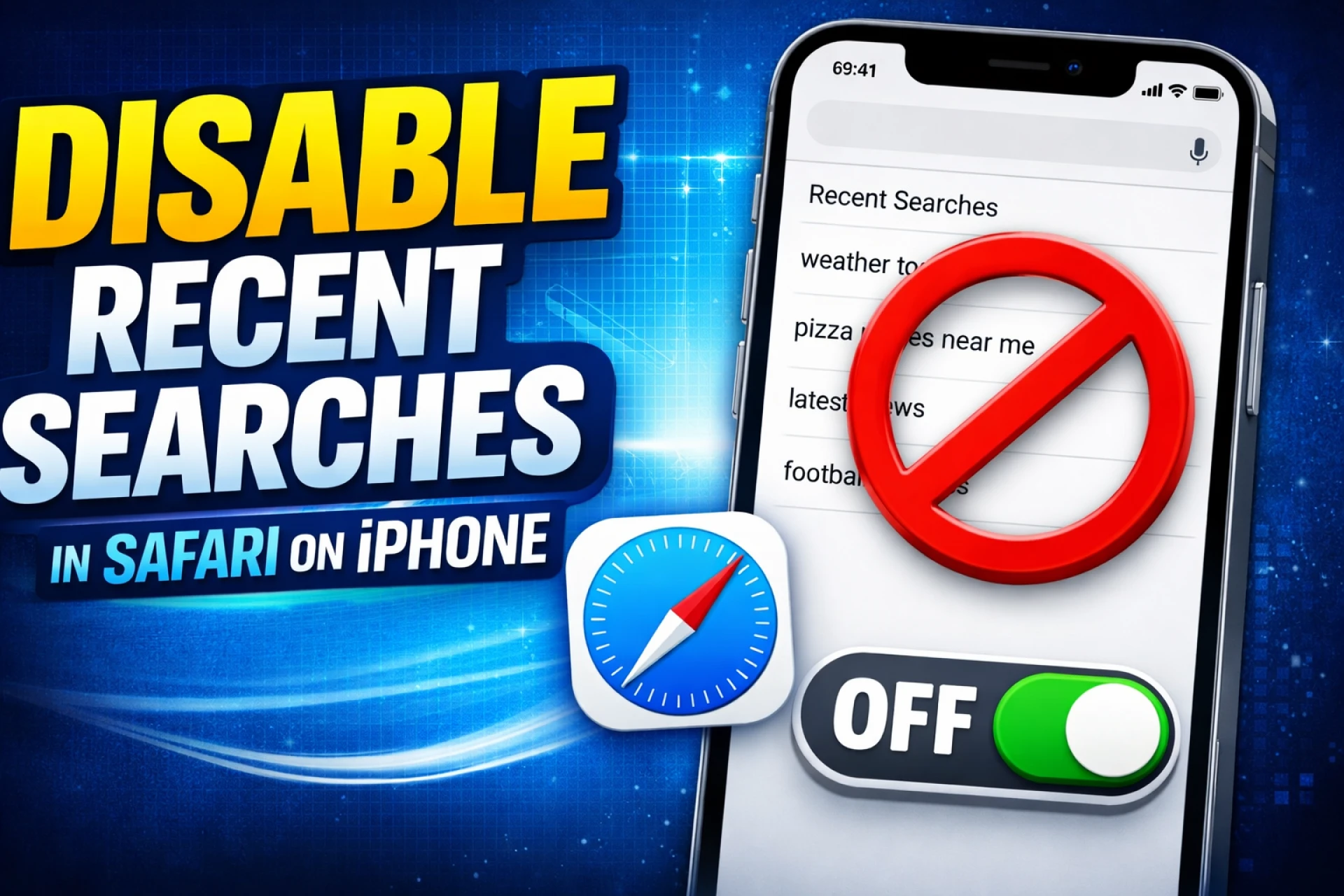
The most direct way to stop Safari from showing recent searches is through the main Settings app. This method doesn't just clear the history; it prevents the list from appearing in the first place.
- Open the Settings app on your iPhone.
- Scroll down to find the Apps section and tap on Safari.
- Under the Search sub-heading, look for the toggle labeled Show Recent Searches.
- Switch the toggle to the Off position.
Once this is disabled, tapping the search bar in Safari will no longer trigger a drop-down list of your previous searches. This is a "set it and forget it" solution that works across the latest iOS versions. If you’ve recently upgraded to an iphone 16 refurbished model, ensuring this setting is toggled off will keep your browsing experience clean and private from day one. At EasyPhones, we always recommend checking these security features to ensure your device reflects your personal privacy standards.
Clearing Existing Search History
Disabling the "Show Recent Searches" toggle prevents new lists from appearing, but it doesn't necessarily delete the data already stored in your browser. If you want to wipe the slate clean, you should manually clear your history.
To do this, go to Settings > Apps > Safari and tap Clear History and Website Data. You can choose to clear history for the last hour, today, or all time. Clearing this data will also log you out of most websites, so ensure you have your passwords saved in Keychain or a password manager before proceeding. This step is essential if you share your device with family members or if you are preparing a device to be traded in or sold.
Managing Siri Suggestions in Safari
Sometimes, what you see in the search bar isn't just "recent searches," but rather "Siri Suggestions." These are websites or terms Siri thinks you might be interested in based on your messages, emails, or general browsing habits.
To turn these off:
- Navigate to Settings > Apps > Safari.
- Under the Search section, toggle off Safari Suggestions.
- Additionally, you can toggle off Search Engine Suggestions if you don't want Google or DuckDuckGo to provide autocomplete predictions as you type.
By disabling these features, you transform the Safari search bar into a blank slate. This is particularly helpful for professionals who often use their phones in meetings or public spaces where a stray suggestion could be embarrassing or reveal sensitive project details.
Using Private Browsing Mode
If you only need to hide searches occasionally, Private Browsing mode is your best friend. When you open a Private Tab, Safari doesn't remember the pages you visit, your search history, or your AutoFill information.
To enter Private Browsing, open Safari, tap the Tabs icon (two squares), and swipe the bottom bar until you see Private. This is a great way to perform one-off searches without affecting your main history or triggering the "Recent Searches" algorithm.
Maintaining Privacy with EasyPhones
At EasyPhones, we believe that high-quality technology should be accessible and secure. Whether you are buying a flagship model or a budget-friendly alternative, knowing how to navigate the iOS ecosystem is key to a great experience. By following these steps, you can ensure that your iPhone remains a private tool tailored to your needs. Taking a few minutes to audit your Safari settings not only protects your data but also streamlines your interface, allowing you to focus on what matters most.