
Every pound you spend on Google Ads should be chasing someone who might actually buy from you. Yet in many accounts, a surprising share of the budget goes to people who were never going to become customers: job hunters, bargain seekers, students, and shoppers looking for something completely different. As a PPC agency in London, we audit accounts every week, and one of the quickest fixes we find is also one of the most overlooked: negative keywords. Used well, they cut wasted spend, lift lead quality and make every other part of your campaign work harder.
In this guide, we’ll explain what negative keywords are, how to find them, how to organise them and the mistakes that can accidentally block your best customers.
What Are Negative Keywords?
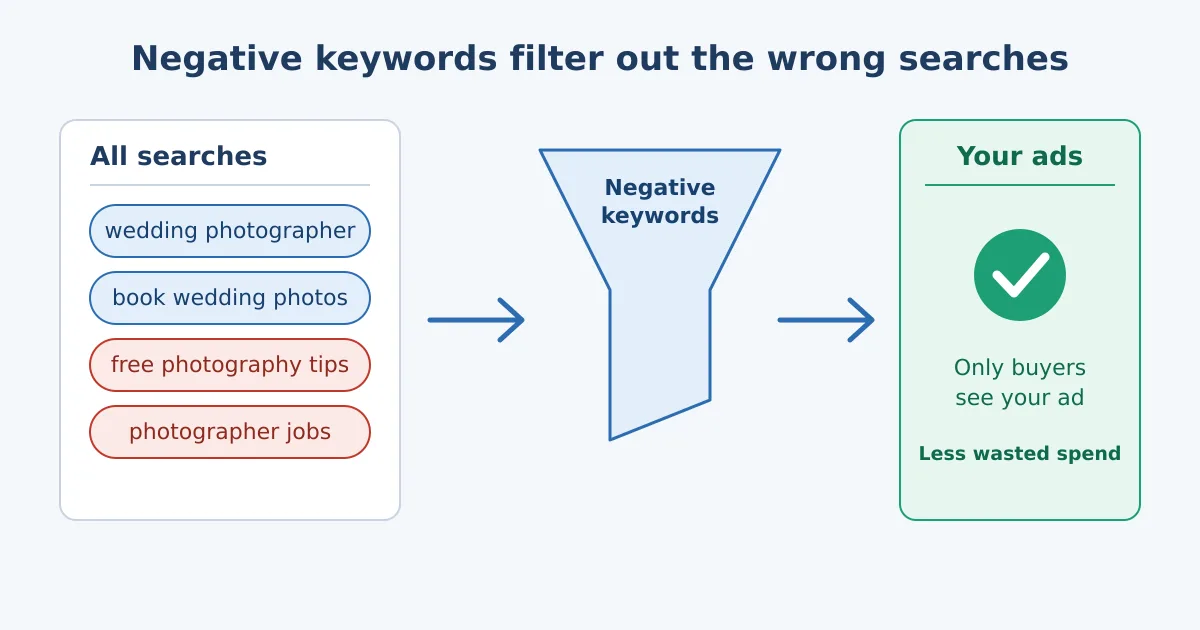
Negative keywords tell Google which searches you do not want your ads to appear for. If you add a word as a negative, your ad won’t show when someone includes it in their search.
Imagine you sell premium wedding photography. Your ad could appear for “free wedding photography tips” or “wedding photographer jobs.” Neither searcher is your customer, but you’d still pay for each click. Adding “free” and “jobs” as negative keywords stops that.
Why They Matter So Much
They cut wasted spend: Irrelevant clicks drain budget with no return.
They improve lead quality: Your ads reach people with genuine buying intent.
They raise click-through rate: Ads shown to the right people get clicked more often.
They support quality score: Better relevance can lower your costs over time.
They make automation smarter: Smart bidding and broad match perform better when guided by clear exclusions.
Negative keywords don’t cost anything to add, which makes them one of the best returns on time in paid search.
How to Find Negative Keywords
Review the search terms report
This is your most valuable source. In Google Ads, the search terms report shows the actual phrases people typed before clicking your ad. Look for searches that:
Show clear mismatch with what you sell
Have clicks but no conversions
Include words that signal the wrong intent
Relate to a different product, service or location
Check it weekly when launching a campaign and at least monthly afterwards.
Think about common problem words
Certain words often signal low-value traffic. Depending on your business, consider:
Free, cheap, DIY, template: Often bargain hunters or people wanting no-cost solutions
Jobs, careers, salary, vacancy, internship: Job seekers
Training, course, tutorial, how to, definition: Learners and researchers
Used, second hand, repair, parts: Wrong product stage or type
Review, complaint, scam: Can be research or negative intent, so judge carefully
Always match the list to your own business. A word that is wasteful for one company can be valuable for another. For example, “cheap” might be a bad signal for a luxury brand but fine for a budget retailer.
Study your competitors and related terms
Look for searches tied to competitor names or products you don’t offer. Also check for similar words with different meanings that could trigger your ads by accident.
Use keyword tools and brainstorming
Ask your sales and customer service teams what unqualified enquiries they receive. Their answers often reveal negative terms you’d never spot in a report.
Understand the Three Match Types
Negative keywords use match types too, and choosing the right one matters.
Broad match negative: Blocks the ad if the search contains all your negative words in any order, but allows variations in between. It is the most flexible, but may not block as much as you expect.
Phrase match negative: Blocks searches that include your words in the same order, even with extra words before or after.
Exact match negative: Blocks only the exact phrase, nothing more.
Negative keywords don’t automatically include close variants such as plurals or misspellings, so add those separately when needed. Be careful with broad negatives, because they can sometimes block more than you intend.
Organise Your Negatives Properly
A tidy structure saves time and prevents mistakes.
Account-level lists: Terms to block everywhere, such as “jobs” or “free”
Shared negative lists: Reusable groups you can apply to several campaigns
Campaign-level negatives: Terms that apply only to one campaign
Ad group-level negatives: Used to stop ad groups competing with each other
For example, if you have separate ad groups for “emergency plumber” and “boiler installation,” you can add negatives so each search triggers the right ad group.
Prevent Your Own Campaigns Competing
Without negatives, your campaigns can compete for the same searches. This confuses reporting and may raise costs. Use negatives to direct traffic.
Block brand terms from non-brand campaigns
Block specific product terms from general campaigns
Block location names from campaigns aimed at different areas
Separate high-intent terms from research-focused ones
This gives you control over which ad and landing page each search sees.
Be Careful Not to Block Good Traffic
Negative keywords are powerful, so use them thoughtfully.
Don’t add a word as negative unless you’re sure it never leads to sales
Check conversion data before blocking terms with some clicks
Avoid broad negatives for common words that could appear in valuable searches
Review your list every few months, because business priorities change
Keep a record of what you added and why
One mistake, such as blocking “near me” or a key product word, can quietly reduce good leads.
Build a Routine
Make negative keyword work a regular habit.
Weekly: Check new search terms and add obvious negatives
Monthly: Review wasted spend, low-converting terms and shared lists
Quarterly: Audit your full negative list and remove outdated terms
After launching new campaigns or products: Reassess everything
A short, consistent routine beats an occasional big clean-up.
Measure the Impact
Track the effect of your changes using:
Cost per lead or cost per acquisition
Conversion rate
Click-through rate
Share of spend on irrelevant searches
Lead quality, based on feedback from your sales team
Return on ad spend
If your costs fall while lead quality stays steady or improves, your negatives are working.
Common Mistakes to Avoid
Never checking the search terms report
Adding negatives once and forgetting them
Using the wrong match type
Blocking words that appear in valuable searches
Forgetting to add plural and spelling variations
Applying the same list to every business or campaign without thought
Relying on automation alone without human review
A Simple Starter Checklist
Open your search terms report for the last 30 to 90 days.
Sort by cost and look for irrelevant searches with spend.
Group the obvious problem words and phrases.
Add them as negatives using the right match type.
Create shared lists for common exclusions.
Use negatives to separate campaigns and ad groups.
Set a recurring reminder to review regularly.
Negative keywords are not a one-time fix, but they are one of the most reliable ways to protect your budget. Review your searches, block what doesn’t belong and keep refining as you learn. The money you stop wasting can go towards searches that actually bring customers, which is where paid search starts to pay off.
Frequently Asked Questions
What is a negative keyword in Google Ads?
It’s a word or phrase that prevents your ad from showing for certain searches. It helps you avoid clicks from people unlikely to become customers.
How many negative keywords should I add?
There’s no fixed number. Add as many as are relevant and keep refining. Many accounts build lists of hundreds over time, based on their search terms reports.
How often should I check for new negative keywords?
Weekly for new campaigns and at least monthly for established ones. Regular checks catch wasted spend before it grows.
Can negative keywords hurt my campaigns?
Yes, if you block terms that bring good customers. Check performance data before adding a negative and review your list periodically.
Do negative keywords work with broad match and automated bidding?
Yes, and they’re especially important there. They guide the system by excluding irrelevant searches, which helps automation focus on the right audience.