
Do you have an Outlook Data File but no longer have Microsoft Outlook installed? You can still open the file and view your emails without installing Outlook again.
A PST viewer lets you open the Outlook Data File directly and check its emails, folders, attachments, contacts, and other available data. This is useful when you have an old PST file on your computer, hard drive, USB, or backup but cannot access Outlook.
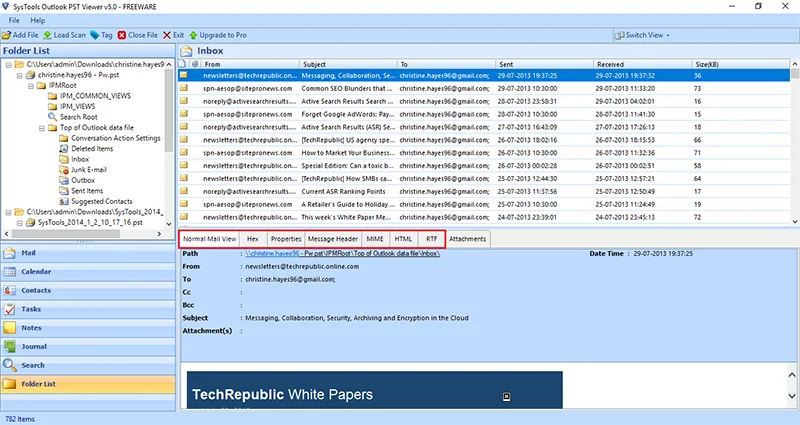
The easiest way to open Outlook Data File without Outlook is to use a Sys Tools PST viewer that can read the file directly.
Here is how it works:
- Open a PST viewer on your computer.
- Browse and select your Outlook Data File.
- Load or scan the file.
- Open the required mailbox folder.
- View emails, attachments, contacts, and other available items.
You do not need to configure an email account or install Microsoft Outlook just to check the data stored in the file.
Open Outlook Data File Without Outlook Step by Step
If you already have the Outlook Data File and only need to access its contents, follow these steps.
Step 1: Find Your Outlook Data File
First, locate the file you want to open. If you know where it is saved, go directly to that folder.
You may have received the file from:
- An old computer
- A previous Outlook backup
- An external hard drive
- A USB drive
- A company email archive
- Another user or system administrator
If you have multiple files, select the one that contains the emails or mailbox data you need.
Step 2: Keep a Copy of the Original File
Before opening an important file, make a copy and keep the original in a safe location.
This is especially useful if the Outlook Data File contains old business emails, client messages, invoices, records, or other important information.
A copy gives you an extra layer of safety while you view or work with the data.
Step 3: Open the File in a PST Viewer
To open Outlook Data File without Outlook, use a PST viewer that supports direct file access.
Launch the viewer and select the option to browse or add your file. Choose the Outlook Data File from its saved location.
The tool will read the mailbox structure and show the available folders.
Step 4: Browse Your Mailbox Folders
After loading the file, you can open the folders stored inside it.
Depending on your data, you may see folders such as:
- Inbox
- Sent Items
- Drafts
- Deleted Items
- Archive
- Junk Email
- Custom folders
This makes it easier to go directly to the location where the required email is stored.
For example, if you want to check an old received email, open the Inbox folder. If you are looking for an email you previously sent, check Sent Items.
Step 5: Open and Read Your Emails
Select an email to view its details.
A PST viewer can help you check information such as:
- Email subject
- Sender name
- Recipient details
- Date and time
- Email message
- Attached files
This allows you to read old Outlook emails even when Microsoft Outlook is not available on your computer.
What Can You View After Opening an Outlook Data File?
When you open Outlook Data File without Outlook, the information you can access depends on what is stored inside the file.
Here are the main types of data users commonly need to view.
Emails
Emails are usually the main reason for opening an old Outlook Data File.
You can browse through mailbox folders and read individual messages. This is helpful when you need to find an old conversation, customer email, project update, or important business record.
Inbox and Other Folders
You can view the mailbox folder structure and move between different folders.
This helps when you already know where the required email is likely to be stored.
For example:
- Check Inbox for received emails.
- Check Sent Items for previously sent messages.
- Check Archive for old emails.
- Open custom folders for project-specific or client-specific messages.
Attachments
Many users need to access an Outlook Data File because an important document is attached to an old email.
After finding the required message, you can check whether it contains attachments.
This can help you locate old documents, reports, images, invoices, and other files that were sent or received through Outlook.
Contacts
If contacts were saved in the Outlook Data File, you may be able to view the available contact information.
This is useful when old email addresses or business contact details are stored only in the Outlook data.
Calendar and Other Items
Some Outlook Data Files may also contain calendar entries, tasks, or notes.
A suitable viewer can help you access these items if they are present in the file.
Why Can't You Open an Outlook Data File Directly?
An Outlook Data File is not like a PDF, Word document, or image file that you can normally open by double-clicking it.
The file stores mailbox data in a format that needs compatible software to read its contents.
If Outlook is installed, users can normally access the file through Outlook. However, if Outlook is not available, you need another compatible solution to read the data.
That is why a PST viewer is useful. It is designed to read the Outlook Data File and display its contents without requiring you to install and configure Outlook.
Can You View Outlook Data File Without Installing Outlook?
Yes. You can view a supported Outlook Data File without installing Outlook by using software designed to read that file.
This is a useful option when:
- Outlook is not installed
- Your old computer is no longer available
- You only need to read old mailbox data
- You want to check a backup file
- You need to find an old email
- You need to locate an attachment
- You want to view contacts or other stored items
You can access the saved data without setting up the original Outlook profile or email account.
What Should You Look for in a PST Viewer?
Before choosing a tool to open Outlook Data File without Outlook, check whether it provides the features you actually need.
A useful PST viewer should help you:
- Open the file without Outlook
- View the complete folder structure
- Read emails
- Check email details
- Find messages in large files
- View attachments
- Access contacts
- View calendar items when available
- Open old Outlook data safely
If your goal is only to view and check the contents, choose a solution that is simple and easy to use.
The SysTools PST Viewer can help users open PST files and browse emails, folders, contacts, and attachments without depending on Outlook for viewing the file.
Common Problems When Opening an Outlook Data File
The File Does Not Open
First, make sure you selected the correct file. Check the file name and extension before opening it.
Also, avoid changing the file name or file extension just to make it open.
You Cannot Find the Email You Need
Check other folders such as Archive, Sent Items, Deleted Items, or custom folders.
If the file is large, use available search options to find the message using the sender, subject, date, or other known details.
You Need an Old Attachment
Find the related email first. Check the message details and look for the attached file.
Remember that an attachment can only be accessed if it was stored with the email inside the Outlook Data File.
You Have More Than One Outlook Data File
Open the files one at a time and check the folder structure. This helps you identify which file contains the required mailbox data.
Final Thoughts
If you have the file but no longer have Microsoft Outlook, you can still access your saved mailbox data. The easiest way to open Outlook Data File without Outlook is to use a compatible PST viewer that reads the file directly.
You can then browse your Inbox, Sent Items, Archive, and other folders, read old emails, find attachments, and view other available data.
The most important step is to use the right solution for your file and keep the original copy safe. Whether you need one old email or want to check an entire mailbox archive, a PST viewer can help you open Outlook Data File without Outlook and access the information you need.