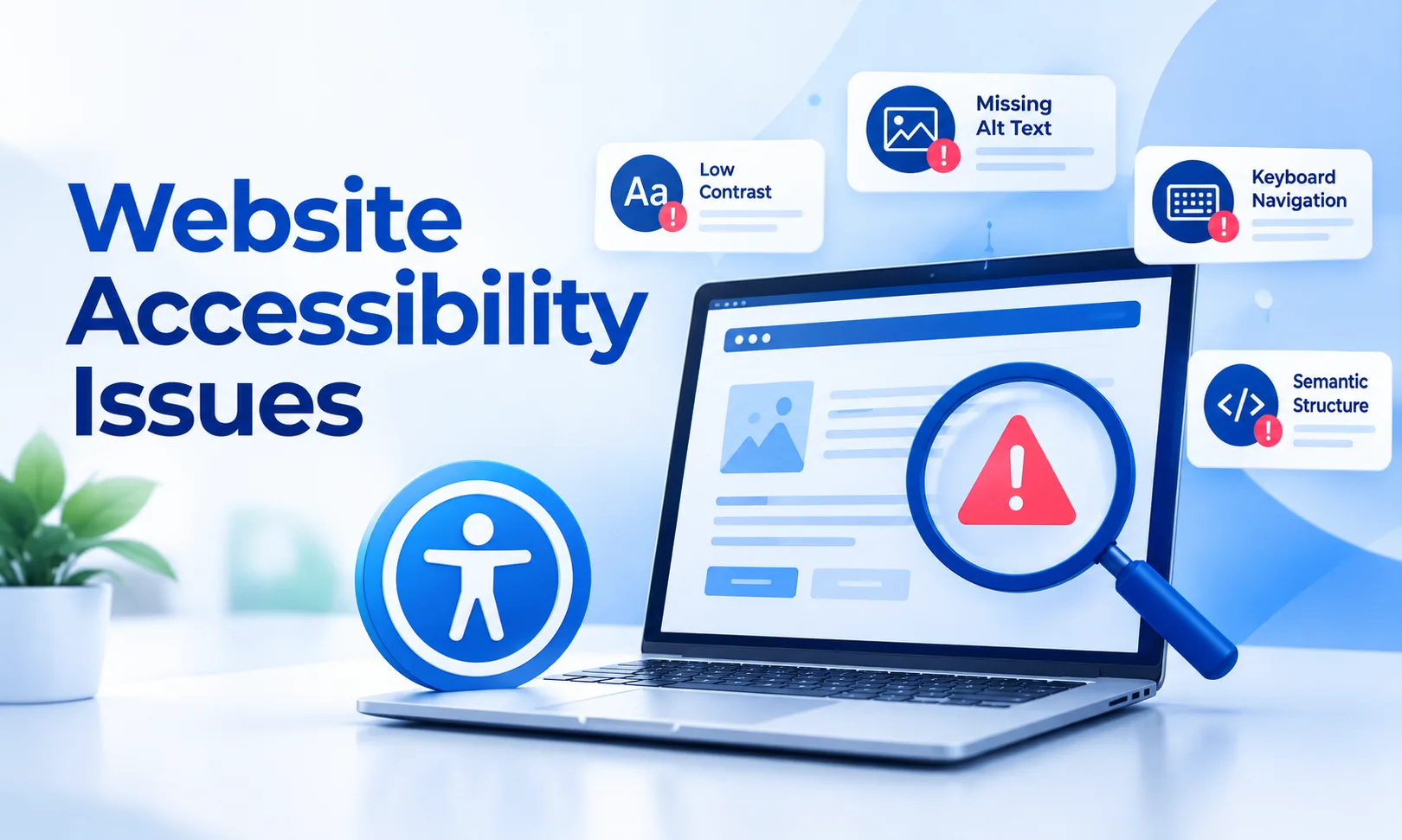
To find website accessibility issues, run your pages through an accessibility checker that tests them against WCAG standards. The tool flags barriers such as missing alt text, weak color contrast, and unlabeled form fields, shows where each one sits in the code, and suggests a correction, giving your team a prioritized list to work through.
What Is Web Accessibility and Why Does It Matter?
Web accessibility is the practice of building websites that people with visual, hearing, motor, and cognitive disabilities can use without barriers. It widens your audience, improves usability for every visitor, and reduces legal exposure under rules such as the ADA and the European Accessibility Act. Clear structure also helps search engines and AI assistants understand your content. For the standards behind these checks, read our guide to WCAG compliance for business websites.
How Does a Web Accessibility Checker Work?
A web accessibility checker loads a page, reads its HTML, and compares headings, images, links, forms, colors, and keyboard behavior against recognized guidelines. Each result names the affected element, the rule it breaks, and the recommended correction. Automated scans are fast and consistent across hundreds of pages, but they cannot judge everything, so pair them with manual checks such as moving through a page with only a keyboard.
What Are the Top 10 Accessibility Issues?
The Top 10 Accessibility Issues appear on sites of every size. This table shows what causes each one, who it affects, and how to resolve it.
Accessibility Issues, Causes, Impacts, and Fixes
1. Missing Alt Text
Common cause: Images uploaded without descriptions.
Impact on users: Screen reader users cannot understand the meaning of images.
Fix: Add short descriptions to meaningful images and leave decorative images empty.
2. Low Color Contrast
Common cause: Light text on pale backgrounds.
Impact on users: Users with low vision may struggle to read the content.
Fix: Darken the text or background to improve contrast.
3. Unlabeled Form Fields
Common cause: Placeholders used instead of labels.
Impact on users: Screen readers may announce fields without meaningful labels.
Fix: Add visible labels linked to their respective form fields.
4. Vague Link Text
Common cause: Links use phrases like “click here.”
Impact on users: Link lists become confusing and difficult to navigate.
Fix: Use descriptive link text that explains the destination.
5. Broken Heading Order
Common cause: Headings chosen based on visual size.
Impact on users: Screen reader users may find it difficult to navigate the page structure.
Fix: Use logical heading levels in the correct order.
6. No Keyboard Access
Common cause: Mouse-only scripts or controls.
Impact on users: Users with motor impairments may be unable to use the website.
Fix: Ensure every interactive control is keyboard-accessible and focusable.
7. Missing Page Language
Common cause: Page language is not declared.
Impact on users: Speech tools may mispronounce text.
Fix: Set the correct page language using the HTML lang attribute.
8. No Captions
Common cause: Videos published without captions or text.
Impact on users: Deaf and hard-of-hearing users may miss important content.
Fix: Add accurate captions and transcripts.
9. Unclear Error Messages
Common cause: Generic messages such as “invalid input.”
Impact on users: Users cannot identify or correct their mistakes.
Fix: Clearly explain the problem and how to fix it.
10. Focus Traps
Common cause: Poorly designed pop-ups or dialogs.
Impact on users: Keyboard users may get stuck and be unable to navigate away.
Fix: Allow users to close dialogs and return focus to the appropriate element.
What Does an Accessibility Issue Look Like in Practice?
Picture a checkout page where each field uses placeholder text instead of a label. A sighted shopper sees the hints, but a screen reader user hears "edit text" five times and cannot tell which box holds the card number. The purchase is abandoned. Because the same template powers 200 product pages, one correction to that template repairs every page. A checker reveals these patterns quickly.
How to Fix Accessibility Issues After a Scan
Start with barriers that block users completely, such as keyboard traps and unlabeled fields, then move to visual and content improvements. Rescan after each change to confirm the issue is gone and nothing new appeared. Keep a simple log of what was found, who fixed it, and when. Our checklist on how to fix accessibility issues faster can help your team stay organized.
How Often Should You Check Your Website?
Check after every major release and schedule a full review monthly or quarterly, depending on how often content changes. New pages, plugins, and design updates can introduce fresh barriers, and regular scans stop small problems from becoming expensive rebuilds.
Key Takeaways
Scan to locate problems, fix blockers first, confirm with a rescan, and repeat on a schedule. Combine automated results with manual testing for the most reliable outcome.
Ready to Find and Fix Your Accessibility Barriers?
The Tranistics Data Technologies accessibility checker tool scans your pages, highlights every barrier, and gives clear guidance so your team can fix problems with confidence. Instead of guessing where your site falls short, you see exactly what needs attention and what to do next.
Run your first scan today and discover what is hiding on your most important pages. Every barrier you remove brings in more visitors, builds trust, and protects your brand. Start now with the Tranistics Data Technologies accessibility checker tool.
Tranistics Data Technologies Private Limited helps businesses build inclusive, compliant, and user-friendly digital experiences. Contact our team today to book a demo and make your website accessible for every user.