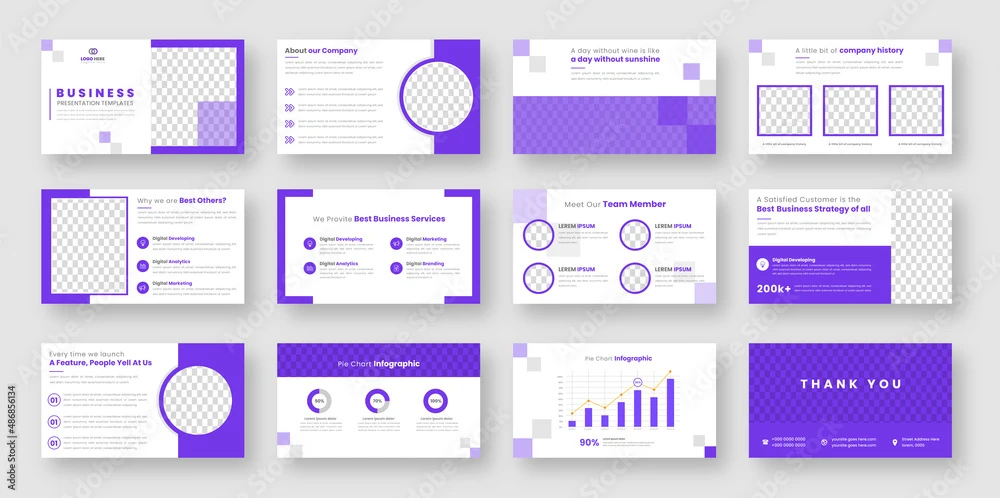
Creating interactive presentations is an essential skill in today’s fast-paced, digitally-driven world. Whether you're a teacher, business professional, or marketer, interactive presentations engage your audience more effectively than traditional slide decks. They promote participation, maintain attention, and foster better knowledge retention. One of the best ways to streamline the development of such presentations is through creating custom templates. These templates serve as a reusable framework that can be modified to suit a variety of topics, settings, and audiences.
Understanding Interactive Presentations
Interactive presentations go beyond the one-way delivery of information. They involve the audience in various ways—quizzes, polls, clickable elements, embedded videos, real-time feedback, or even gamification. This two-way communication model allows the presenter to adapt the flow of content based on audience responses, making the entire experience more personalized and dynamic.
The effectiveness of an interactive presentation largely depends on how it’s structured. That’s where templates come in. By designing templates specifically geared toward interaction, you can save time while ensuring your presentations are consistently engaging and on-brand.
The Purpose of Presentation Templates
Templates serve as the backbone of any presentation. They offer a standardized layout and design, making it easy to plug in new content without rethinking the structure every time. For interactive presentations, templates can do even more:
- Provide built-in interactive elements such as navigation buttons, quizzes, and activity prompts.
- Ensure consistency in visual branding (colors, fonts, logos).
- Guide the presenter with prompts or cues embedded in slide notes.
- Streamline collaboration among team members who work on different parts of the presentation.
Planning Your Template
Before you open your design tool, take time to plan. Ask yourself a few essential questions:
- Who is your audience? Understanding your audience helps you determine the level of interactivity and the appropriate tone.
- What is your primary objective? Is the goal to educate, inform, persuade, or entertain?
- How will the audience interact? Will they be using clickers, responding on mobile devices, or participating verbally?
With these answers, you can sketch a rough layout or storyboard. This plan should highlight key interactive elements, how navigation flows from slide to slide, and the types of media you want to include.
Designing the Template
The visual design of your template is crucial. It sets the tone and influences how the audience perceives your content. Here are some best practices:
1. Use a Grid System
A grid ensures consistency in placement of text, images, and interactive elements. It also makes your slides easier to read and follow. Decide on margins, columns, and rows before you start placing content.
2. Stick to a Cohesive Color Scheme
Choose a color palette that aligns with your brand or the mood you want to evoke. For example, blue and green tones suggest calm and trust, while reds and oranges bring energy and urgency.
3. Limit Fonts to Two or Three
Too many fonts can look chaotic. Choose one font for headings, one for body text, and possibly a third for accent or emphasis. Make sure all fonts are legible, even from a distance.
4. Use High-Quality Visuals
Images, icons, and videos should be high-resolution. Avoid generic stock photos. Instead, opt for visuals that enhance the message or facilitate interaction.
5. Include Slide Masters
Slide masters are essential for maintaining design consistency. In most presentation software, you can set up multiple slide master layouts—for example, a title slide, a content slide, an interaction slide, and a quiz slide.
Embedding Interactivity
Once the visuals are in place, you can start embedding interactive elements. Here are several common types:
Navigation Buttons
Allow users to jump to different sections of the presentation. Use “Next,” “Back,” and “Home” buttons or icons to create non-linear navigation. This is especially useful for self-paced learning modules.
Clickable Content
Create hotspots or clickable areas that reveal additional information. For example, clicking on an icon might display a pop-up with statistics, definitions, or tips.
Embedded Polls and Quizzes
Use tools like Slido, Mentimeter, or Microsoft Forms to embed live polls and quizzes. These can be inserted via hyperlinks or embedded web objects.
Drag-and-Drop Activities
In certain software like Adobe Captivate or Articulate Storyline, you can create drag-and-drop interactions that help learners test their understanding in a hands-on way.
Animated Feedback
Animations and transitions can provide immediate feedback on interactions. For instance, if a user selects the correct answer in a quiz, a green checkmark might appear with an encouraging message.
Building for Reusability
The main advantage of using templates is reusability. To ensure your template can be used multiple times and by different users, follow these tips:
- Keep placeholder text and media where new content will go.
- Use content guides or notes to help users know what type of content is expected in each section.
- Avoid hardcoding information specific to one presentation, such as dates or event names.
- Provide version control or documentation to help others make edits without disrupting the core structure.
Software Tools and Considerations
There are several tools you can use to create templates for interactive presentations. Each has its strengths:
- Microsoft PowerPoint is one of the most widely used tools for creating interactive presentation templates. With features like slide master, action buttons, and support for third-party plugins, PowerPoint templates can be customized for nearly any need.
- Google Slides is excellent for real-time collaboration. While slightly less powerful in terms of native interactivity, it integrates well with Google Forms and other tools.
- Keynote offers beautiful design features and smooth animations, particularly suited for Apple users.
- Articulate 360 and Adobe Captivate are geared toward e-learning and offer advanced interactive features.
- Canva and Visme provide modern design templates and easy-to-use drag-and-drop interfaces for non-designers.
When selecting a platform, consider your team’s technical skills, the presentation setting, and whether the audience will be interacting live or asynchronously.
Testing Your Template
Before rolling out your template for use, test it thoroughly:
- Check all links and buttons to ensure they work correctly.
- Test compatibility across different devices and software versions.
- Solicit feedback from a sample audience or peer group to identify any usability issues.
- Run a dry rehearsal to make sure all interactive elements function as intended.
Training Others to Use the Template
If your template will be used by other presenters or team members, provide a brief user guide or training session. This can include:
- A quick walkthrough of slide types.
- Instructions on how to add or replace interactive elements.
- Best practices for maintaining consistency and brand integrity.
- Tips for live presentation techniques that complement the interactivity.
Keeping Templates Updated
Technology and presentation styles evolve, so it’s important to revisit your templates periodically. At least once a year, evaluate whether the template still meets your needs. Look for:
- Outdated content or design elements.
- New features in your presentation software that could enhance interactivity.
- Feedback from users or audiences that suggests improvements.
Making updates ensures your presentations remain fresh, functional, and effective.
Final Thoughts
Creating templates for interactive presentations may take time upfront, but it pays off through improved audience engagement, consistent branding, and greater efficiency. Whether you're crafting educational sessions, sales pitches, or training modules, having a ready-to-go interactive framework makes your job easier and your message stronger.
PowerPoint templates and similar frameworks serve as the foundation for building immersive and impactful experiences. By incorporating thoughtful design, embedded interactivity, and reusable components, you ensure that every presentation you deliver has the potential to captivate and connect with your audience.