The release of iOS 26 has brought a significant transformation to how we handle daily communication on our iPhones. With the introduction of the Liquid Glass design language, the interface is more fluid than ever, but the real value lies in the functional upgrades to the Phone app. One of the most requested features—the ability to schedule return call reminders directly from your call history—is finally here. This tool is designed for busy professionals and individuals who often find themselves unable to answer a call in the moment but need a reliable way to ensure they follow up later.
Managing your calls effectively is essential, especially if you are using a high-performance device like an iphone 16 pro refurbished to stay productive. The new system integrates the Phone app with the Reminders app more deeply than in any previous version of iOS. Instead of manually opening a separate app to type out a note, you can now trigger a callback alert with a simple gesture. This ensures that no important conversation falls through the cracks, whether it is a business inquiry or a quick catch-up with family.
Step by Step Guide to Setting Call Reminders
To begin using this feature, you must first ensure your device is updated to at least iOS 26. The process starts within the Phone app, which now features a unified layout for easier navigation. Open the Phone app and navigate to the "Recents" tab at the bottom of the screen. Here, you will see your full call history, including missed, outgoing, and incoming calls.
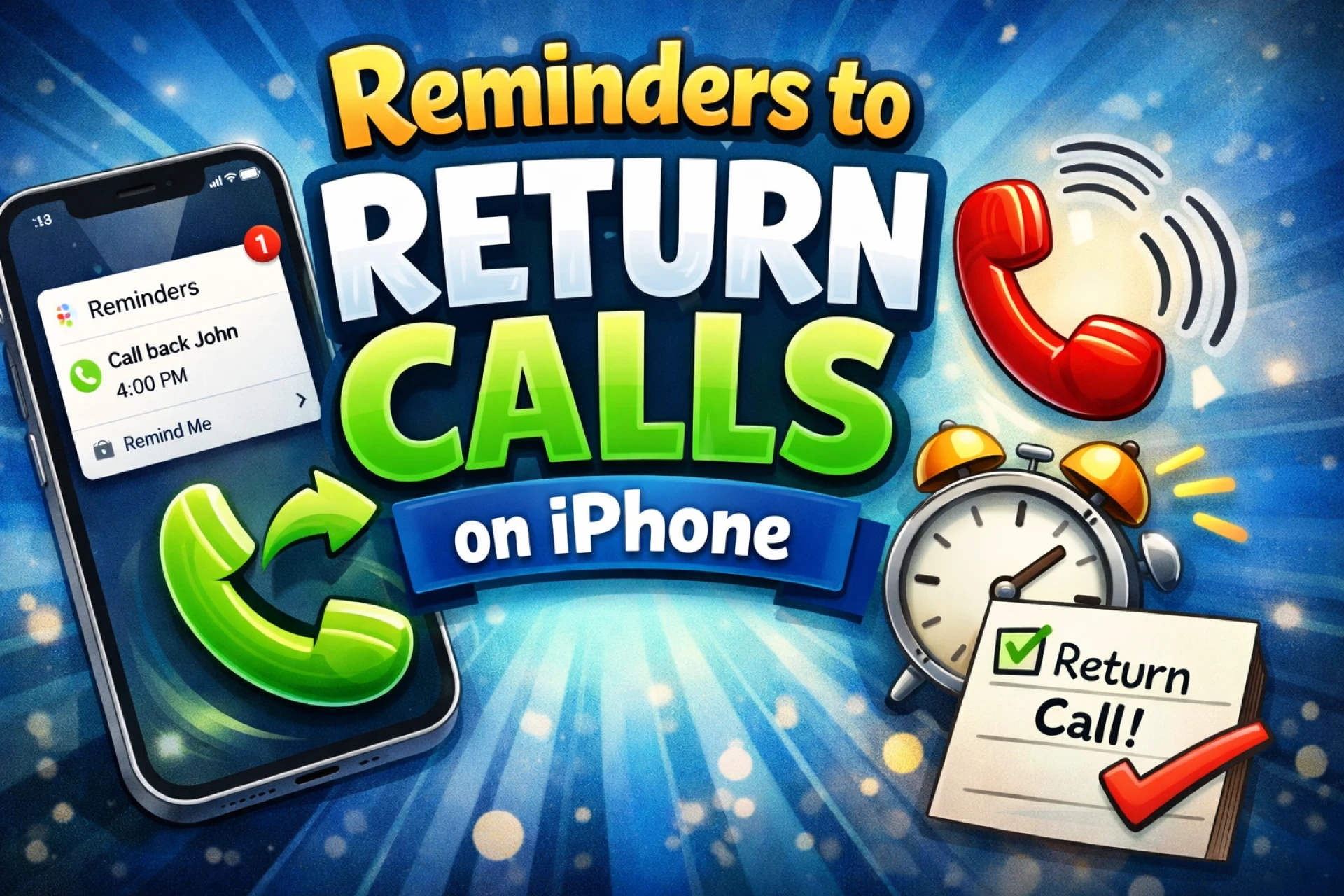
Once you identify the specific number or contact you need to call back, swipe left on that entry. In previous versions, this gesture was primarily used for deleting a call from the log. However, in iOS 26, swiping left reveals a new blue clock icon alongside the traditional delete option. Tap this clock icon to open the scheduling menu. You will be presented with several preset options: remind me in 1 hour, tonight, or tomorrow. For those who need a more specific time, selecting "Remind Me Later" allows you to pick a custom date and time using the calendar picker.
Customizing Your Follow Up Alerts
The power of the iOS 26 reminder system is its flexibility. When you choose to set a custom reminder, the system does more than just set a timer. It creates a rich-link reminder that includes the contact’s name and phone number. This means that when the notification appears on your Lock Screen or in your Dynamic Island, you can initiate the call with a single tap rather than searching through your contacts again.
For users who have opted for an iphone 16 refurbished to enjoy premium features at a better value, this software integration highlights how Apple maximizes hardware efficiency. You can even add specific notes to these reminders. For instance, if a client called to discuss a specific project, you can jot down a quick note within the reminder interface so that you have the context ready the moment you hit the call button. At EasyPhones, we see many users upgrading to these newer models specifically to take advantage of such productivity-focused software enhancements that make daily life smoother.
Managing and Completing Your Reminders
Once a return call reminder is set, it is automatically synced with the Apple Reminders app. This is particularly useful if you use multiple Apple devices, as the reminder will appear on your iPad or Mac as well. If your schedule changes and you need to push the call to a later time, you don't need to go back to the Phone app. Simply open the Reminders app, find the "Call Back" smart list, and edit the time or date.
In iOS 26.2 and later, Apple introduced an "Urgent" toggle for these reminders. If you mark a return call as urgent, the notification will bypass certain Focus modes or Mute settings to ensure you don't miss the window. When you finally make the call, the system is smart enough to ask if you’d like to mark the reminder as complete. Alternatively, you can manually tap the empty circle next to the task in the Reminders app to clear it from your list.
Finding the Right Device for iOS 26 Features
The advanced communication features of iOS 26 are best experienced on hardware that can keep up with the new "Liquid Glass" animations and background processing. If you are looking for a reliable second hand iphone in india to run the latest software, it is important to choose a source that prioritizes quality and testing. Newer features like Apple Intelligence-driven call screening and automated reminders work most fluidly on recent generations of the iPhone.
EasyPhones provides a curated selection of devices that are fully compatible with the latest updates, ensuring that you get the most out of features like the new callback system. By choosing a high-quality refurbished model, you can access the latest iOS innovations without the steep price tag of a brand-new unit. This makes it easier for everyone to stay organized and connected in an increasingly fast-paced digital environment.
Advanced Tips for Call Scheduling
To further optimize your workflow, consider using Siri to manage these reminders hands-free. You can simply say, "Siri, remind me to call John back in two hours," and the system will automatically create the reminder with the contact link attached. Additionally, the new "Hold Assist" and "Call Screening" features in iOS 26 work in tandem with reminders to help you filter which calls actually require a scheduled follow-up.
By mastering these small but powerful tools, you can reclaim control over your time. No longer do you have to worry about forgetting a missed call or losing a piece of paper with a phone number scribbled on it. With iOS 26 and a dependable device, your entire communication history is organized, actionable, and always at your fingertips.