
If you manage accounting files for multiple clients, the question you hear most often before a QuickBooks Desktop to Xero migration is simple: "Will I lose anything?"
It is a fair question. And the honest answer is: some things transfer cleanly, some things transfer with caveats, and a few things do not transfer at all. Knowing the difference before you start is how you protect your clients' books and your own reputation.
This guide covers what actually moves in a QuickBooks to Xero conversion, what does not, and what your firm can do to handle the gaps properly.
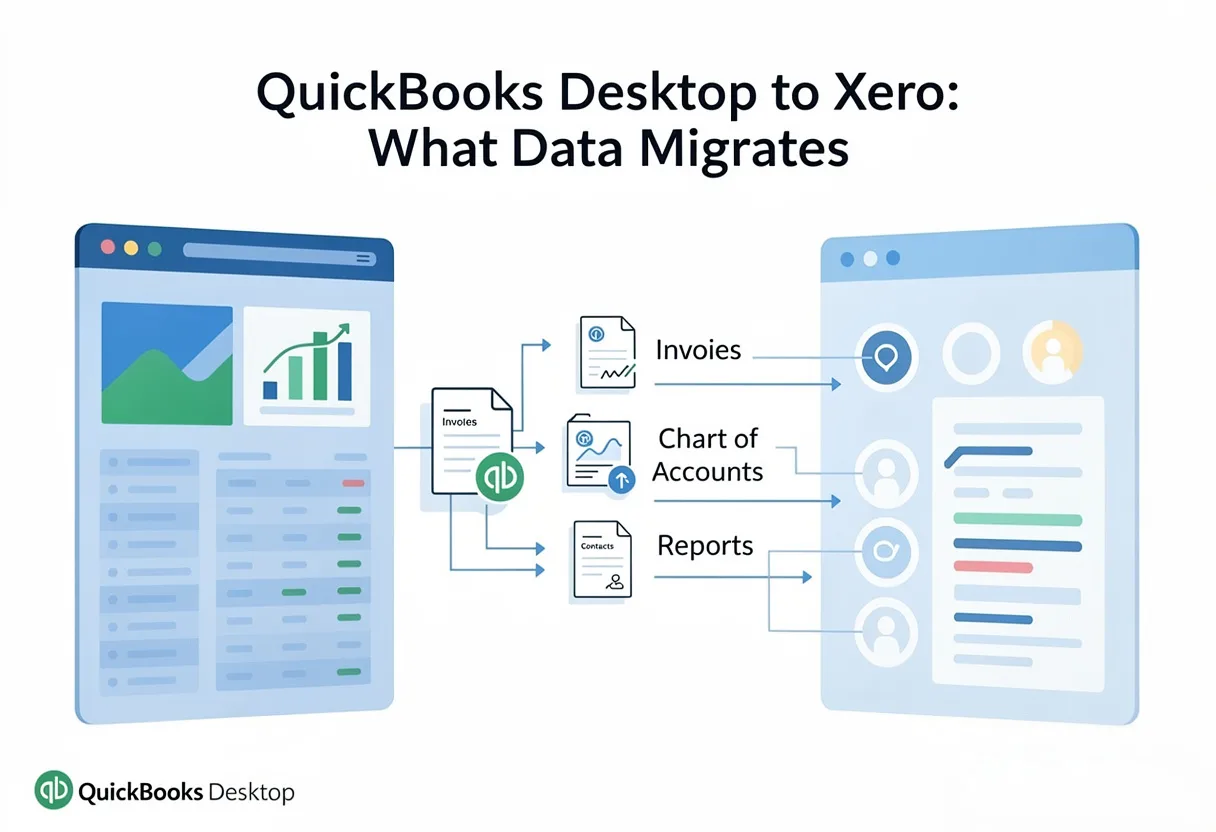
What Transfers in a QuickBooks Desktop to Xero Conversion
A well-executed QBD migration to Xero will carry over the financial data that matters most for ongoing operations and historical reporting.
Chart of Accounts
Your client's chart of accounts maps across first. Account names, numbers, and types transfer, though you will typically review the mapping before finalizing it. QuickBooks and Xero organize accounts differently in some areas, so the structure may shift slightly even if the underlying accounts are the same.
This is not the same as the general ledger. The chart of accounts is the framework; the general ledger contains all the actual transactions organized under that framework.
Transaction History
This is where most of the value sits. A professional QuickBooks Desktop to Xero migration service will convert your transaction history, including:
- Invoices and customer payments
- Bills and vendor payments
- Journal entries
- Bank deposits and withdrawals
- Credit notes
WOW BookSwitch converts transactions with 1–3 business day turnaround and includes up to the current year of data at the base $399 USD per conversion price. If your client needs additional years of historical data, each additional year is $100 USD. For accounting firms managing 30 or more files, a 15% volume discount applies.
Customer and Vendor Lists
Contact records for customers and vendors move over. Names, addresses, and contact details are transferred as part of the conversion.
Opening Balances
Opening balances on balance sheet accounts carry across, giving your client a clean starting point in Xero that agrees with where they left off in QuickBooks Desktop.
What Transfers with Caveats
Some data transfers, but not perfectly. You need to know about these gaps before you hand a converted file back to a client.
The Trial Balance, Balance Sheet, and Profit and Loss
After any QuickBooks to Xero conversion, you should run a three-way comparison: trial balance, balance sheet, and profit and loss. These three reports should agree between the source file and the converted file. If they do not, something went wrong in the conversion and correcting entries are needed to resolve the discrepancy.
WOW BookSwitch runs AI-powered validation combined with trained accountant review after every conversion. If discrepancies are found, correcting entries are applied before the file is delivered. The 95% accuracy guarantee covers this process.
Multi-Currency Files
Multi-currency conversions are more complex. Exchange rates, realized and unrealized gains, and foreign-currency balance reconciliation all require careful handling. QuickBooks Desktop and Xero treat multi-currency differently, so a file with significant foreign-currency activity needs extra validation after conversion. This is not a reason to avoid converting, but it is a reason to set appropriate expectations with your client before you start.
Inventory
Basic inventory items transfer, but complex inventory setups (assemblies, bills of materials, multi-location tracking) may not convert cleanly. If your client's business relies on detailed inventory management, you will want to review the Xero inventory configuration post-conversion rather than assume it matches the QuickBooks setup exactly.
What Does Not Transfer
This is the section most guides skip over. It is important.
Bank Feeds
Bank feed connections do not transfer. This is expected, and it applies to every QuickBooks to Xero migration service, not just ours. Bank feeds are live connections to financial institutions, and they need to be set up fresh in Xero. Your client will reconnect their accounts directly in Xero after conversion.
Payroll Data
Payroll data does not transfer in a standard QuickBooks Desktop to Xero conversion. Payroll history, employee records, and payroll runs stay in QuickBooks Desktop. If your client needs to maintain payroll history for compliance purposes, keep a copy of the QuickBooks file. In Xero, payroll will need to be set up from scratch using your jurisdiction's Xero Payroll module.
Attachments
Document attachments, such as scanned receipts or filed invoices attached to transactions, do not carry over. The transaction data converts; the attached files do not.
Custom Templates
Invoice templates, custom report formats, and other customized layouts are QuickBooks-specific. These need to be rebuilt in Xero after migration.
GIFI Code Mapping
For Canadian firms, GIFI code mapping is currently listed as coming soon in WOW BookSwitch. Do not count on this being available now. If CRA compliance and GIFI-mapped financials are part of your workflow, plan to handle that mapping manually in Xero after conversion.
Why This Matters for Accounting Firms Managing Multiple Files
When you are migrating from QuickBooks Desktop to Xero across a client portfolio of 50, 100, or 200 files, the data gaps above are not just technical inconveniences. They have practical implications for client communications, post-conversion review time, and regulatory obligations.
Here is a straightforward way to think about it:
For most commercial clients, the core financial data (chart of accounts, transaction history, contact records, opening balances) transfers well. The validation process confirms the numbers match before delivery. Your post-conversion work is mainly reconnecting bank feeds, confirming the chart of accounts structure in Xero meets your client's preferences, and advising on payroll setup.
For clients with complex inventory, significant multi-currency activity, or heavy payroll reliance, you need to scope the post-conversion work before the migration starts, not after.
How WOW BookSwitch Handles the Conversion
WOW BookSwitch is a professional QuickBooks Desktop to Xero migration service built specifically for accounting firms managing client portfolios.
Each conversion includes:
- Full transaction history conversion at $399 USD per file
- AI-powered validation followed by trained accountant review
- Correcting entries applied where discrepancies are found
- Six months of free backup via WOW Backup and Restore
- Canadian data routed through AWS Canada; US data through AWS US
For firms moving 30 or more files, the 15% volume discount reduces cost per conversion to approximately $339 USD.
The turnaround is 1–3 business days per file. For portfolio migrations, files can be batched to keep the schedule manageable.
Common Questions
Can I transfer QuickBooks data to Xero?
Yes. A professional QuickBooks Desktop to Xero migration service converts your chart of accounts, transaction history, customer and vendor records, and opening balances. Bank feeds, payroll history, and attachments do not carry over and need to be set up separately in Xero.
Can Xero import QuickBooks data directly?
Xero has a native import tool, but it is limited in scope and works best for small, simple files. For complex QuickBooks Desktop files with years of history, a professional conversion service like WOW BookSwitch is a more reliable approach.
What happens to historical transactions during a QBD migration to Xero?
Historical transactions convert as part of the migration. The base price at WOW BookSwitch includes the current year; additional years of history are $100 USD each.
Is the converted data validated for accuracy?
WOW BookSwitch validates every conversion against the source file using AI post-conversion checks combined with trained accountant review. The trial balance, balance sheet, and profit and loss are compared before delivery. The accuracy guarantee is 95%.
Do bank feeds transfer from QuickBooks to Xero?
No. Bank feeds are live connections to financial institutions and must be reconnected directly in Xero after migration. This applies to all QuickBooks Desktop to Xero migration services.
Does payroll data transfer in a QuickBooks to Xero conversion?
Payroll data does not transfer. Employee records, payroll history, and payroll runs remain in the QuickBooks Desktop file. Payroll needs to be configured fresh in Xero.
What about inventory data?
Basic inventory items transfer. Complex inventory setups (assemblies, multi-location, bills of materials) may require post-conversion review and adjustment in Xero.
What is the turnaround time for a QuickBooks Desktop to Xero migration?
WOW BookSwitch completes conversions in 1–3 business days. Accounting firms managing multiple client files can batch submissions to align with their migration schedule.
What does it cost to migrate from QuickBooks to Xero?
WOW BookSwitch charges $399 USD per conversion. Additional years of historical data cost $100 USD each. A 15% volume discount applies for 30 or more files.
What should I do with my QuickBooks Desktop file after migration?
Keep a copy. Payroll history, attached documents, and any custom reports stay in the QuickBooks file. WOW BookSwitch also includes six months of free backup via WOW Backup and Restore so you have a clean backup of the source data.
Before You Start: A Pre-Migration Checklist
Before you submit a file for QuickBooks Desktop to Xero conversion, confirm:
- You have a complete, up-to-date QuickBooks Desktop backup
- You know the date range of history you need converted
- You have noted any multi-currency or complex inventory activity
- You have communicated to the client that bank feeds and payroll will need to be set up fresh in Xero
- You have planned for GIFI code mapping if the client needs CRA-compliant financials (Canada)
Get Started
WOW BookSwitch converts QuickBooks Desktop files to Xero for accounting firms managing client portfolios. Pricing starts at $399 USD per file with volume discounts at 30+ files.
Visit: wowbookswitch.com to submit your first file or get in touch about a portfolio migration.
Related Hashtags:
#QuickBookstoxeroconversion #QBDMigrationtoXero #MigratefromQuickBookstoXero #QuickBooksDesktoptoXeroMigration #QuickBookstoXeroMigration #SwitchingFromQuickBookstoXero #XeroConversionToolbox #QuickBooksDesktoptoXeroConversion