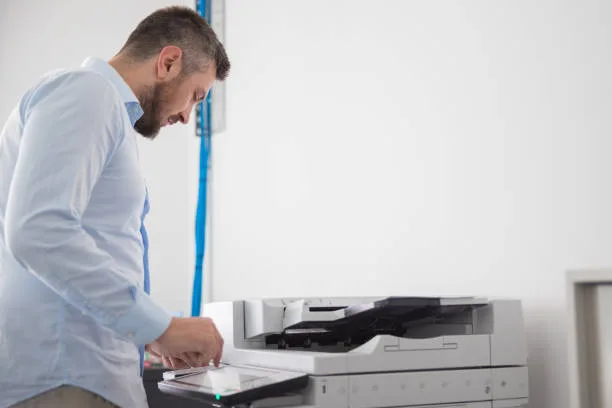
An A3 printer can be a useful addition to a home office, especially when you regularly print larger documents such as posters, presentations, architectural drawings, photographs, spreadsheets or marketing materials. However, like any printer, an A3 printer can occasionally experience problems such as paper jams, poor print quality, connection issues or incorrect paper sizing.
The good news is that many common A3 printer problems can be resolved without calling a technician.
Most common issues and how to troubleshoot them at home:
1. A3 Printer Will Not Turn On
If your A3 printer does not power on, start with the basics.
Check that:
- The power cable is securely connected to the printer and wall socket.
- The power outlet is working.
- The printer's power switch is turned on.
- Any power board or surge protector is switched on.
- There are no warning lights or error messages on the printer.
If the printer still does not respond, unplug it from the power outlet, wait for approximately 30 seconds and reconnect it.
If the printer repeatedly fails to power on, the issue may be related to the power supply or internal hardware and professional servicing may be required.
2. A3 Paper Is Not Feeding Correctly
Paper-feed problems are particularly frustrating when printing larger A3 documents.
First, check that the A3 paper is loaded correctly in the tray. Avoid overfilling the tray and make sure the paper guides are positioned against the paper without being too tight.
You should also check the condition of the paper. Damp, curled, damaged or heavily stacked paper can cause feeding problems.
Try these steps:
- Remove the paper from the tray.
- Fan the stack to separate individual sheets.
- Check for bent or damaged sheets.
- Reload the paper neatly.
- Adjust the paper guides.
- Confirm that the printer is configured for A3 paper.
If the printer continues to pull multiple sheets at once, its feed rollers may need cleaning or servicing.
3. A3 Paper Keeps Getting Jammed
A paper jam is one of the most common printer problems.
When an A3 printer displays a paper-jam warning, do not immediately pull the paper out with force. Carefully follow the printer's instructions for opening the relevant access panels.
Remove the jammed sheet slowly and check that no small pieces of paper remain inside the printer.
Then:
- Check the paper tray.
- Make sure the paper is correctly aligned.
- Avoid using damaged or curled paper.
- Check that the correct paper size is selected.
- Inspect the paper path for obstructions.
If paper jams happen repeatedly, the issue may be related to worn rollers, incorrect paper settings or an internal mechanical problem.
4. The Printer Is Printing on the Wrong Paper Size
If you select A3 but the printer produces the document on A4, check both your software and printer settings.
Your document settings should specify A3 paper size, while the printer driver should also be configured for A3.
For example, check:
Document settings → Paper size → A3
Then check the printer properties:
Printer settings → Paper size → A3
Also make sure A3 paper is actually loaded in the selected tray.
A mismatch between the document, printer driver and physical paper tray can cause incorrect sizing or printing errors.
5. A3 Prints Are Coming Out Blurry
Poor print quality can make an otherwise good A3 printer frustrating to use.
If your prints appear blurry, check whether the problem occurs with every document or only specific files.
Possible causes include:
- Low-quality source images
- Incorrect print settings
- Dirty printheads
- Low or faulty toner/ink
- Incorrect paper type
- Low print resolution
Try increasing the print quality setting for documents that require a sharper output. If you are printing photographs or graphics, use paper designed for the type of printing you are doing.
If the printer uses ink, running the manufacturer's printhead cleaning or alignment utility may also help.
6. A3 Printer Is Printing Faded or Uneven Pages
Faded printing may indicate low toner or ink, but that is not always the cause.
Check the printer's consumable levels first. If toner or ink is running low, replacing the relevant cartridge may resolve the problem.
If the levels are normal, try:
- Checking the selected print quality.
- Using the correct paper type.
- Running printer maintenance or cleaning functions.
- Restarting the printer.
- Printing a test page.
For laser printers, uneven or faded output can sometimes indicate an issue with the toner cartridge, imaging components or other internal parts.
7. A3 Printer Is Not Connecting to Wi-Fi
Wireless connectivity problems are common with home printers.
If your A3 printer cannot connect to Wi-Fi, first restart both the printer and your router.
Then check that:
- Wi-Fi is enabled on the printer.
- You have selected the correct wireless network.
- The Wi-Fi password is correct.
- The printer is within a suitable range of the router.
- Your computer or phone is connected to the same network.
If the printer was previously connected but suddenly stopped working, removing and reconnecting the printer to your wireless network may resolve the issue.
8. Computer Cannot Find the A3 Printer
If your computer cannot detect the printer, check whether the printer appears in your system's list of available devices.
If it does not, restart the printer and computer first.
You may also need to update or reinstall the printer driver. Using an outdated or incompatible driver can cause communication problems between your computer and printer.
For network printers, also confirm that both devices are connected to the same network.
9. A3 Printer Is Printing Too Slowly
Large A3 documents naturally take longer to print than smaller documents because they contain more printable area and may require more data processing.
However, if your printer suddenly becomes much slower than usual, check the print-quality settings.
High-resolution or high-quality modes can increase printing time. Complex graphics and large image files can also take longer to process.
If speed is more important than maximum print quality, try selecting a standard or normal print mode.
10. Printer Shows an Error Message
Modern A3 printers usually display an error code or message when something requires attention.
Instead of repeatedly restarting the printer, read the message carefully. It may indicate:
- Paper jam
- Low toner or ink
- Incorrect paper size
- Open printer door
- Maintenance requirement
- Connectivity problem
- Hardware fault
If the error message remains after following the printer's instructions, check the manufacturer's troubleshooting documentation for the specific error code.
How to Prevent Common A3 Printer Problems
Regular maintenance can reduce many common printing problems.
Keep your A3 printer in a clean, dry location and avoid placing it where excessive dust or moisture can enter the device.
You should also:
- Use the recommended paper type.
- Store paper in a dry environment.
- Avoid overloading paper trays.
- Keep printer software and drivers updated.
- Replace consumables when required.
- Clean the printer according to the manufacturer's instructions.
- Avoid forcing jammed paper from the machine.
Good maintenance can help improve reliability and extend the useful life of your printer.
When Should You Get Professional Printer Support?
Not every printer problem should be fixed at home. If your A3 printer repeatedly jams, makes unusual noises, produces severe print-quality problems or displays a persistent hardware error, professional support may be appropriate.
Avoid opening internal components unless the manufacturer specifically provides instructions for doing so. Incorrect handling can cause further damage or create a safety risk.
Frequently Asked Questions About A3 Printer Problems
Why is my A3 printer not printing A3 paper?
The document, printer driver or printer tray may be configured for a different paper size. Check that A3 is selected in your document settings, printer properties and physical paper tray.
Why does my A3 printer keep jamming?
Common causes include incorrectly loaded paper, damaged or curled sheets, overloaded trays, incorrect paper settings or worn feed rollers.
How do I fix poor-quality A3 prints?
Check toner or ink levels, paper type and print-quality settings. Running the printer's cleaning or alignment function may also improve output quality.
Why won't my A3 printer connect to Wi-Fi?
Restart the printer and router, confirm the correct Wi-Fi network and password, and make sure your computer or mobile device is connected to the same network.
Are A3 printers suitable for home offices?
Yes. An A3 printer can be useful for home offices that regularly produce larger documents, presentations, posters, spreadsheets, photographs or other materials. However, users who primarily print A4 documents may find a standard A4 printer more practical.
Final Thoughts
Troubleshooting an A3 printer does not always require technical expertise. Many common problems—including paper jams, incorrect paper sizes, connectivity issues and poor print quality—can be resolved by checking paper, settings, connections and consumables.
If problems continue despite basic troubleshooting, professional printer support can help identify whether the issue is related to hardware, maintenance or configuration. Choosing the right A3 printer for your home office and maintaining it correctly can also help ensure reliable, high-quality printing over the long term.