
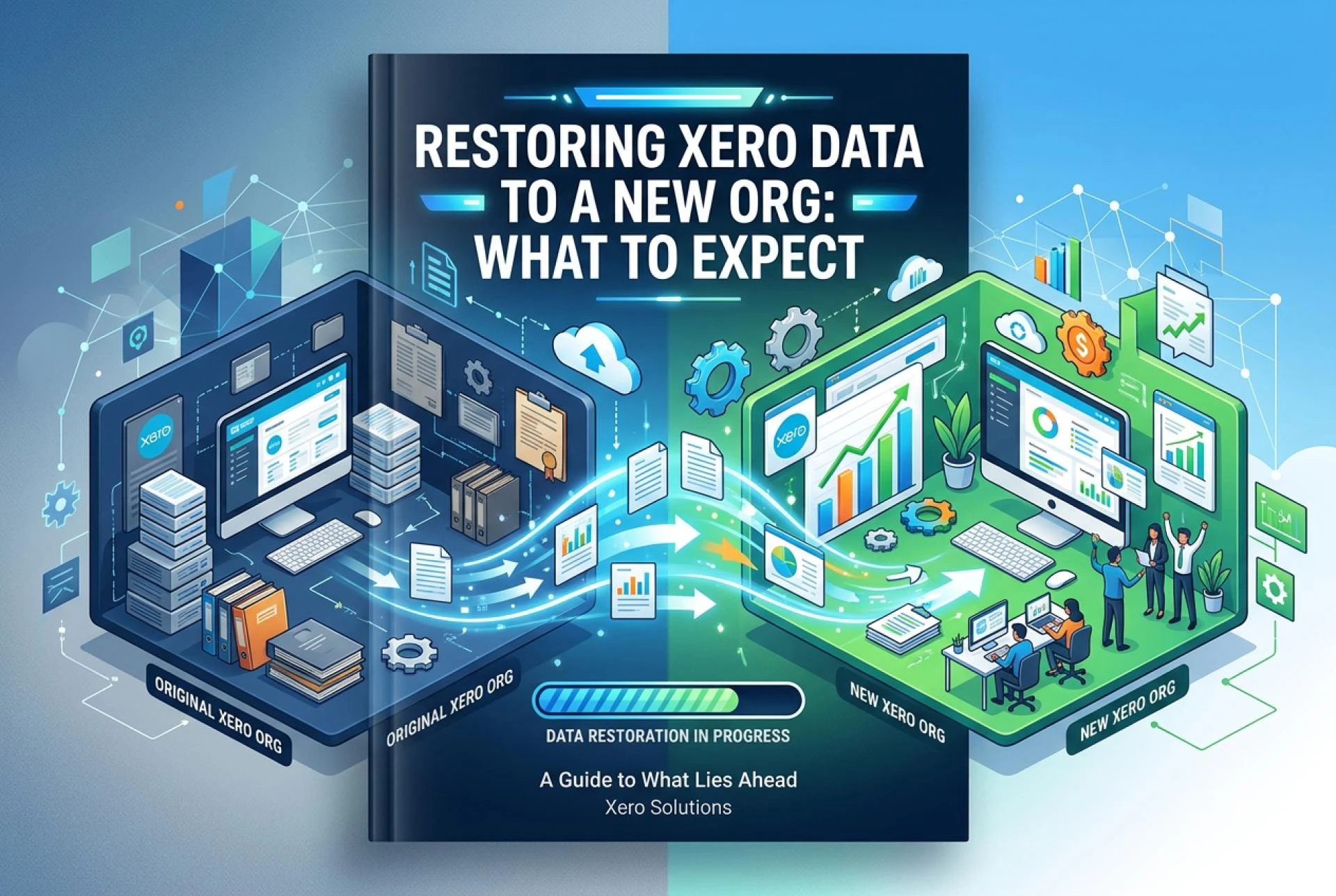
Most people setting up a Xero backup think about the backup half of the equation. What data gets captured, how often, where it lives. The restore half — what actually happens when you need to use it — gets far less attention.
That is a problem, because the restore is where backup meets reality. A backup you have never tested, and do not understand, is not a safety net. It is a file you are hoping will work when you are already under pressure.
This article walks through exactly what a Xero data restore involves, what WOW Backup and Restore backup and recovery Xero process looks like in practice, and what to plan for before you need it.
Why Restores Go to a New Xero Organisation
The first thing most people ask when they learn that WOWzer restores to a new Xero organisation is: why not the existing one?
The answer is straightforward. Xero does not support overwriting an existing organisation with external data. The platform's architecture does not allow an application to replace live data in a running organisation — which is, in most circumstances, exactly the kind of protection you want from your accounting platform.
What WOWzer can do is rebuild your organisation's data in a fresh Xero environment using the backup. The result is a complete, working Xero organisation containing your recovered data, sitting alongside your existing one. You then work from the recovered organisation, migrate specific data across, or use it as the reference point you need to resolve the issue in your original file.
This is not a limitation unique to WOWzer. It reflects how Xero works. Understanding it upfront means you can plan a recovery workflow before something goes wrong, rather than discovering it at the worst possible moment.
What Gets Restored in a Full Xero Backup
Before walking through the restore process, it helps to understand what WOWzer's full Xero backup actually captures. A complete backup includes:
- All transactions — invoices, bills, credit notes, payments, and journals
- Contacts — customers and suppliers with full history
- Chart of accounts — account codes, names, types, and tax settings
- Bank accounts and bank reconciliation history
- Tax rates and settings
- Tracking categories
- Attachments — receipts, invoices, contracts, and other source documents linked to transactions
This is a full backup, not a selective export of specific data types. Attachments are particularly important here. A backup that captures transactions but loses the source documents attached to them is not compliance-ready. When a tax authority asks for records, the expectation is transactions and the documents that support them.
The Restore Process: Step by Step
Step 1: Browse and Confirm Before You Commit
Before WOWzer initiates a restore, you can browse the backed-up data in the cloud. This is one of the most useful features in the platform and one of the most underused.
Browsing lets you confirm that the backup point you are about to restore from actually contains the data you need. You can check that specific transactions exist, that attachments are present, and that the time period you are targeting is the right one — all before committing to a restore.
For multi-org operations, this matters even more. You are not guessing whether a given backup captured the data. You are verifying it.
Step 2: Select the Organisation and Backup Point
From the WOWzer dashboard, you select the specific Xero organisation you want to restore and the backup point you want to restore from. WOWzer runs automated daily backups on a 7-day rolling cycle, so you have up to seven daily snapshots to choose from per organisation.
For most data events — accidental deletion, corrupted import, or a bulk operation gone wrong — the relevant backup is typically the one from the day before the issue occurred. The browse function in Step 1 helps confirm which point is correct.
Step 3: Restore to a New Xero Organisation
WOWzer initiates the restore and rebuilds the organisation in a structured sequence into a new Xero organisation. The process is approximately 98% automated. The sequencing matters: contacts are imported before invoices, payments are matched to the correct transactions, bank accounts are recreated before reconciliation history is restored. This is the part a generic tool cannot replicate — it requires understanding Xero's data model well enough to reconstruct it correctly.
The restore time depends on the size and complexity of the organisation. Smaller files with straightforward transaction histories complete faster. Larger organisations with years of data and extensive attachments take longer.
Step 4: Verify the Restored Organisation
Once the restore completes, verify the recovered organisation before doing anything else. The practical check is to compare the trial balance and profit and loss statement in the recovered organisation against the equivalent reports from your last known clean state — whether that is a printed report, a previous export, or the figures you remember from before the issue occurred.
This is a validation step, not an accounting audit. You are confirming the restore landed correctly, not performing a formal review engagement. If the figures match what you expect, the recovery is successful.
Step 5: Reconnect Integrations and Settings
This is the manual step most people encounter post-restore. Because the recovered organisation is a new Xero organisation, third-party integrations — payroll platforms, payment gateways, practice management tools, bank feeds — need to be reconnected. User access permissions need to be re-established. Some organisation-level settings may need to be reviewed.
The extent of this step depends on how many integrations the organisation had in place. For a straightforward Xero file with minimal third-party connections, it is quick. For a heavily integrated environment, plan for more time.
A Practical Scenario
Consider an accounting firm managing 40 Xero client organisations. During a routine end-of-month process, a staff member accidentally runs a bulk delete on transactions across a client's accounts receivable ledger. By the time it is caught, several months of invoice history and associated payments have been removed.
The firm opens WOWzer, selects the affected client organisation, and browses the backup from the previous day. The deleted transactions are confirmed present. A restore is initiated to a new Xero organisation. Once complete, the firm compares the trial balance in the recovered organisation against the client's last monthly report — figures match. They then use the recovered organisation as the reference to re-enter the missing data in the client's original live file, or simply work forward from the recovered one.
Total time from noticing the problem to having clean data: a few hours. Without a backup Xero strategy in place, the same scenario could have taken days and required the client's direct involvement to reconstruct from source documents.
What WOWzer Covers: Feature Summary
- Automated daily backups on a 7-day rolling cycle — every connected organisation, every day
- Full Xero backup including transactions, contacts, chart of accounts, bank reconciliation history, and attachments
- Browse and preview in cloud — inspect any backup point before restoring
- Full-organisation restore to a new Xero organisation — structured, sequenced, approximately 98% automated
- CSV export and download — all data archivable in portable format
- Regional data storage — data stays in the jurisdiction you select
- Single dashboard scaling from 1 to 5,000-plus organisations with one-click OAuth connection
Pricing: $9.95 per organisation per month. Available on the Xero App Store with a free trial.
Honest Limitations
WOWzer restores to a new Xero organisation. The restore is approximately 98% automated — not fully hands-free. Post-restore reconnection of integrations and settings requires manual steps. For complex organisations with extensive third-party connections, budget time for this phase.
These are predictable, plannable trade-offs. If your team knows about them in advance, they are not surprises. Build them into your recovery playbook so that when a restore is needed, the post-restore steps are a checklist, not an improvisation.
Plan the Recovery Before You Need It
The best time to understand the restore process is before you need it. If your team has never run a test restore in WOWzer, consider doing one on a non-critical organisation just to walk through the steps. Confirm that backups are running. Confirm that the browse function shows the data you expect. Know which integrations will need to be reconnected post-restore.
This takes an hour. It means that when a real data event happens, you are executing a plan rather than figuring out the process under pressure.
Start a free trial on the Xero App Store, connect your client organisations, and run that first backup Xero cycle. The restore capability is available from the moment the first backup completes.
Frequently Asked Questions
1. Does WOWzer restore to the existing Xero organisation or a new one?
WOWzer restores to a new Xero organisation. Xero does not support overwriting a live organisation with external data, so the recovery goes into a freshly created environment containing your restored data.
2. How long does a full Xero backup restore take?
It depends on the size and complexity of the organisation. Smaller files complete faster. Larger organisations with years of transactions and extensive attachments take longer. The process is approximately 98% automated — you initiate it and WOWzer handles the sequencing.
3. What data does a full Xero backup include?
Transactions, contacts, chart of accounts, tax settings, bank accounts, bank reconciliation history, tracking categories, and attachments. WOWzer's backup is comprehensive — not a selective export of certain data types.
4. Can I restore a Xero backup to any point in the last seven days?
Yes. WOWzer keeps seven daily backups per organisation on a rolling cycle, so you can select any of the last seven daily snapshots as your restore point. The browse function lets you confirm what each snapshot contains before you commit.
5. Do attachments get included in the backup and recovery Xero process?
Yes. Receipts, invoices, contracts, and other documents attached to Xero transactions are included in the backup and restored alongside the transaction data they belong to.
6. What integrations need to be reconnected after a restore?
Any third-party integrations connected to the original Xero organisation — payroll platforms, payment gateways, bank feeds, practice management tools — will need to be reconnected to the new restored organisation. User permissions will also need to be re-established.
7. Can I browse backup Xero files before deciding whether to restore?
Yes. WOWzer lets you browse and preview backed-up data in the cloud before initiating a restore. You can verify that specific transactions, records, or attachments are present before committing to the recovery.
8. How do I verify that the restore completed correctly?
Compare the trial balance and profit and loss statement in the recovered organisation against your last known clean figures. If the numbers match your expectations, the recovery landed correctly. This is a practical check, not a formal review engagement.
9. Can I use WOWzer to restore just one client organisation without affecting others?
Yes. Restores are scoped to the specific Xero organisation you select. Restoring one organisation has no effect on any other connected organisations in your dashboard.
10. What happens to backups of organisations where the Xero subscription has lapsed?
Backups captured during the active period remain accessible. This supports compliance scenarios where historical records need to be produced after a client relationship has ended.
Related Hashtags:
#XeroBackup #XeroBackupServices #XeroBackupSolutions #BackupXero #BackupXeroFiles