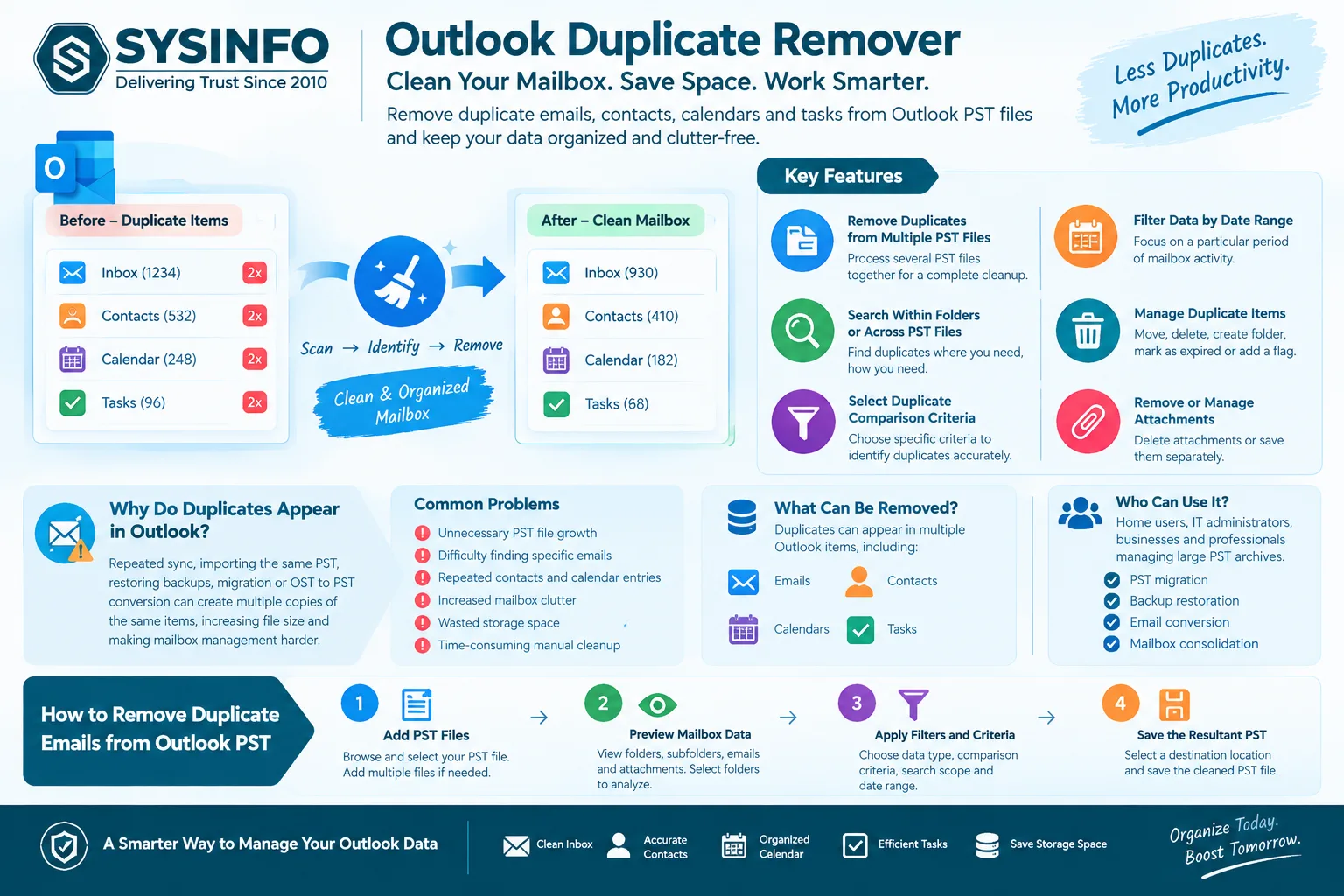
Duplicate emails and repeated Outlook items can quickly turn an organized mailbox into a cluttered one. When the same messages, contacts, calendar entries, or tasks appear multiple times, they consume storage space and make it harder to locate important information. The problem becomes more noticeable when users work with large PST files, multiple Outlook profiles, or PST files created during email migration and backup.
An Outlook Duplicate Remover can help identify and eliminate redundant mailbox items without manually checking thousands of emails. SysInfo Outlook Duplicate Remover Software is designed to scan Outlook PST files, identify duplicate items based on selected criteria, and create a new PST containing the required data without unnecessary duplicates.
Why Do Duplicate Emails Appear in Outlook?
Duplicate Outlook emails can occur for several reasons. Repeated synchronization, importing the same PST multiple times, restoring an old mailbox backup, or migrating data between accounts can result in multiple copies of the same message.
Duplicates may also appear after converting OST files to PST or combining information from different Outlook data files. Over time, this can increase the size of a PST and make mailbox management more difficult.
Common problems caused by duplicate Outlook data include:
- Unnecessary PST file growth
- Difficulty finding specific emails
- Repeated contacts and calendar entries
- Increased mailbox clutter
- Wasted storage space
- Time-consuming manual cleanup
Instead of reviewing every message individually, users can use dedicated Outlook duplicate remover software to analyze selected folders and identify redundant items.
What Can an Outlook Duplicate Remover Remove?
Duplicate data is not limited to emails. Outlook PST files can contain several types of mailbox information, and duplication can affect different categories.
SysInfo Outlook Duplicate Remover supports duplicate removal for Mail, Contacts, Calendars, and Tasks. Users can select specific folders or search for duplicates across multiple PST files.
This makes the tool useful for users who need to clean an entire Outlook data file rather than simply deleting repeated emails from the Inbox.
Key Features of SysInfo Outlook Duplicate Remover
Remove Duplicates from Multiple PST Files
For users managing several Outlook PST files, checking each file separately can be inconvenient. The software allows users to add multiple PST files and process them together. This can be useful after email migration, archiving, or PST consolidation.
Search Within Folders or Across PST Files
Users can choose whether to search for duplicate items within a particular folder or across PST files. This provides more control over the cleanup process and helps avoid unnecessary changes to unrelated mailbox data.
Select Duplicate Comparison Criteria
The software provides options for specifying criteria used to identify duplicate Outlook items. This is particularly useful when a mailbox contains a large number of messages and users need a more controlled deduplication process.
Filter Data by Date Range
The built-in filtering options allow users to specify a start and end date when searching for duplicate items. Instead of scanning everything, users can focus on a particular period of mailbox activity.
Manage Duplicate Items
After identifying duplicates, users can choose different actions, including moving items to a deleted folder, deleting them permanently, creating a new folder, marking items as expired, or applying a flag.
Remove or Manage Attachments
The software also provides options for managing attachments from selected PST folders. Users can remove attachments and save them separately when required.
How to Remove Duplicate Emails from Outlook PST
The process is designed around a simple four-step workflow:
Step 1: Add PST Files
Launch the Outlook Duplicate Remover and browse to the required Outlook PST file. Multiple PST files can also be selected for processing.
Step 2: Preview Mailbox Data
Preview the available folders, subfolders, emails, and attachments. Select the folders that need to be analyzed.
Step 3: Apply Filters and Criteria
Choose the relevant Outlook data type, comparison criteria, search scope, and date filters according to your requirements.
Step 4: Save the Resultant PST
Select a destination location and save the newly created PST file after duplicate items have been removed.
Who Can Use Outlook Duplicate Remover Software?
An Outlook duplicate remover can be useful for home users, IT administrators, businesses, and professionals managing large PST archives. It is particularly relevant when duplicate data has accumulated after PST migration, Outlook backup restoration, email conversion, or mailbox consolidation.
The SysInfo tool does not require Microsoft Outlook to be installed for the duplicate-removal process, according to the product documentation. However, Outlook is required if users later want to import the resulting PST back into Outlook.
Final Thoughts
Managing duplicate Outlook data manually can become difficult when PST files contain thousands of emails and other mailbox items. A dedicated Outlook Duplicate Remover provides a more structured way to scan, filter, and remove redundant information.
SysInfo Outlook Duplicate Remover supports multiple PST files, mailbox previews, date-based filtering, customizable duplicate criteria, and duplicate removal across emails, contacts, calendars, and tasks. These capabilities make it suitable for users who want to clean and organize Outlook PST data while retaining greater control over the deduplication process.