Migrating Lotus Notes to Outlook Without Losing Formatting or Files
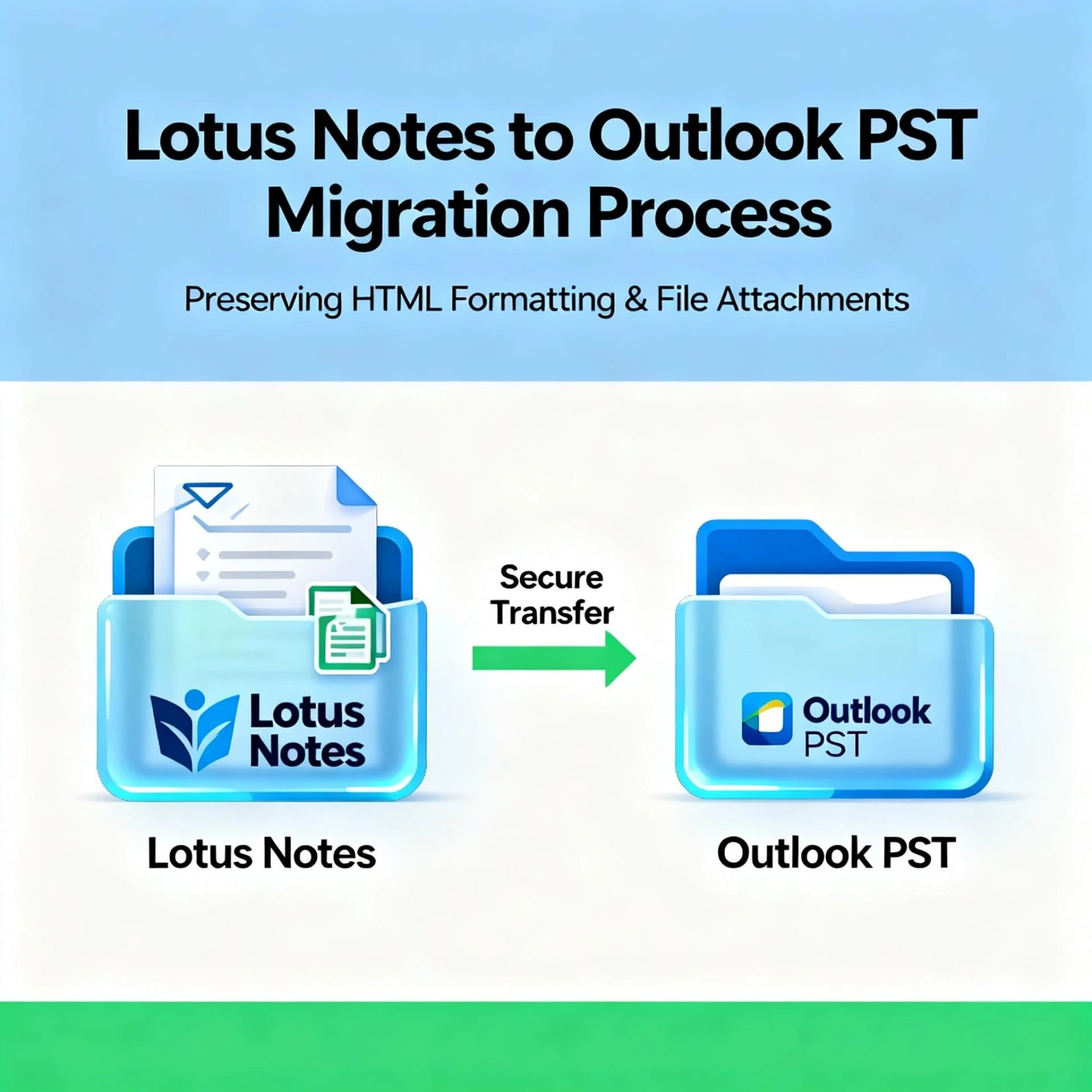
Many companies move from IBM or HCL Lotus Notes to Microsoft Outlook. This often happens as they seek a smoother email system. The main challenges include broken HTML layouts and missing attachments. These issues can lead to scrambled emails, lost images, or files that won’t open. However, you can convert NSF files to PST format and ensure that everything remains intact by following the correct procedure. Here’s a simple guide based on real experiences to help you.
Why HTML and Attachments Fail During Migration
Lotus Notes manages rich content, like MIME setups and embedded images, differently from how Outlook does with PST files.
Common issues include:
● Embedded pictures are turning into separate attachments or disappearing.
● Full HTML emails are being reduced to basic text due to poor MIME handling.
● Files are detaching or corrupting during the move.
● Calendar entries or contacts are losing important details.
Identifying these mismatches early helps you choose a method that keeps emails readable and functional.
Building a Solid Migration Strategy
Start by taking stock and setting limits. Review all your NSF files and mailboxes, noting their sizes, message counts, and access controls. Highlight important files—like those from sales teams or bosses who handle image-heavy newsletters—for special attention. Record setup limits, such as Windows machines, Notes and Outlook versions, downtime, and record-keeping rules. Decide on the project's scale, whether it’s just one person, a small group, or the entire operation, as this affects the tools and work needed.
Choosing Your Migration Method
You have a few options: manual export and import, using IMAP, or specialized NSF to PST software. If retaining HTML details and attachments is crucial, choose a dedicated converter. These tools are designed to protect those elements effectively.
Hands-On Export and Import: Only for Small Tasks
Exporting contacts or calendars into CSV or ICS files, or grabbing messages one by one, takes a lot of time and can lead to mistakes. Links to images inside emails often break, and formatting can suffer. Use this method only for a few items or quick fixes.
IMAP as a Middle Step: Hits or Misses
Set up Notes emails on an IMAP server first, then drag them into Outlook. This may work for simple emails, but rich content often gets messed up. MIME information may be lost, resulting in missing inline images or broken files. It’s not reliable for complex migrations.
Dedicated NSF to PST Tools: The Best Choice
These tools understand Notes' MIME and text formats, converting them to something Outlook can use without losing quality. When selecting a tool, look for features like:
● Scanning that works with Notes APIs or Domino setups to manage locks and permissions.
● Smooth transitions from rich text to MIME while keeping images and layouts intact.
● Checks to ensure attachments remain linked correctly.
● Options to preview content, select what to migrate, and handle large batches or pauses.
Checklist for Picking a Reliable Converter
Check if it requires a full Notes setup or Domino connection to access encrypted content. Confirm it preserves MIME elements or accurately rebuilds rich text. Look for batch processing and options to resume partial jobs. Ensure previews allow you to view HTML-packed emails ahead of time. Also, seek a free trial with solid guides to test it out.
Test Small Before Going Big
Don’t rush into a full migration without testing first. Select mailboxes that represent challenging cases, like promotional emails with graphics or files. Convert them to PST, load them into a trial Outlook setup, and check that images display inline with proper fonts and spacing. Make sure attachments open correctly, calendars retain repeats and guest lists, and nothing is missing.
Hands-On Advice for Keeping Things Intact
If needed, run the migration tool with a Notes environment active to access protected content. Choose software that closely follows the original MIME to avoid odd views later. Test with various email types, including related parts and different formats. Watch for how it handles special characters to prevent foreign names from becoming jumbled. Ensure your machine has ample storage and memory—large NSFs require plenty of space.
Wrapping Up After the Move
Distribute test setups or partial mailboxes so users can check their important files. Review a list: count messages, check formatting, and open attachments. Keep old NSF copies until everyone is satisfied, which provides a safety net if someone needs to reverse something.
Knowing When to Call in Backup
For locked NSFs, many accounts, or complex group schedules, consult experts or use advanced software. These situations need real knowledge of Domino and strong solutions to avoid losses.
Final Thoughts
Migrating from Notes to Outlook without losing HTML or attachments requires careful planning and the right tools. Avoid basic manual or IMAP methods for serious work. Choose a converter designed for Notes' quirks, test with challenging cases, and verify everything in Outlook before fully committing. With thorough testing, you'll keep emails intact and help teams regain focus without delay.