
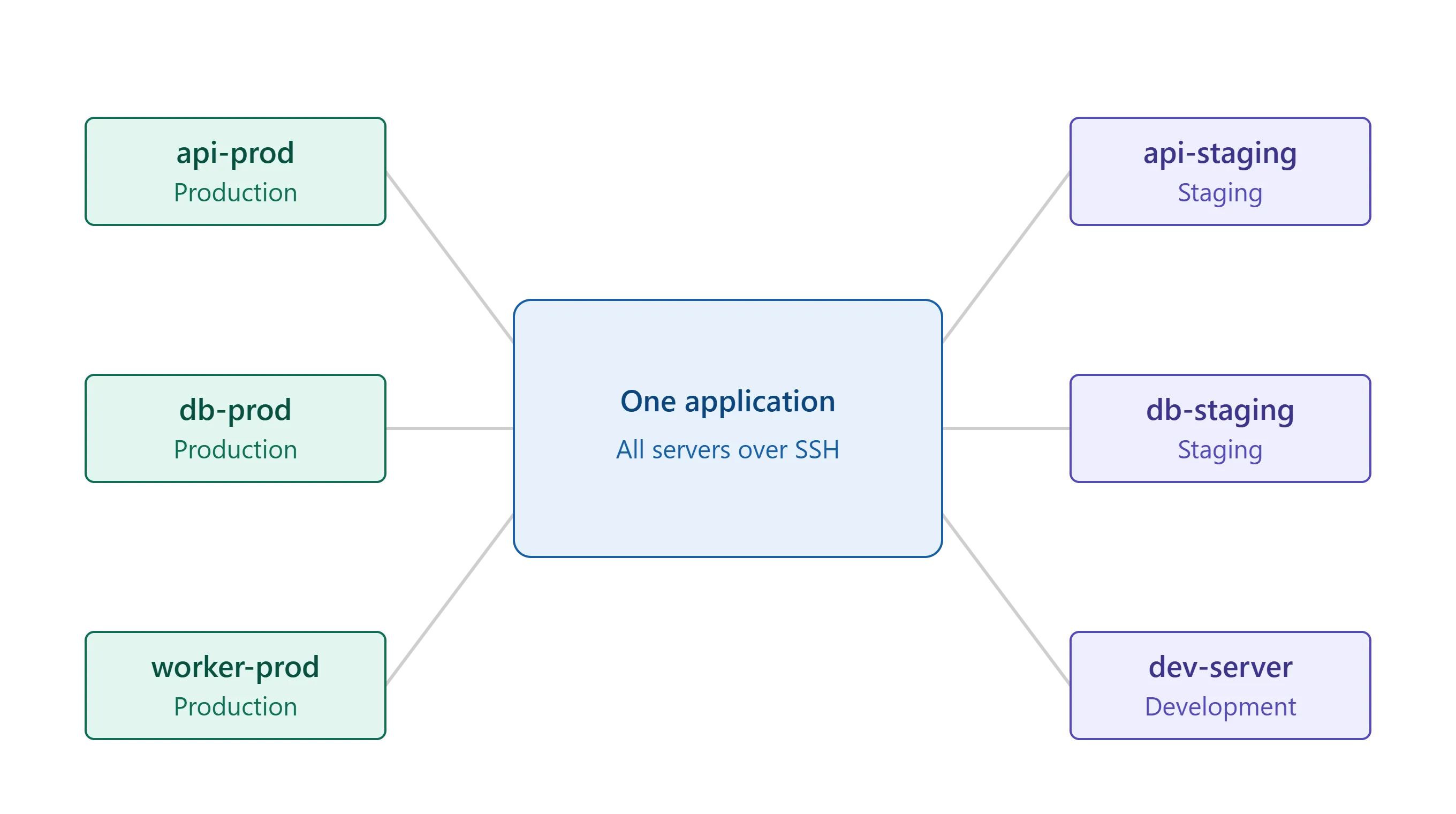
How to Manage Multiple Linux Servers From One Application
Quick answer: You can manage multiple Linux servers from one application by centralizing your SSH connections, organizing servers by name or environment, and using one interface for tasks such as monitoring, file management, logs, deployments, access management, and troubleshooting. The right tool should make it easier to find and connect to your servers without requiring you to maintain separate workflows for every machine.
Introduction
Managing one Linux server is usually straightforward.
You connect through SSH, run commands, check logs, update applications, and troubleshoot problems when necessary.
The workflow becomes more complicated when you manage multiple servers.
You may have separate machines for production, staging, development, databases, applications, workers, and testing. If you manage infrastructure for multiple projects or clients, the number of servers can grow quickly.
At that point, remembering IP addresses, SSH configurations, credentials, and server roles can become difficult.
You may also need to switch between SSH terminals, file-transfer tools, monitoring dashboards, deployment systems, and scripts.
A centralized Linux server management application can bring many of these workflows into one place.
Why Managing Multiple Linux Servers Becomes Difficult
The main challenge is not connecting to Linux servers.
SSH already provides a standard way to access remote machines.
The challenge is managing everything around those connections.
When you have several servers, you need to know which machine you are connecting to, which environment it belongs to, what role it serves, and which credentials should be used.
You may also need to perform the same types of administrative tasks repeatedly.
For example, checking server resources may require connecting to different machines and running commands manually.
Troubleshooting an application can also require working across an application server, database server, and worker server.
This is where a centralized management workflow can help.
What Does Managing Multiple Servers From One Application Mean?
Managing multiple servers from one application does not necessarily mean running the same command across every server simultaneously.
Instead, it means having a central interface where you can:
- Save server connections
- Organize servers
- Search for servers
- Connect through SSH
- Open multiple server sessions
- Monitor infrastructure
- Manage remote files
- Review logs
- Deploy applications
- Manage SSH access
- Run reusable scripts
The exact capabilities depend on the application.
Some tools focus mainly on SSH connections, while broader server-management applications combine SSH access with monitoring, file management, deployment, security, and other administrative features.
1. Create a Central Server Inventory
The first step is to stop treating every server as a separate connection.
Create a central inventory containing details such as:
- Server name
- IP address or hostname
- Username
- SSH port
- Authentication method
- Environment
- Server role
Instead of remembering that a particular IP address belongs to your production API server, you can give the machine a recognizable name such as api-prod.
This makes it easier to identify the right server before connecting.
2. Organize Servers by Environment or Role
Server organization becomes increasingly important as your infrastructure grows.
You can organize servers by environment, project, client, or role.
For example:
Production
- API server
- Database server
- Worker server
Staging
- API server
- Database server
Development
- Development server
- Testing server
This makes it easier to distinguish production machines from development or testing environments.
Clear naming and organization can also reduce the risk of performing an action on the wrong server.
3. Use SSH for Secure Server Access
SSH is one of the standard methods for remotely managing Linux servers.
A centralized server management application should make SSH connections easy to configure and reuse.
Depending on your infrastructure, you may use:
- SSH keys
- Password authentication
- Custom SSH ports
- SSH agents
- Different usernames
SSH keys are commonly used for secure authentication, but your team's authentication requirements will depend on your environment.
When choosing a management application, also check how it stores credentials and SSH keys.
4. Make Servers Easy to Search
Once you have many servers, searching becomes more useful than scrolling through a long list.
A good management application should allow you to find servers using information such as:
- Server name
- IP address
- Username
- Environment
- Tags
For example, searching for production could help you find your production machines, while searching for database could help identify database servers.
This is especially useful when managing infrastructure for multiple projects or clients.
5. Open Multiple Server Sessions
Another useful capability is the ability to work with multiple servers without repeatedly closing and reopening connections.
A management application may allow each server to have its own tab or session.
For example:
Tab 1: Application server
Tab 2: Database server
Tab 3: Worker server
You can move between these sessions while keeping each connection active.
This can be useful when troubleshooting an issue that involves several servers.
6. Monitor Server Health
Connecting to a server is only part of server management.
You also need to understand its current condition.
Basic infrastructure monitoring can provide information such as:
- CPU usage
- Memory usage
- Disk usage
- Network activity
- Running processes
This allows developers to quickly identify resource-related problems without manually running commands on every server.
However, basic monitoring is different from a full observability platform.
Larger teams may still require dedicated monitoring systems for advanced metrics, alerting, dashboards, and historical data.
7. Manage Remote Files
Developers regularly work with files stored on remote servers.
Common tasks include:
- Uploading files
- Downloading files
- Editing configuration files
- Renaming files
- Deleting files
- Creating directories
- Extracting archives
These tasks can be performed through the command line or tools such as SCP and SFTP.
A visual file manager can make routine operations easier by allowing developers to work with remote files through a graphical interface.
8. Manage Logs From the Same Application
Logs are an important part of troubleshooting.
When an application fails, developers often need to locate the relevant log files, search their contents, and follow new entries.
A server management application with log-management functionality can simplify these tasks.
However, there is a difference between managing logs on a server and running a centralized log aggregation system.
For larger environments that require centralized storage, advanced searching, alerting, and long-term retention, dedicated logging platforms may still be necessary.
9. Simplify Application Deployments
Managing multiple servers often means managing multiple deployment workflows.
If developers manually connect to every server, pull application code, install dependencies, restart processes, and configure services, deployments can become repetitive.
Some server-management applications provide built-in deployment workflows.
For example, a tool may connect to a GitHub repository and simplify deployment for supported application stacks.
This can be useful for developers and small teams that want a simpler deployment workflow without building a separate system for every project.
Teams with established CI/CD infrastructure may prefer to continue using their existing deployment pipelines.
10. Manage SSH Keys and Server Access
Multiple servers also mean multiple access points.
As your team grows, it becomes important to understand who can access each server.
A centralized management application can help you manage SSH keys and review server access.
You may want to know:
- Who can access a server?
- Which users have sudo privileges?
- Which SSH keys are authorized?
- Which users should be removed?
Centralized access management can make onboarding and offboarding easier.
For larger organizations, dedicated identity and access management systems may still be required.
11. Keep Credentials and Server Data Secure
A server-management application may handle sensitive information such as:
- SSH keys
- Passwords
- Server addresses
- Usernames
- Server configurations
Before choosing a tool, understand where this information is stored.
Important questions include:
- Is the data stored locally?
- Is it synchronized to the cloud?
- Is there a cloud relay?
- How are credentials encrypted?
- Does the vendor collect telemetry?
- Which information is sent to external services?
These considerations are particularly important when managing production infrastructure.
12. Consider an Agentless Architecture
Some server-management platforms require an agent or daemon to be installed on every server.
Other tools connect directly through SSH.
An agentless approach can simplify setup because there is no additional software to install, update, or maintain on each server.
However, the right approach depends on the requirements of your infrastructure.
If a team needs deep system-level integrations, an agent may be useful.
If the goal is straightforward SSH-based server management, an agentless workflow can reduce additional infrastructure.
13. Use AI to Assist With Server Administration
AI can help developers with common Linux server tasks.
An AI-assisted terminal can translate natural-language requests into Linux commands, explain errors, analyze logs, and assist with troubleshooting.
For example, instead of remembering the exact command for finding large files, you can describe the task and have the AI generate the command.
However, production infrastructure requires caution.
The AI should not have unrestricted permission to make changes.
A useful safety feature is an approval step where developers can review the generated command before it runs.
14. Save Reusable Commands and Scripts
If your team repeatedly runs the same commands, saving them can reduce repetitive work.
Common examples include:
- Checking disk space
- Checking application status
- Restarting a service
- Viewing logs
- Checking processes
- Running maintenance tasks
A script directory can store these commands and make them available when needed.
This can also help standardize routine administrative tasks across servers.
15. Understand the Difference Between Centralized Access and Fleet Automation
This distinction is important.
Managing multiple servers from one application does not necessarily mean running one command on every server at the same time.
A centralized server-management application may allow you to save all your servers, search them, open several connections, and work on each one from a single interface.
If you need to automatically execute the same playbook across dozens or hundreds of servers, configuration-management or automation tools such as Ansible may be more appropriate.
The right tool depends on whether you need centralized server access or automated fleet-wide execution.
How CtrlOps Helps Manage Multiple Linux Servers
For developers and small teams looking for a centralized desktop application for Linux server management, CtrlOps is one option to consider.
CtrlOps is a native desktop application designed to manage Linux servers from one place. It connects directly to servers over SSH and does not require software to be installed on the remote servers. The application is available for macOS, Windows, and Linux.
Centralize Your Server Connections
CtrlOps lets you save servers once and find them by name, IP address, or username.
You can organize servers using names, tags, and favorites, making it easier to distinguish production, staging, development, and client infrastructure.
The multi-server dashboard also supports opening multiple servers at the same time, with each server maintaining its own SSH session.
CtrlOps supports unlimited server connections across its plans, including the free trial.
Work With Multiple Servers in Separate Tabs
CtrlOps allows multiple servers to be opened at once.
For example, a developer can keep an application server, database server, and worker server open in separate tabs while troubleshooting an issue.
A long-running task on one server does not prevent you from working with another server.
Monitor Infrastructure
CtrlOps provides real-time infrastructure monitoring for CPU, memory, disk, and network activity.
This gives developers basic server-health information from the same application rather than requiring a separate dashboard for every server.
Manage Files Visually
CtrlOps includes a Visual File Management feature for working with remote files.
Users can browse, upload, download, rename, delete, and edit files, create folders, and unzip files without relying entirely on command-line file operations.
Manage Logs
CtrlOps includes Log Management that can find and group log files on a server.
Users can search logs, tail them live, download them, or clear them from the application.
Manage SSH and User Access
CtrlOps includes SSH Management for managing SSH keys, configurations, and connections per server.
Its Access Management feature provides a view of who can log into servers and who has sudo access. It can also help with onboarding and offboarding users across the server fleet.
Use AI With an Approval Gate
CtrlOps includes an AI Terminal that allows developers to describe server tasks in plain English.
The AI generates the Linux command and explains what it does. The command then waits for user approval before execution.
Executed commands are logged for auditing, and destructive operations can be flagged before the user decides whether to run them.
CtrlOps includes built-in ChatGPT sign-in (no API key needed) and OpenRouter sign-in (free models available, no API key needed). It also supports bringing your own API key for OpenAI, Anthropic, Gemini, and OpenAI-compatible endpoints. AI prompts go directly from the user's machine to the configured provider rather than through a CtrlOps cloud relay.
Keep Server Data Local
CtrlOps positions itself as a 100% local application.
The company states that credentials and server information remain on the user's machine, with no cloud relay or telemetry. SSH keys, passwords, and AI provider keys are stored locally and encrypted.
This architecture can be useful for developers who prefer not to place their server credentials in a third-party cloud service.
Manage Deployments
CtrlOps provides one-click deployment from GitHub for supported application stacks.
CtrlOps supports one-click deployment from GitHub for Node.js, React, and Next.js applications. PM2, Nginx, Apache, and Certbot SSL are handled as part of the deployment workflow.
Manage PM2 Processes
CtrlOps includes a PM2 Process Manager.
It provides visibility into PM2 processes, including CPU, memory, and restart counts, and allows users to restart, reload, stop, or delete processes from the application.
Schedule Backups
CtrlOps also includes scheduled backup functionality.
Users can schedule copies of folders to AWS S3, Cloudflare R2, Backblaze B2, DigitalOcean Spaces, Wasabi, or MinIO.
This is useful for straightforward folder-based backups, but it should not be treated as a complete database-aware disaster-recovery system with every possible retention and restore feature.
Run Security Audits
CtrlOps includes a Security Audit feature with 25 predefined checks.
The audit runs over SSH and provides a hardening score out of 100 with a downloadable PDF report. Batch fleet auditing is also supported, allowing the same audit to run across multiple servers. Findings can be passed to AI-assisted fixes, with approval required before commands are executed.
Important CtrlOps Limitation
CtrlOps provides one place to manage your servers, but it does not broadcast one command across multiple servers simultaneously.
This is an important distinction.
You can save your entire server fleet, search for servers, and open multiple server sessions at the same time.
But if you need to execute the same command or playbook automatically across 50 servers, a dedicated configuration-management or fleet-automation tool is better suited to that task.
CtrlOps itself explicitly states that it provides one home for your servers rather than broadcasting commands across the fleet.
A Practical Workflow for Managing Multiple Linux Servers
A simple multi-server workflow can look like this:
Step 1: Add Your Servers
Save each server with its hostname or IP address, username, port, and authentication method.
Step 2: Give Servers Clear Names
Use names such as api-production, database-production, or staging-api instead of relying only on IP addresses.
Step 3: Organize Your Fleet
Use tags, favorites, or other organization methods to separate servers by project, client, environment, or role.
Step 4: Secure Your Credentials
Use appropriate SSH authentication and understand how your management application stores credentials and keys.
Step 5: Monitor Server Health
Check CPU, memory, disk, network, and processes when investigating infrastructure problems.
Step 6: Standardize Repetitive Tasks
Save frequently used commands and scripts so developers do not have to recreate them repeatedly.
Step 7: Centralize File and Log Management
Use visual file management and log tools where appropriate to reduce unnecessary application switching.
Step 8: Review Server Access
Regularly check which users have access to servers and which accounts have elevated privileges.
Step 9: Separate Management From Automation
Use a centralized management application for interactive administration and dedicated automation tools when you need fleet-wide execution.
What to Look for in a Multi-Server Management Tool
RequirementWhat to CheckServer inventoryNames, IPs, usernames, portsSearchSearch by name, IP, or usernameSSHSecure remote connectionsMultiple sessionsOpen several servers at onceMonitoringCPU, memory, disk, networkFile managementUpload, download, edit, rename, deleteLog managementSearch, live tailing, downloadDeploymentGitHub or other deployment workflowsAccess managementUsers, SSH keys, sudo accessSecurity auditingSecurity checks and reportsAI assistanceCommand generation and troubleshootingScript managementReusable commandsBackupScheduled backup optionsArchitectureLocal, cloud, agentless, or hybridPricingUsers, servers, features, supportCommon Mistakes to Avoid
Managing Servers by IP Address Alone
IP addresses are difficult to remember and easy to confuse.
Use meaningful names that describe the server's purpose or environment.
Mixing Production and Development Servers
Clearly separate environments.
Good naming and organization can help prevent accidental actions on the wrong server.
Using One Tool for Every Infrastructure Problem
A server-management application can simplify many everyday tasks, but it does not necessarily replace specialized observability, logging, backup, identity, or automation platforms.
Giving AI Unrestricted Production Access
AI can help generate commands and troubleshoot issues, but production changes should remain under human control.
An approval workflow provides an additional checkpoint before commands are executed.
Expecting Centralized Management to Mean Fleet-Wide Automation
Having every server available from one application is different from automatically running the same task across every server.
Choose a configuration-management or automation platform when fleet-wide execution is the actual requirement.
CtrlOps Pricing
CtrlOps currently offers a 1-month free trial with no credit card required and unlimited server connections.
The current paid plans are:
PlanPriceFree Trial$0 for 1 monthMonthly$7/month/userYearly$70/year/userLifetime$149 one-time/userThe free trial includes the Pro feature set, including AI Terminal, multi-server fleet management, file management, and one-click deployments.
Final Thoughts
Managing multiple Linux servers becomes more complicated as your infrastructure grows.
The challenge is usually not SSH itself. It is keeping server connections, credentials, monitoring, files, logs, deployments, users, and administrative tasks organized.
A centralized server-management application can reduce this complexity by giving developers one place to find and access their infrastructure.
However, the right tool depends on what your team actually needs.
If you primarily need SSH access, a simple SSH client may be enough.
If you need centralized server access combined with monitoring, file management, logs, deployments, access management, backups, AI assistance, and security auditing, a broader server-management application may make more sense.
For developers and small teams, CtrlOps provides a local-first desktop workflow for managing Linux servers through SSH, with multi-server management and additional server-management features in the same application.
The key is to choose a tool that solves your team's actual workflow problems without adding unnecessary complexity.
FAQs
Can I manage multiple Linux servers from one application?
Yes. Server-management applications can centralize your server connections and allow you to search, connect to, and work with multiple Linux servers from one interface.
Can I manage multiple Linux servers with SSH?
Yes. SSH can be used to connect to multiple Linux servers. A management application can make those connections easier to organize and access.
Can I run the same command on multiple Linux servers at once?
It depends on the tool. CtrlOps does not broadcast one command across multiple servers. For automated fleet-wide command execution, configuration-management tools such as Ansible are better suited to that workflow.
Does CtrlOps support multiple Linux servers?
Yes. CtrlOps provides multi-server management with unlimited server connections. Servers can be saved, searched, organized, and opened in separate sessions.
Does CtrlOps require an agent?
No. CtrlOps connects directly to Linux servers over SSH and does not require software to be installed on the remote server.
Does CtrlOps have server monitoring?
Yes. CtrlOps provides real-time CPU, memory, disk, and network monitoring.
Can CtrlOps manage remote files?
Yes. Its Visual File Management feature supports browsing, uploading, downloading, renaming, deleting, and editing remote files, as well as creating folders and unzipping files.
Does CtrlOps provide log management?
Yes. CtrlOps can find and group server log files and lets users search, tail live, download, and clear logs.
Does CtrlOps provide AI assistance?
Yes. Its AI Terminal converts natural-language requests into Linux commands and requires user approval before commands are executed.
Is CtrlOps local-first?
Yes. CtrlOps states that it runs locally, connects directly to servers over SSH, and does not use a cloud relay or telemetry.
How much does CtrlOps cost?
CtrlOps has a 1-month free trial with no credit card required. The paid plans currently start at $7/month/user, with a $70/year/user plan and a $149 one-time lifetime plan also available.