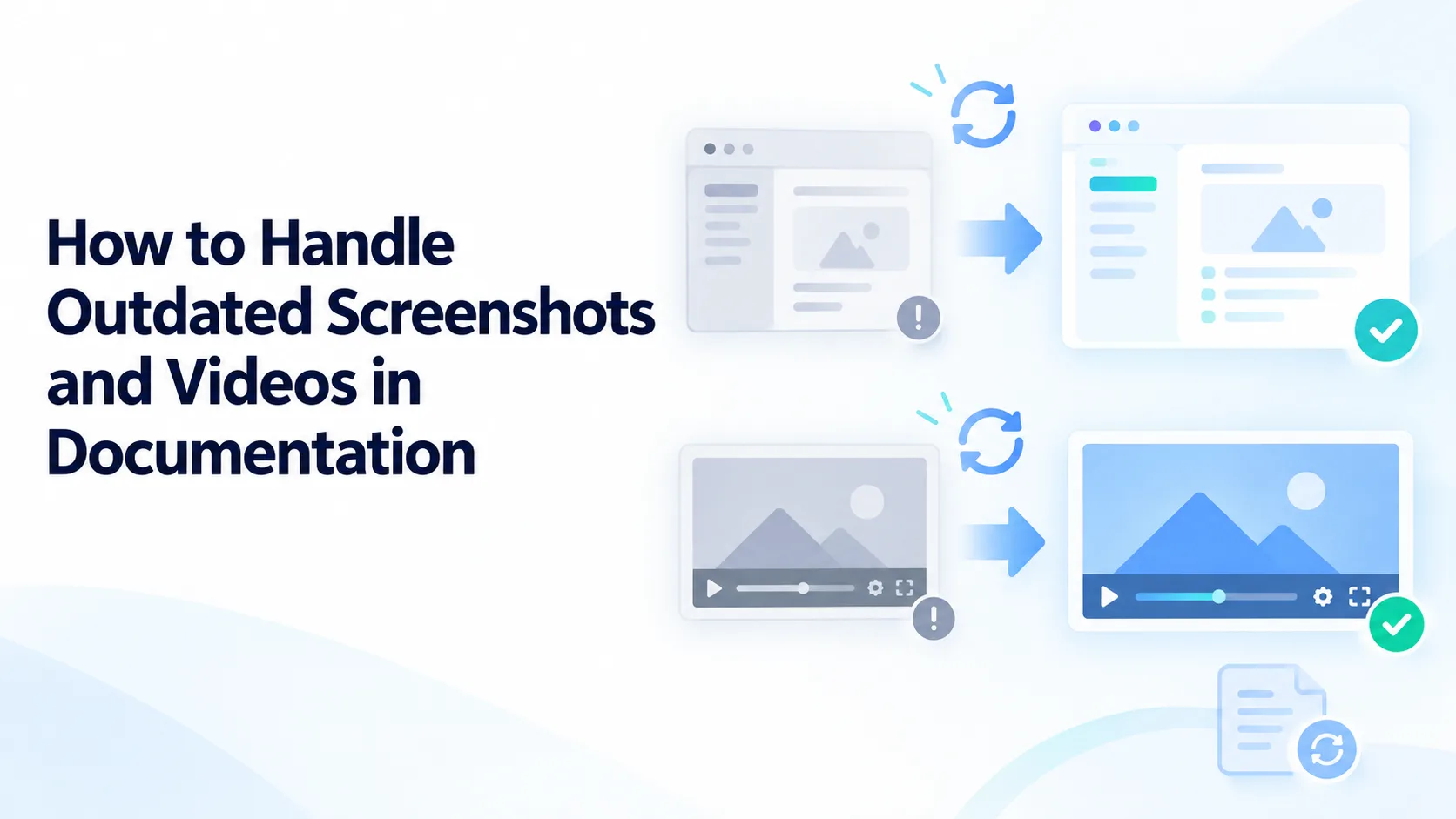
A product interface can change faster than its documentation. A button moves, a menu gets renamed, or a setup flow gains a new step. The written instructions may still be correct, but an old screenshot or video can make users think they are following the wrong guide.
Outdated visuals can also create extra support work. Customers may stop at the first mismatch and contact an agent, even when they could have completed the task themselves. The solution is to treat screenshots and videos as content that needs ownership and review, just like written instructions.
Decide What Needs Updating
A visual does not become unusable every time the interface changes. Start by asking whether the difference prevents someone from completing the task.
A screenshot showing an old button label needs attention if the user must find that button to continue. A change to the color of a navigation bar may be less urgent. Likewise, a video can remain useful if it explains a stable concept, even though a small part of the interface looks different.
Review the visual alongside its instructions. Check whether the steps still work, whether the user can identify the controls shown, and whether the expected result has changed. Prioritize visuals that cover account access, billing, permissions, integrations, or other tasks where following an old procedure could cause a significant problem.
Keep a Record of Where Visuals Are Used
Teams often know that a screenshot needs replacing but do not know where every copy appears. The same image may be embedded in a help article, onboarding email, support template, and training slide.
For each important visual, record the product area, the task it demonstrates, where it is published, and who owns it. Add the date it was last reviewed and, when relevant, the product version shown.
Apply the same approach to video. If a Cincopa recording is embedded in several help articles, keep a record of those placements. That makes it easier to find the affected pages when the recording needs to be reviewed or replaced.
Review Visuals During Product Changes
Documentation review should be part of the release process. When a product team changes a workflow, the content owner needs to know which written steps, screenshots, and recordings might be affected.
A useful handoff describes what changed in the interface and whether the underlying task changed too. For example, “The upload button moved to the top right” calls for a different content update than “The upload process now requires an approval step.”
Review the customer journey from beginning to end. A screenshot of the first screen may be current while a later image shows an option that no longer exists. For video, watch the complete task rather than judging accuracy from the thumbnail or title.
Replace or Annotate Screenshots Carefully
When an image is outdated, the clearest fix is usually to capture a new one from the current interface. Use a test account with realistic data, hide private information, and make sure the image matches the written instructions.
If the product change is temporary or a new screenshot cannot be captured immediately, a short note can help readers: “This menu is now called Settings.” Treat that note as an interim measure. Too many corrections around an old image make the guide harder to follow.
Crop screenshots to show enough context for users to locate a control. An image of a button alone may be easy to read but difficult to place within the product. Add alt text that explains what the image shows, particularly when the image contains information needed to complete the task.
Handle Outdated Videos Based on Their Scope
A video may need a small correction or a complete rerecording. The choice depends on how much of the demonstrated workflow has changed.
If one label has changed but the actions and outcome are the same, a note beside the video and an updated written guide may be sufficient for a short period. If the sequence of steps has changed, rerecord the demonstration. If the advice itself is no longer valid, remove the old video from customer access until a replacement is ready.
For teams managing tutorials in Cincopa, an organized video library makes it easier to identify which recordings cover a changed feature. Titles, descriptions, and transcripts can help locate references to old interface terms. The content owner still needs to verify the steps on screen; a transcript cannot reveal every visual mismatch.
When replacing a video, check the pages and messages that link to it. A current recording is of little use if a help article still points to the old one.
Keep Written Steps Available
A video can demonstrate a process clearly, but written steps are often faster to update after a small product change. Pairing a video with a concise written guide gives users a current reference while a new recording is being prepared.
For example, a Cincopa tutorial may show how to configure an integration. If a setting moves, the written guide can be corrected promptly. The video can then be marked for review, with a clear note explaining the difference until it is replaced.
This arrangement also helps users who prefer to scan instructions, copy configuration values, or check one step without replaying the entire video.
Make Old Content Hard to Encounter
Replacing an asset in one location may leave older copies in search results, internal folders, or agent bookmarks. After an update, search for the old title, screenshots, video links, and terminology. Redirect or remove obsolete pages where possible, and update saved support responses.
Check whether older Cincopa recordings remain visible in galleries or other shared collections. If they must be retained for internal reference, label them clearly and restrict access appropriately so customers do not mistake them for current guidance.
Measure the Effect on Support
Outdated visuals often reveal themselves through customer behavior. People may ask where a button went, say that their screen looks different, or abandon a guide after reaching a particular step.
Review support tickets, unsuccessful searches, and feedback on help articles. If customers keep reporting a mismatch after an update, there may be another old screenshot, embedded video, or saved response still in circulation.
Video engagement data from Cincopa can show which recordings are receiving attention. Prioritize review of heavily used videos that cover frequently changing parts of the product, then check support conversations to see whether those videos are helping users finish the task.
Make Visual Maintenance Routine
An effective documentation process assigns an owner to each important workflow and gives that person a way to hear about product changes. Screenshots and videos should be reviewed whenever the related workflow changes, with periodic checks for content that has not been touched in a long time.
The goal is not to rerecord every video or replace every screenshot after every release. It is to keep the guidance dependable. Users should be able to recognize the interface, follow the steps, and know when a visual differs from what they see.
With clear ownership, a record of where assets appear, and a practical review process, teams can keep visual documentation useful as the product evolves.