How to Connect a Teacher‘s Laptop and Classroom PC to Dual Monitors

AV Access
·
5 min read
·
85 Buzz
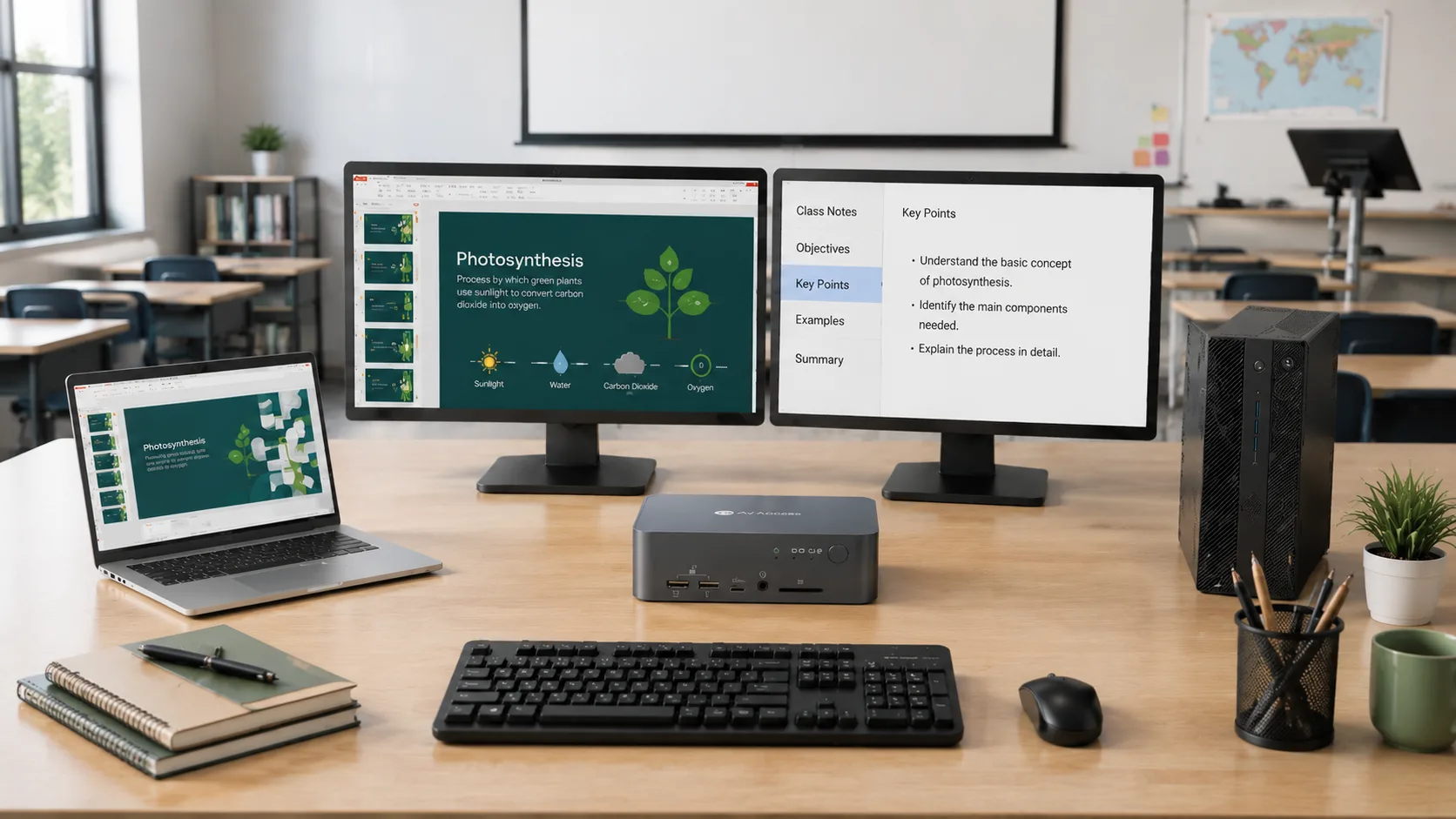
Introduction: Creating a More Flexible Teacher Workstation
Modern classrooms often rely on multiple computers to support different teaching workflows.
A teacher may use a dedicated classroom PC for school systems, installed teaching software, and classroom resources, while also using a personal laptop for presentations, online tools, and lesson preparation.
However, managing both computers at the same teaching station can create unnecessary complexity.
Teachers may need to:
Switch monitor inputs manually
Disconnect and reconnect cables
Use separate keyboards and mice
Manage multiple accessories on a limited desk space
A KVM docking station provides a more efficient solution by allowing a teacher’s laptop and classroom PC to share the same dual monitors, keyboard, mouse, and USB peripherals from one organized workstation.
With the right classroom KVM setup, teachers can quickly switch between computers while keeping their teaching environment clean, flexible, and easy to manage.
Why Teachers Use Both a Laptop and Classroom PC
Classroom PC for School Resources
The classroom PC is usually part of the school’s installed technology environment.
Teachers may use it for:
Accessing school systems
Running classroom software
Connecting to local resources
Managing teaching equipment
Because it is already integrated into the classroom, it remains an important part of daily teaching.
Teacher Laptop for Flexible Teaching Workflows
A personal laptop provides mobility and flexibility.
Common uses include:
Preparing lessons
Accessing cloud files
Running online teaching tools
Presenting personalized content
Joining remote sessions
Instead of replacing the classroom PC, the laptop often works alongside it.
The challenge is allowing both systems to share the same monitors and peripherals.
How Dual Monitors Improve a Teacher’s Laptop and Classroom PC Workflow
A dual-monitor setup can make daily teaching workflows more efficient.
For example:
One monitor can display:
Presentation content
Teaching software
Student information
The second monitor can show:
Lesson notes
Online resources
Communication tools
This allows teachers to manage multiple tasks without constantly switching windows.
However, when both a laptop and classroom PC need access to the same displays, traditional connections become inconvenient.
Teachers may need to manually switch:
HDMI cables
DisplayPort connections
USB accessories
A better approach is keeping both computers connected and switching between them through one centralized solution.
How a KVM Docking Station Connects a Teacher’s Laptop and Classroom PC
A KVM docking station acts as the connection center between multiple computers and shared classroom equipment.
A typical classroom workstation setup looks like this:
How a KVM Docking Station Connects a Teacher’s Laptop and Classroom PC to Dual Monitors
With this setup:
Both computers can access the same monitors
Keyboard and mouse remain connected
Teachers can switch between systems easily
The workstation requires fewer cables
This creates a more practical teaching environment.
Choosing a KVM Docking Station for Faculty and Classroom Workstations
When selecting a KVM docking station for education environments, schools should consider:
Dual Monitor Support
Many teacher workstations use two displays.
A suitable solution should support the required monitor configuration for teaching materials and classroom management.
Simple Switching
Teachers may switch between computers several times during a lesson.
The switching process should be:
Fast
Reliable
Easy to operate
Peripheral Sharing
A classroom workstation usually includes more than displays.
Teachers may also need to share:
Keyboard
Mouse
Webcam
USB devices
Audio accessories
A KVM docking station helps keep these devices connected to both computers.
Teacher’s Laptop and Classroom PC Dual Monitor Setup With iDock C10
For most classroom and faculty workstation environments, iDock C10 provides a practical way to connect a teacher’s laptop and classroom PC to the same dual-monitor workspace.
A typical education workstation includes:
Classroom PC for school applications and shared resources
Teacher laptop for presentations, online tools, and personal workflows
Dual monitors for multitasking
Shared keyboard, mouse, and USB peripherals
Instead of managing two separate computer setups, iDock C10 allows both systems to share the same workspace while keeping devices connected and ready.
It is suitable for:
Teacher workstations
Faculty offices
Classroom teaching stations
Hybrid learning environments
With iDock C10, teachers can switch between their classroom PC and laptop more efficiently while maintaining a clean and organized dual-monitor workspace.
Advanced Teacher Workstation Setup With iDock B12
Some education environments require more advanced workstation capabilities.
For example:
Engineering classrooms
Design labs
Media production spaces
Technical training rooms
These environments may use higher-performance computers and higher-refresh-rate displays.
iDock B12 provides an alternative solution for users who need a more powerful hybrid workstation, combining a desktop PC and laptop in one dual-monitor setup.
It is suitable for users who need:
Higher-performance computing
Advanced display requirements
Faster network connectivity
A flexible multi-computer workstation
Compare KVM Docking Stations for Classroom Workstations
Feature iDock C10 iDock B12
Computer Setup Laptop + Desktop PC Laptop + Desktop PC
Monitor Support Dual Monitor Dual Monitor
Main Use Case Teacher & Faculty Workstations Advanced Education Workstations
Shared Devices Keyboard, Mouse, USB Peripherals Keyboard, Mouse, USB Peripherals
Laptop Docking Yes Yes
Charging Support 60W 100W
Network 1Gb Ethernet 2.5Gb Ethernet
Best For Classrooms, Faculty Offices Engineering Labs, Media Labs, Advanced Training Rooms
Best Practices for Classroom Dual Monitor Workstations
Keep the Setup Simple
Teachers should not need technical knowledge to switch between computers.
A good workstation should make technology invisible during teaching.
Organize Classroom Cables
Reducing cable clutter helps:
Improve reliability
Simplify maintenance
Keep teaching spaces professional
Plan for Future Classroom Technology
Modern classrooms continue to add:
Cameras
Interactive displays
USB teaching tools
Collaboration devices
A flexible workstation makes future upgrades easier.
Conclusion: Build a Smarter Classroom Computer Setup
Teachers increasingly rely on multiple computers to support modern teaching workflows.
A classroom PC provides access to school resources, while a personal laptop provides flexibility for lessons and presentations.
The challenge is connecting both systems into one simple workstation.
A KVM docking station allows teachers to share dual monitors and peripherals between computers, creating a more flexible and organized teaching environment.
With the right setup, teachers can spend less time managing technology and more time focusing on education.
FAQs
1. Can teachers connect a laptop and classroom PC to the same monitors?
Yes. A KVM docking station allows both computers to share monitors, keyboard, mouse, and USB devices.
2. Why use dual monitors in a classroom workstation?
Dual monitors provide more workspace for teaching materials, presentations, classroom software, and communication tools.
3. What is the easiest way to switch between a teacher laptop and classroom PC?
A KVM docking station allows teachers to switch between computers without manually changing cables.
4. Is a KVM docking station suitable for education environments?
Yes. It helps schools create flexible workstations where teachers can manage multiple computers from one desk.
5. Can a KVM docking station share keyboard and mouse between two computers?
Yes. Shared peripherals are one of the main benefits of using a KVM docking station.
6. What should schools consider when building teacher workstations?
Schools should consider monitor support, switching convenience, peripheral sharing, cable management, and future expansion needs.