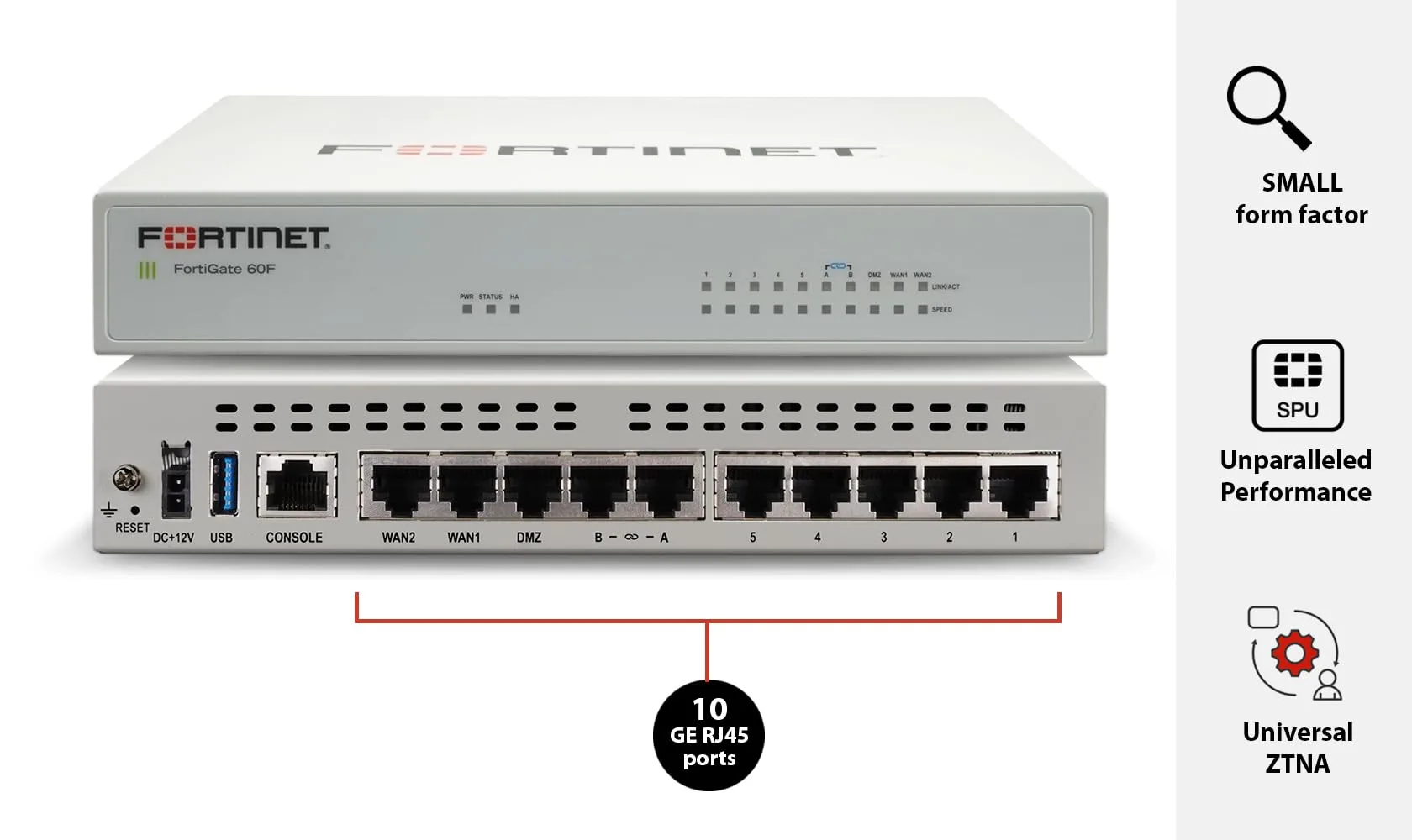
Network security relies heavily on clear visibility. When managing multiple firewalls, tracking every event across your infrastructure becomes a complex challenge. A central logging solution is essential for monitoring traffic, identifying threats, and meeting strict compliance standards. This is where a fortianalyzer steps in to centralise and streamline the entire process.
By acting as a dedicated repository, this powerful appliance aggregates log data from all your Fortinet devices. It provides deep insights into network activity, allowing security teams to spot anomalies quickly. Without a unified view, administrators often spend hours manually searching through isolated firewall logs, delaying critical incident response times.
This guide provides a clear approach to linking your FortiGate firewalls with your central logging server. You will learn the necessary prerequisites, configuration steps for both devices, and how to verify that data is flowing correctly. By the end of this tutorial, your network monitoring will be significantly more efficient and secure.
Preparing Your Network for Log Collection
Before initiating the configuration, you must ensure that your environment is ready. Taking a few minutes to verify these prerequisites will prevent connection issues later on.
First, confirm that your FortiGate and FortiAnalyzer are running compatible firmware versions. Fortinet publishes a compatibility matrix that you should consult before making any changes. Mismatched firmware can lead to unrecognised logs or dropped connections.
Second, verify network connectivity between the two devices. The FortiGate needs to reach the FortiAnalyzer over the network. Ensure that any intermediate firewalls or routing rules permit traffic on the necessary logging ports. Fortinet devices typically use TCP port 514 or TCP port 5144 for reliable log transmission.
Finally, secure administrative access to both the FortiGate and FortiAnalyzer web interfaces. You will need sufficient privileges to modify system settings and approve new devices.
Configuring FortiGate to Send Logs
With the prerequisites met, the first major step is telling your FortiGate firewall where to send its log data. This process can be completed easily through the web-based graphical user interface (GUI).
Step 1: Access the Log Settings
Log in to your FortiGate GUI. Navigate to the left-hand menu, select 'Log & Report', and then click on 'Log Settings'. This page controls all logging behaviours for the firewall.
Step 2: Enable FortiAnalyzer Logging
Locate the section titled 'Send Logs to FortiAnalyzer/FortiManager'. Toggle the switch to enable this feature.
Step 3: Enter the Server Details
Input the IP address of your FortiAnalyzer unit in the designated field. You can also specify the upload option, choosing between real-time transmission or scheduled uploads. Real-time is generally recommended for active security monitoring.
Step 4: Apply and Test Connectivity
Click 'Apply' to save your settings. After saving, a 'Test Connectivity' button will appear. Click this to confirm that the FortiGate can successfully reach the FortiAnalyzer over the network.
Receiving Logs on FortiAnalyzer
Once the FortiGate is pushing logs, the FortiAnalyzer must be configured to accept and process them. By default, FortiAnalyzer requires manual approval of new devices to prevent unauthorised data from filling up your storage.
Step 1: Locate the Unregistered Device
Log in to the FortiAnalyzer GUI. Navigate to the 'Device Manager' section. Here, you will see a tab or alert for 'Unregistered Devices'. Your FortiGate should appear in this list, identified by its serial number and IP address.
Step 2: Authorise the FortiGate
Select the unregistered FortiGate and click the 'Authorise' button. A prompt will appear asking you to assign the device to an Administrative Domain (ADOM). If you are using a default setup, assign it to the 'root' ADOM.
Step 3: Allocate Storage Quotas
During the authorisation process, you can allocate a specific storage quota for this device. Setting a sensible quota ensures that a single chatty firewall does not consume the entire disk space of your analyser. Save the settings to finalise the registration.
Verifying Log Flow and Troubleshooting
After authorising the device, it is crucial to verify that logs are actually being recorded.
Navigate to 'Log View' in the FortiAnalyzer GUI and select 'Traffic'. You should see recent log entries populated from your newly connected FortiGate. If the logs are flowing, the configuration is complete.
If the logs do not appear after several minutes, you may need to troubleshoot the connection. Start by re-checking the firmware compatibility matrix. Next, verify that Network Time Protocol (NTP) is configured correctly on both devices. Time discrepancies between the firewall and the analyser are a very common cause of dropped logs. Finally, use the FortiGate command-line interface (CLI) to run a packet sniffer tool, ensuring the log packets are leaving the external interface.
Best Practices for Log Management
Deploying FortiAnalyzer is only the beginning. To get the most out of your investment, you should implement robust log management strategies.
Synchronise Device Time
Always use a reliable NTP server for all your network security devices. Accurate timestamps are vital when investigating security incidents. If your devices are out of sync, correlating events across the network becomes nearly impossible.
Optimise Storage and Retention
Review your regulatory requirements regarding log retention. Configure your FortiAnalyzer data policies to automatically roll over or archive logs once they reach a certain age. You should balance analytics data (indexed and searchable) with archive data (compressed and stored for compliance).
Filter Unnecessary Logs
Not all network traffic requires logging. Update your FortiGate firewall policies to only log security events or specific traffic types that hold value. Dropping routine, benign traffic logs at the firewall level significantly reduces the processing load on your FortiAnalyzer and extends your storage capacity.
Streamline Your Network Security Operations
Integrating your firewalls with a central logging solution drastically improves your ability to secure and manage your network infrastructure. By sending your log data to a dedicated platform, you gain the visibility required to detect threats, monitor bandwidth usage, and generate detailed compliance reports.
Take the time to verify your settings, implement strict time synchronisation, and refine your logging policies. These small adjustments will yield a highly efficient, responsive, and secure network environment.