
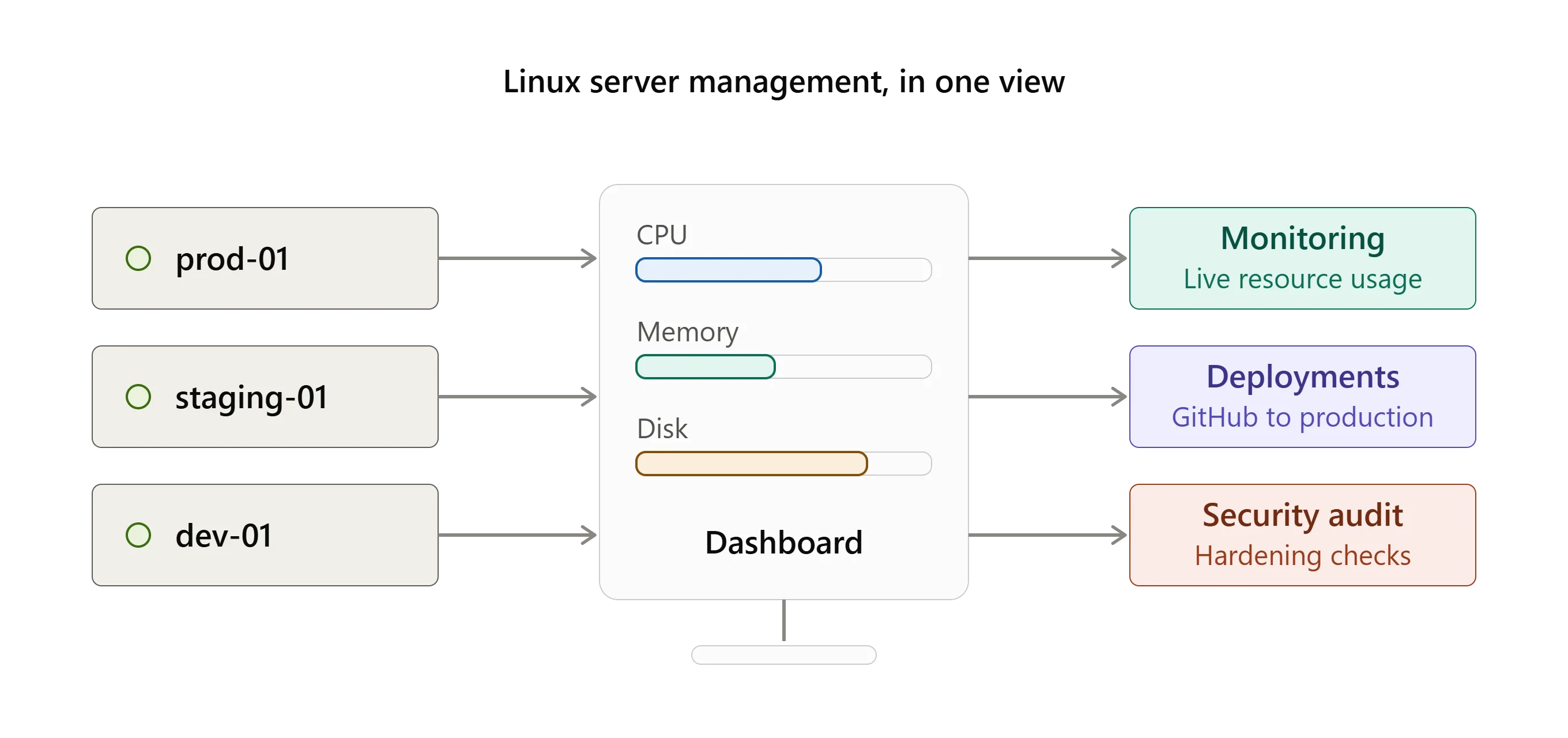
Quick answer: Choose a Linux server management tool based on the number of servers you manage, the level of monitoring you need, your deployment workflow, security requirements, file-management needs, team size, and budget. A simple SSH client may be enough for basic server access, while growing teams may need a broader platform that combines server access, monitoring, deployments, logs, backups, access management, and other server administration features.
Introduction
Managing a Linux server is relatively simple when you are working with one machine and a small application.
As infrastructure grows, however, server administration becomes more complicated.
Developers may need to manage multiple servers, monitor resources, deploy applications, inspect logs, manage files, control user access, maintain backups, and troubleshoot problems.
Using separate tools for every task can make the workflow harder to manage.
This is where a Linux server management tool can help.
But not every tool provides the same capabilities. Some focus mainly on SSH access, while others combine server access with monitoring, deployment, file management, security auditing, AI assistance, and other administrative features.
Choosing the right option therefore depends on what your team actually needs.
What Is a Linux Server Management Tool?
A Linux server management tool is software that helps developers and administrators manage one or more Linux servers from a central interface.
Depending on the platform, it may provide features such as:
- SSH access
- Multi-server management
- Server monitoring
- File management
- Application deployment
- Log management
- Backup management
- User and access management
- Security auditing
- Process management
- Cron job management
- Port forwarding
- Automation
- AI-assisted administration
The exact feature set varies between tools.
For example, an SSH client may primarily help you connect to remote servers, while a broader server-management platform may combine SSH with monitoring, deployments, file management, and other administrative workflows.
Why Choosing the Right Tool Matters
The server management tool you choose can affect how your team handles everyday infrastructure tasks.
A tool that works well for one developer managing two servers may not be suitable for a team managing dozens of production and development machines.
The right tool can reduce repetitive work and make common tasks easier to access.
The wrong tool can result in a fragmented workflow where developers constantly move between SSH clients, monitoring dashboards, deployment systems, file-transfer applications, backup scripts, and other tools.
Before choosing a platform, it is therefore useful to understand your team's current workflow and where the biggest gaps are.
1. Start With the Number of Servers You Manage
The first thing to consider is how many Linux servers your team manages.
If you only have one or two servers, a basic SSH client may be enough.
However, managing development, staging, production, database, application, and backup servers requires better organization.
Look for features such as server grouping, search, tags, host aliases, multiple tabs, and centralized server management.
Also check whether the tool places limits on the number of server connections.
For a growing team, unlimited or flexible server connections can prevent the management tool from becoming another infrastructure limitation.
2. Check How You Connect to Servers
SSH is one of the standard methods for securely connecting to Linux servers.
A server management tool should make SSH connections straightforward while supporting the authentication methods your team already uses.
Depending on your environment, you may need support for SSH keys, usernames, custom ports, and different server configurations.
You should also consider where credentials and SSH keys are stored.
For teams managing sensitive production infrastructure, understanding whether credentials are stored locally, synchronized to a cloud service, or handled through another architecture is important.
3. Look at Monitoring Capabilities
Server access is only one part of server administration.
You also need to know whether your servers are healthy.
At a minimum, a lightweight server management tool may provide visibility into:
- CPU usage
- Memory usage
- Disk usage
- Network activity
- Running processes
This can help developers identify basic resource problems without opening a separate monitoring application.
However, monitoring requirements vary.
Small teams may only need basic infrastructure telemetry, while larger organizations may require advanced observability, centralized metrics, alerting, dashboards, and long-term historical data.
Do not choose a tool based on the word "monitoring" alone. Check exactly what it measures and whether it matches your requirements.
4. Consider Your Deployment Workflow
Deployment is another important consideration.
Ask how your team currently moves applications from development to production.
If developers manually connect through SSH, pull code, install dependencies, restart processes, configure Nginx, and manage SSL certificates, there may be opportunities to simplify the workflow.
Some server management tools provide deployment features directly.
For example, a tool may connect to GitHub and provide a simplified deployment workflow for supported application stacks.
If your team already uses a mature CI/CD platform, however, you may not need built-in deployment functionality.
The important question is whether the tool complements your existing workflow or replaces something you currently have to maintain manually.
5. Evaluate File Management
Developers regularly need to work with files on remote servers.
Common tasks include uploading files, downloading logs, editing configuration files, creating directories, renaming files, deleting files, and extracting archives.
A command-line workflow can handle these operations, but a visual file manager can make routine tasks easier.
When comparing tools, check whether file management is included and what operations are supported.
You should also consider whether files are transferred directly over SSH or through another service.
For teams handling sensitive configuration files, the underlying transfer method matters.
6. Check Log Management
Logs are essential when troubleshooting applications and servers.
A useful server management tool may allow developers to find log files, search their contents, follow logs in real time, and download them when necessary.
This can be convenient for smaller teams that do not need a full centralized logging platform.
However, there is an important distinction between log management and centralized log aggregation.
A lightweight server-management application may help you work with logs on individual servers, while platforms such as ELK or Loki are designed for broader centralized logging workflows.
Choose based on the complexity of your infrastructure rather than simply looking for a tool that has a "logs" feature.
7. Consider Backup Management
Backups should be part of your server-management strategy.
When evaluating a tool, check whether it can create scheduled backups and where those backups can be stored.
You should also understand the limitations.
A simple folder-backup feature is different from a database-aware backup system with retention policies, versioning, automated restore testing, and disaster recovery workflows.
If your team already has a dedicated backup system, built-in backup functionality may not be necessary.
If you are managing smaller infrastructure, however, having scheduled backups available from the same application can be useful.
8. Review User and Access Management
As your team grows, server access becomes more difficult to manage manually.
You may need to know which users can access each server and which users have sudo privileges.
Look for tools that can help you review SSH access and manage authorized users or keys.
It is also useful to consider the offboarding process.
When someone leaves a project, removing their access from every relevant server should be straightforward.
For larger organizations, dedicated identity and access management systems may still be required. A server-management application should not automatically be treated as a replacement for enterprise IAM.
9. Look at Security Auditing
Security auditing can help identify server configuration issues.
Depending on the tool, audits may check areas such as SSH configuration, firewall settings, authentication, sudo configuration, and other server-hardening controls.
When evaluating a security-audit feature, check:
- What exactly does it check?
- Is the audit read-only?
- Does it provide a report?
- Can you see which checks failed?
- Does it provide a hardening score?
- Does it explain how to fix findings?
- Are fixes automatically executed or approved by a user?
These details matter because "security audit" can mean very different things across different products.
10. Decide Whether You Need AI Assistance
AI is increasingly becoming part of developer and infrastructure workflows.
An AI-assisted server management tool can help translate natural-language requests into Linux commands, explain errors, analyze logs, search documentation, and assist with troubleshooting.
However, AI access to infrastructure should be handled carefully.
You should understand:
- Which AI providers are supported
- Where AI requests are sent
- What server information is included in prompts
- Whether commands require approval
- Whether executed commands are logged
- Whether AI can make changes automatically
- Whether web search or external tools can be connected
For production infrastructure, having a human approval step before executing AI-generated commands can provide an additional layer of control.
11. Check Whether an Agent Is Required
Some server management platforms require an agent or daemon to be installed on every server.
Others work directly through SSH.
Neither approach is automatically right or wrong.
An agent can provide deeper integration with the operating system, while an agentless approach can simplify deployment and reduce the number of components that need to be maintained.
If your team manages many servers, check how much effort is required to install, update, secure, and troubleshoot any required agents.
12. Think About Data Privacy and Architecture
Infrastructure tools can handle sensitive information such as:
- SSH keys
- Passwords
- Server addresses
- Configuration files
- Logs
- Environment variables
Because of this, architecture should be part of your evaluation.
Ask whether data stays on your machine, whether information is synchronized to the cloud, whether the vendor operates a relay server, and how credentials are encrypted.
For teams with strict security requirements, these details may be just as important as the feature list.
13. Check Operating System Support
Before choosing a tool, make sure it works with your team's operating systems.
Some applications are browser-based, while others are native desktop applications.
If your team uses Windows, macOS, and Linux, cross-platform support may be important.
You should also check the types of servers supported by the platform.
For example, some tools are designed specifically for Linux environments and may not support Windows Server.
14. Consider Team Size and Collaboration
A solo developer and a 20-person engineering team may have very different requirements.
For a small team, simplicity can be more important than advanced enterprise functionality.
A larger team may need role-based access, centralized administration, audit trails, collaboration features, and integrations with existing systems.
Think about how your team works today and how you expect that workflow to change as the infrastructure grows.
15. Compare Pricing With Your Actual Usage
Price should be evaluated alongside the number of users and servers you manage.
Some tools charge per user, some charge based on servers, and others use feature-based plans.
When comparing pricing, check:
- Number of users included
- Number of servers supported
- Feature limitations
- AI usage limits
- Support options
- Cloud storage requirements
- Additional charges
A cheaper tool may become expensive if important features require multiple add-ons.
Likewise, paying for a large enterprise platform may not make sense if your team only needs basic server administration.
16. Check Whether It Replaces or Complements Your Existing Tools
One of the most important questions is what you actually want the new tool to do.
Do you want to replace your SSH client?
Do you want to replace your deployment tool?
Do you need a lightweight monitoring dashboard?
Do you want to reduce the number of separate applications your team uses?
Do you need port forwarding for private services?
Do you need scheduled cron jobs without manually editing crontab?
Or do you simply need a better interface for managing SSH connections?
Answering these questions will narrow down your options considerably.
A server management tool should solve an actual workflow problem rather than simply add another application to your stack.
CtrlOps as a Linux Server Management Option
For developers and small teams looking for a broader Linux server management workflow, CtrlOps is one option to consider.
CtrlOps is a local first desktop application designed for managing Linux servers. It connects directly to servers over SSH and does not require a server side agent.
The application combines server management capabilities such as multi-server management, AI Terminal, real-time infrastructure monitoring, Visual File Management, one-click deployments, Log Management, Backup Management, SSH Management, Access Management, Security Audit, PM2 Process Manager, Script Directory, Cron Jobs, and Port Forwarding.
Multi-Server Management
CtrlOps provides a central dashboard for managing your Linux server connections.
Servers can be identified by aliases rather than requiring users to remember IP addresses. The application also supports tags, making it possible to filter servers by environments such as Production, Staging, or Development.
Multiple servers can be opened in separate sessions, allowing developers to work across their infrastructure from one application.
CtrlOps also supports unlimited server connections across its current plans.
Termius Migration
If a team is moving from Termius, CtrlOps has a dedicated migration feature.
The current importer can bring saved Termius hosts into CtrlOps, including hosts, ports, usernames, and SSH keys.
The importer reads the information locally, so users do not have to manually recreate every connection.
This can be particularly useful for teams that already have a large collection of saved Termius connections.
AI Terminal
CtrlOps includes an AI Terminal that allows developers to describe server tasks in plain English.
The AI can generate Linux commands, explain errors, help troubleshoot issues, and work with terminal context selected by the user.
The workflow keeps the developer in control. AI-generated commands do not execute automatically. Users can review, edit, run, or cancel commands before execution.
Every executed command is logged, and potentially destructive operations are flagged before the user decides whether to run them.
CtrlOps supports AI providers including OpenAI, Claude, Gemini, and OpenAI-compatible endpoints.
Web Search for AI-Assisted Troubleshooting
The AI workflow also supports web search.
CtrlOps can use configured search providers such as Tavily, Brave, and DuckDuckGo to look up documentation, error messages, CVEs, package versions, and other information that may help with troubleshooting.
This can reduce the need to leave the application when additional technical context is required.
MCP Server Support
CtrlOps also supports MCP servers for extending the AI workflow with additional tools.
This can connect the AI assistant with external capabilities such as documentation services, GitHub, or a local filesystem, depending on the MCP server being used.
This gives teams more flexibility when building AI-assisted server-management workflows.
Visual File Management
CtrlOps includes a Visual File Manager for working with remote files.
Developers can browse directories, upload and download files, create folders, rename or delete files, edit files, and unzip archives.
This provides a graphical alternative to performing every file operation through commands such as scp, mv, cp, and unzip.
Real-Time Infrastructure Monitoring
CtrlOps provides live infrastructure information for CPU, memory, disk, and network activity.
The application also provides visibility into top processes.
This is useful for quickly checking the basic health of Linux servers without opening a separate monitoring dashboard.
It is important to distinguish this from a full observability platform. CtrlOps is designed for lightweight infrastructure monitoring rather than replacing platforms built for large-scale metrics, alerting, or advanced observability.
Single-Click Deployment
CtrlOps includes a single-click deployment workflow.
The current deployment workflow supports GitHub-based deployments for supported application stacks, including Node.js, React, and Next.js.
The deployment workflow can handle components such as PM2, Nginx, and SSL, reducing the number of manual steps required for supported deployments.
PM2 Process Manager
CtrlOps includes a dedicated PM2 Process Manager.
Developers can view PM2 processes with live CPU, memory, and restart counts.
They can also restart, reload, stop, or delete processes from the interface.
Individual process logs can be streamed live, making it easier to monitor Node.js applications managed through PM2.
Log Management
CtrlOps includes Log Management for finding and grouping log files on a server.
Developers can search logs, tail them live, download them, or clear them without manually navigating through the server using SSH commands.
This is designed for interactive server-level log management rather than replacing centralized log aggregation platforms.
Backup Management
CtrlOps provides scheduled backups for folders.
Backups can be sent to S3-compatible storage, Dropbox, or other supported cloud storage providers.
However, the backup feature has specific limitations.
It does not provide backup restoration, retention or rotation policies, or database-aware backups.
This makes it useful for scheduled folder copies, but teams with more advanced backup and disaster-recovery requirements may still need a dedicated backup solution.
SSH Management
CtrlOps provides SSH Management for managing authorized keys, configurations, and connections from the application.
This reduces the need to manually edit SSH configuration files for common connection-management tasks.
Access Management
Access Management provides visibility into who can log in across the server fleet and which users have sudo privileges.
It can also help with onboarding new users and offboarding users across servers.
This can be useful for teams that manage access to multiple Linux machines.
Security Audit
CtrlOps includes a Security Audit feature with 25 predefined security audits.
The checks run over the existing SSH connection and provide a hardening score out of 100.
The results can be exported as a PDF report.
When findings require changes, CtrlOps can provide fix commands that remain behind an approval step. The user decides whether the suggested fix should actually run.
This makes the feature useful for server-hardening checks without giving AI unrestricted permission to change the server.
Script Directory
The Script Directory lets developers save frequently used Linux commands as reusable scripts.
Scripts can include variables, tags, and reusable values.
For example, instead of repeatedly creating commands for checking disk usage, restarting services, or tailing logs, a developer can save the command and run it again from the Script Directory.
Scripts are stored locally on the user's computer and can be used across connected servers.
Importantly, saved scripts do not run automatically. The user must click Run, and the script runs on the currently selected server connection.
Cron Jobs
CtrlOps also provides Cron Jobs management.
Developers can schedule tasks without manually writing cron syntax.
The feature can also adopt existing cron jobs, helping users manage scheduled tasks from the application.
CtrlOps can provide Slack alerts when a scheduled job fails, giving developers visibility into failed automated tasks.
Port Forwarding
Port Forwarding allows developers to create SSH tunnels for accessing services that are not publicly exposed.
For example, a developer can use a saved port-forwarding configuration to reach a private database or internal dashboard through an SSH connection.
This can be useful when working with infrastructure where internal services should not be exposed directly to the public internet.
Local-First Architecture
One of CtrlOps' main architectural characteristics is that it runs locally.
The application connects directly from the user's machine to Linux servers over SSH.
CtrlOps states that SSH keys, passwords, and AI provider keys remain on the user's machine and are encrypted locally.
For AI requests, the prompt and terminal context selected by the user are sent directly to the configured AI provider. CtrlOps does not sit in the middle as a cloud relay.
This architecture is relevant for teams that want to keep server credentials and infrastructure access under local control.
What Should You Prioritize?
There is no single feature that makes a server management tool suitable for every team.
Your priorities should depend on your infrastructure and existing workflow.
A solo developer managing a few servers may prioritize simplicity and SSH access.
A growing development team may care more about multi-server management, monitoring, deployment, access control, security, and reusable scripts.
Teams already using dedicated observability and CI/CD platforms may need only a lightweight server-management interface.
Teams managing private services may also need features such as port forwarding.
If scheduled server tasks are common, built-in cron management may be useful.
If developers regularly troubleshoot production issues, AI assistance, web search, logs, and reusable scripts may provide more value.
The key is to identify the repetitive tasks that consume the most time and then choose a tool that addresses those specific requirements.
Linux Server Management Tool Checklist
Before making a decision, check whether the tool meets your requirements in these areas:
RequirementWhat to CheckServer accessSSH, authentication, key managementMulti-server managementSearch, aliases, tags, multiple sessionsTermius migrationImport existing SSH hosts if requiredMonitoringCPU, memory, disk, network, processesFile managementUpload, download, edit, rename, delete, unzipDeploymentGitHub, supported application stacks, process managementPM2 managementProcess status, restart, reload, stop, logsLogsSearch, live tailing, download, clearBackupsScheduling, storage destinations, limitationsAccess managementUsers, SSH keys, sudo accessSecurityAudits, hardening score, reportsAICommand generation, troubleshooting, approval controlsWeb searchDocumentation, errors, CVEs, package informationMCPExternal AI tools and servicesScriptsReusable commands, variables, tagsCron jobsScheduling, existing cron jobs, failure alertsPort forwardingSSH tunnels for private servicesArchitectureLocal, cloud, agentless, or hybridPlatform supportWindows, macOS, LinuxPricingUsers, servers, features, supportScalabilityAbility to support future infrastructureFinal Thoughts
Choosing a Linux server management tool should start with your team's actual workflow rather than a long list of features.
First, determine how many servers you manage and how your team currently connects to them.
Then look at monitoring, file management, deployments, PM2 processes, logs, backups, access management, security, AI assistance, scripts, cron jobs, port forwarding, and architecture.
You should also consider whether the tool replaces existing software or simply adds another layer to your infrastructure stack.
For developers and small teams that want a broader Linux server management workflow, CtrlOps combines SSH access with multi-server management, AI Terminal, real-time monitoring, Visual File Management, deployments, PM2 management, logs, backups, access management, security auditing, reusable scripts, Cron Jobs, and Port Forwarding.
Its local-first and agentless architecture also means the application runs on the user's machine and connects directly to Linux servers over SSH.
The most suitable choice ultimately depends on which capabilities your team actually needs and how well the tool fits into your existing development and infrastructure workflow.
FAQs
What is the best Linux server management tool?
The right tool depends on your team's requirements. Consider the number of servers, monitoring needs, deployment workflow, security requirements, team size, operating systems, existing tools, and budget before choosing.
What should I look for in a Linux server management tool?
Important areas include SSH access, multi-server management, monitoring, file management, deployments, logs, backups, access management, security auditing, AI assistance, reusable scripts, cron management, port forwarding, architecture, and pricing.
Do Linux server management tools require an agent?
Not always. Some tools require an agent or daemon on the server, while others connect directly through SSH. Check the architecture before choosing a platform.
Can AI help with Linux server management?
Yes. AI can assist with command generation, troubleshooting, error explanations, and log analysis. Some tools can also connect AI workflows to web search or MCP servers.
For production environments, check whether AI-generated commands require user approval before execution.
Is server monitoring included in server management tools?
Some tools include basic monitoring, while others focus mainly on SSH access. Advanced monitoring platforms may still be required for metrics, alerting, observability, and long-term infrastructure analysis.
What is the difference between server management and server automation?
Server management generally focuses on interactive administration, such as connecting to servers, checking resources, managing files, and troubleshooting.
Server automation focuses on automatically performing tasks across infrastructure, often using tools such as configuration-management or CI/CD systems.
Does CtrlOps support multiple Linux servers?
Yes. CtrlOps provides multi-server management with unlimited server connections. Servers can be added, organized, searched, tagged, and opened in separate sessions.
Can I migrate my Termius connections to CtrlOps?
Yes. CtrlOps has a Termius migration importer that can bring saved Termius hosts, ports, usernames, and SSH keys into CtrlOps. The importer processes the connection information locally.
Does CtrlOps require an agent?
No. CtrlOps connects directly to Linux servers over SSH and does not require software to be installed on the remote server.
Does CtrlOps have an AI Terminal?
Yes. CtrlOps includes an AI Terminal that can turn plain-English requests into Linux commands. Commands require user approval before execution, and executed commands are logged.
Does CtrlOps support web search and MCP?
Yes. CtrlOps supports web search through providers including Tavily, Brave, and DuckDuckGo. Its AI workflow also supports MCP servers for extending the assistant with external tools and services.
Does CtrlOps provide server monitoring?
Yes. CtrlOps provides real-time CPU, memory, disk, and network monitoring, along with process information.
Can CtrlOps manage PM2 processes?
Yes. The PM2 Process Manager provides process information including CPU, memory, and restart counts. Users can restart, reload, stop, or delete processes and stream individual process logs.
Does CtrlOps provide security auditing?
Yes. CtrlOps provides 25 predefined security audits over SSH, a hardening score out of 100, downloadable PDF reports, and approval-gated fix commands.
Does CtrlOps provide backups?
Yes. CtrlOps supports scheduled folder backups to S3-compatible storage, Dropbox, or other cloud providers. The current backup feature does not provide restoration, retention or rotation policies, or database-aware backups.
Can CtrlOps manage Cron Jobs?
Yes. CtrlOps can schedule server tasks without manually writing cron syntax, manage existing cron jobs, and send Slack alerts when a scheduled job fails.
Does CtrlOps support Port Forwarding?
Yes. CtrlOps can save SSH port-forwarding configurations, allowing users to reach private databases, internal dashboards, and other services through SSH tunnels.
Is CtrlOps local-first?
Yes. CtrlOps runs locally on the user's computer and connects directly to Linux servers over SSH. Its documentation states that SSH keys, server IPs, and credentials do not touch a CtrlOps cloud.
What operating systems does CtrlOps support?
CtrlOps has native builds for macOS, Windows, and Linux. It is designed to connect to Linux servers with SSH enabled.
How much does CtrlOps cost?
CtrlOps currently offers a 1-month free trial with no credit card required. The paid plans are $7/month/user, $70/year/user, and $149 one-time/user for the lifetime plan.