
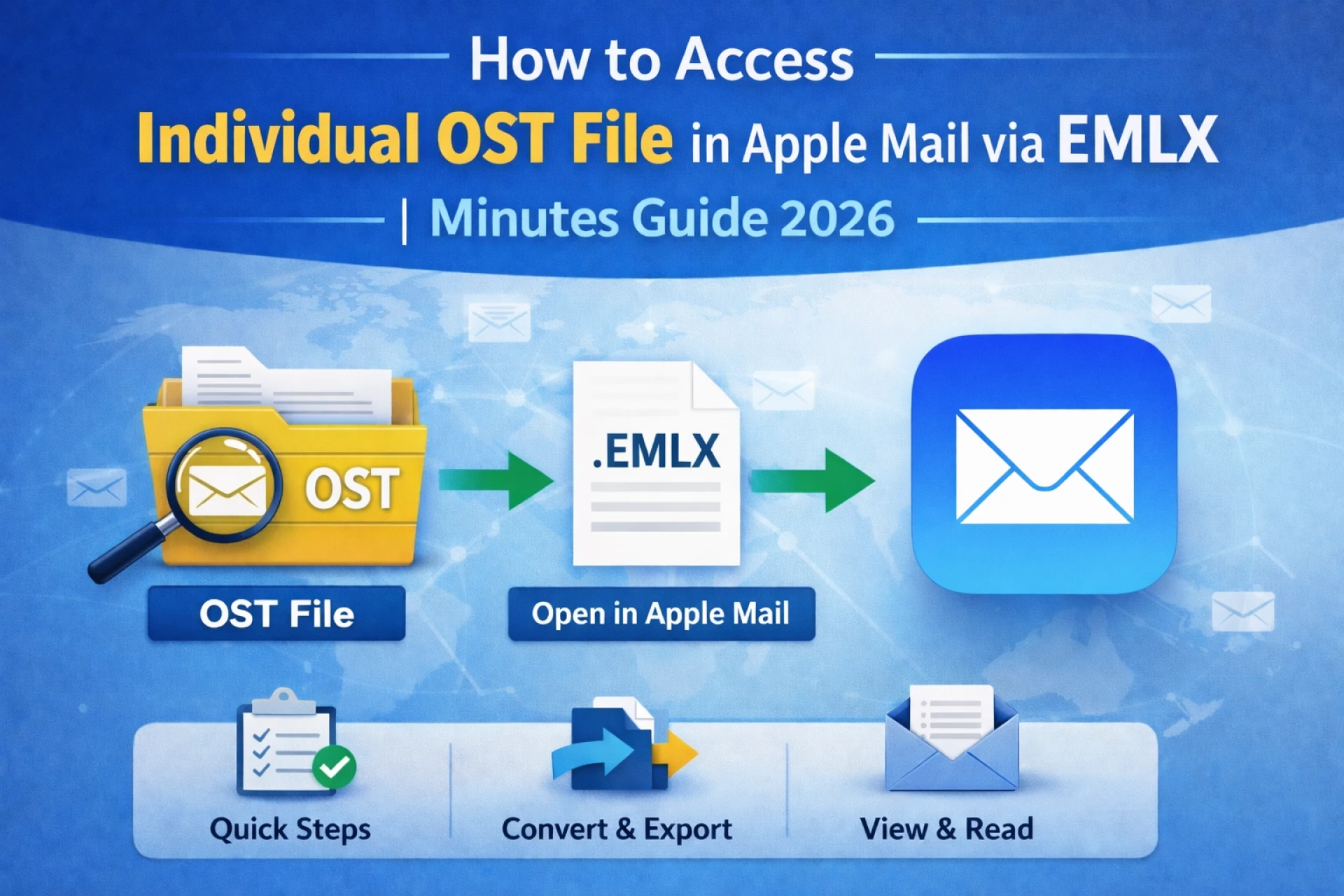
Microsoft Outlook stores mailbox data in an OST (Offline Storage Table) file when connected to Exchange Server, Microsoft 365, or IMAP accounts. This file lets users read their emails even when they are not connected to the internet. Apple Mail does not support OST files, which are made just for Outlook.
You can't get to an OST file directly if you're switching from Windows to macOS or need to open a specific email in Apple Mail. The structure of EMLX, which Apple Mail uses, is different from that of OST. So, conversion is needed.
This guide tells you what an OST file is, why you can't open it in Apple Mail, and how to get to individual OST emails by converting them correctly.
Understanding OST and EMLX File Formats
What Is an OST File?
An OST File:
- Keeps mailbox data in sync on the local machine
- Is linked to a certain Outlook profile
- Works with IMAP, Microsoft 365, or Exchange accounts.
- Cannot be opened on its own without Outlook profile authentication
OST files are encrypted and depend on the profile. The file could become orphaned if the Exchange account is deleted or the Outlook profile is broken.
What is an EMLX file?
An EMLX file:
- Is the native email file format of Apple Mail
- Keeps one email in each file
- Keeps attachments, headers, metadata, and formatting safe
- Works with the macOS Mail app
Apple Mail can't read or import OST files directly because they are in a different format.
Why Users Need to Access Individual OST Files in Apple Mail
Some common situations are:
- Moving from Windows Outlook to macOS.
- The account for the Exchange Server is no longer active.
- The OST file is there, but the Outlook profile is broken.
- Need to read a certain email outside of Outlook.
- Moving only important mailbox data.
In all of these situations, the specific email data needs to be changed into EMLX format.
Manual Method to Access Individual OST Emails in Apple Mail
There is no way to import OST into Apple Mail directly by hand. But there is a way to get around this if you can still get to Outlook.
Step 1: Open the OST File in Outlook
- Start Microsoft Outlook.
- Make sure the OST file is connected, and you can get to your mailbox data.
- Find the exact email you want to move.
This method only works if the Outlook profile is not broken and is active.
Step 2: Save the email as an MSG file.
- Choose the email.
- Put it on the desktop by dragging and dropping it.
- It will save as an MSG file.
Outlook's native email format is MSG, but Apple Mail doesn't support it directly.
Step 3: Convert MSG to EML
To make the email work with:
Send the email to an IMAP account set up in Apple Mail, or use a conversion process in between to change MSG to EML.
Step 4: Import into Apple Mail
- Start Apple Mail.
- Select File > Import Mailboxes.
- Pick files that are in EML format.
- Finish the import process.
Apple Mail will convert EML into EMLX on its own after you import it.
Limitations of the Manual Method
The manual workaround is possible, but it has some problems:
- Needs a working copy of Outlook.
- Doesn't work for OST files that don't have a parent.
- Takes a long time to send more than one email.
- There is a chance that attachments or formatting will be lost.
- There is no option for bulk export.
- Needs several steps to change.
This method won't work if Outlook can't open the OST file.
Alternative Method for Direct Conversion
A direct OST to EMLX conversion is needed when Outlook isn't working or the OST file is lost. In these cases, special conversion software can get mailbox data out of the OST file and convert it to EMLX format.
For instance, MailsClick Convert OST File to EMLX is a tool that can:
- Open orphaned OST files.
- Get individual emails out.
- Convert directly to EMLX format.
- Keep attachments and metadata safe.
- Keep the folder structure.
- Let some conversions happen.
The general steps for using this kind of software are:
- Choosing the OST file.
- Looking at what's in the mailbox.
- Choosing EMLX as the format for export.
- Saving the files that were changed.
- Bring them into Apple Mail.
This method makes the move easier and doesn't rely on Outlook.
How to Import Converted EMLX Files into Apple Mail
When emails are converted to EMLX format:
- Start Apple Mail.
- Choose "Import Mailboxes" from the File menu.
- Pick the folder that has the EMLX files in it.
- Finish the process of importing.
In Apple Mail, the emails will show up in a new folder in the mailbox.
Important Considerations Before Conversion
Keep these things in mind before you look at OST data in Apple Mail:
- Profile-linked and encrypted, OST files are.
- Make sure you always have a copy of the original file.
- Make sure that attachments are kept during the conversion.
- Check the folder structure after importing.
- Check to see if it works with your version of macOS.
Conclusion
You can't directly access an individual OST file in Apple Mail because the two applications use different file structures. The only way to do this is to convert the email data you need into EMLX format.
If Outlook is working and available, a manual workaround might work for one email. But when OST data is inaccessible, orphaned, or in large amounts, a direct conversion method is better and more reliable.
Knowing the difference between OST and EMLX formats will help make the switch from Outlook to Apple Mail in 2026 and beyond go more smoothly.