If you’ve ever upgraded your GPU expecting buttery-smooth gameplay… and still got stutters, random FPS drops, or that annoying “why does this feel laggy?” moment you’ve probably run into a bottleneck.
I’ve seen this countless times. Someone pairs a powerful GPU with an older CPU, checks a cpu bottleneck calculator, fires up a game, and instead of 120 FPS, they’re stuck at 60–70 with weird spikes. It feels like the PC is holding itself back.
That’s exactly what a bottleneck is.
This is where a CPU bottleneck tool or bottleneck calculator PC comes in. These tools help you figure out if your CPU is limiting your GPU or if your setup is actually balanced.
But here’s the thing most guides won’t tell you: a pc bottleneck calculator isn’t magic. It doesn’t “fix” anything by itself. What it does is give you clarity, and that’s what leads to real performance improvements.
Let’s break this down properly, from real-world experience.
What is a CPU Bottleneck in a PC?
A CPU bottleneck happens when your processor can’t keep up with your graphics card.
Think of it like this:
Your GPU is a sports car. Your CPU is the driver.
If the driver can’t react fast enough, the car never reaches full speed.
In gaming, the CPU handles things like:
- Game logic
- Physics
- AI
- Draw calls (telling the GPU what to render)
The GPU then renders frames.
If the CPU is slow, it can’t “feed” the GPU fast enough. So even if your GPU is powerful, it sits there waiting. That’s wasted performance.
In real terms:
- You might have an RTX 4070
- But your CPU limits you to 60–80 FPS instead of 120+
That’s a CPU bottleneck.
What is a CPU Bottleneck Test Tool?
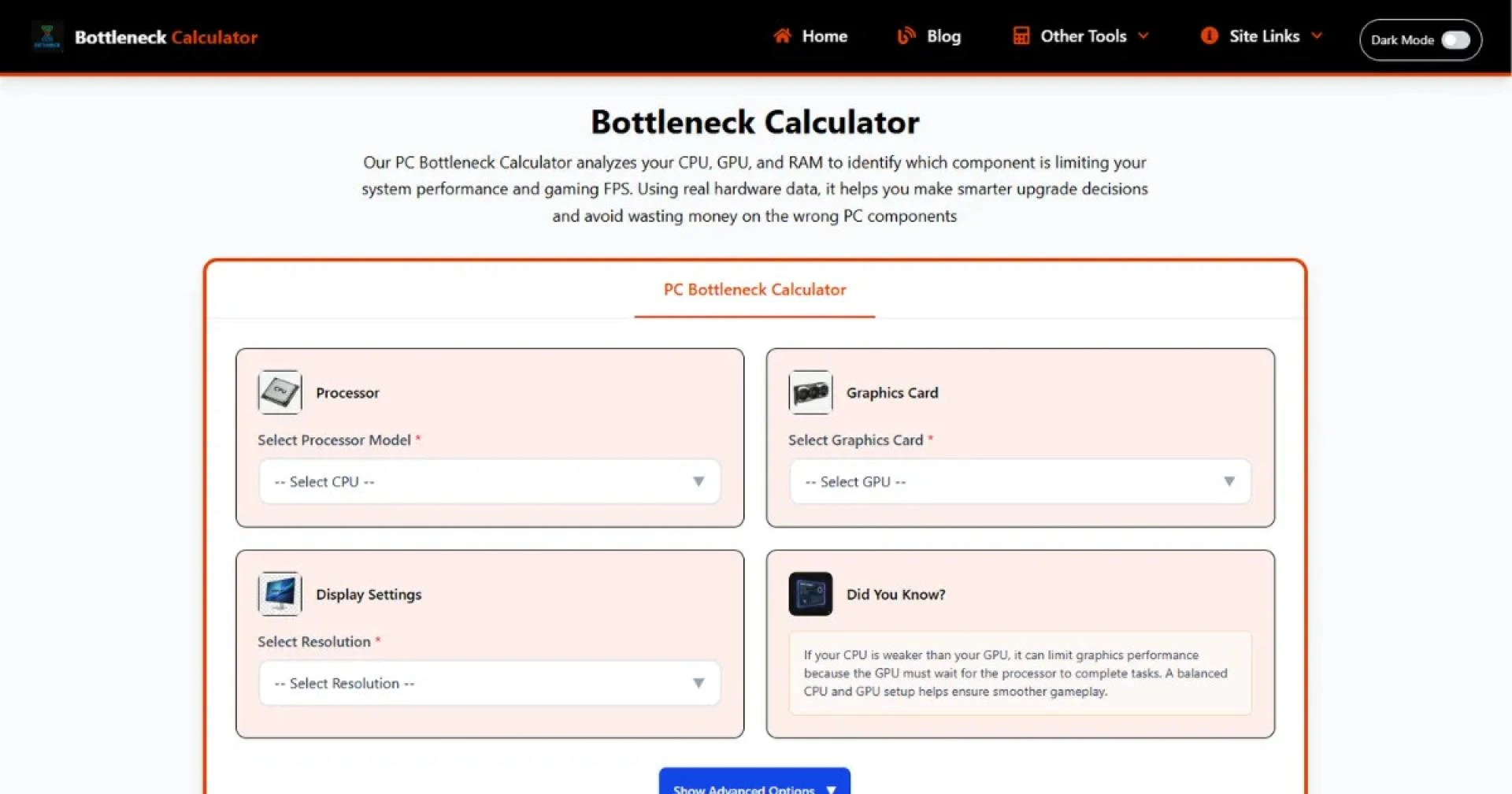
A CPU bottleneck test tool (or bottleneck calculator) is a simple tool that estimates how balanced your CPU and GPU are.
In practice, you:
- Enter your CPU model
- Enter your GPU model
- Select resolution (important)
- Get a percentage result
That percentage shows how much your CPU might limit your GPU.
Who should use it?
- People planning a new PC build
- Anyone upgrading GPU or CPU
- Gamers troubleshooting low FPS
- People who feel their system isn’t “performing right”
It’s not just for beginners. Even experienced builders use these tools as a quick sanity check.
How CPU Bottleneck Tools Work
Let’s keep this simple and real.
A CPU GPU bottleneck test doesn’t run on your actual PC hardware. It’s not benchmarking your system live.
Instead, it uses:
- Known performance data (benchmarks)
- Average FPS results from different games
- CPU vs GPU scaling patterns
It compares how your CPU and GPU typically perform together across different scenarios.
Then it outputs something like:
- “12% bottleneck”
- “25% bottleneck”
That number is basically saying:
“Your CPU is likely holding back your GPU by this much in certain situations.”
Important truth:
These results are estimates, not exact measurements.
Real-world performance depends on:
- Game optimization
- RAM speed
- Background processes
- Resolution (huge factor)
Still, the tool gives a very useful direction.
How CPU Bottleneck Test Tool Improves Performance
This is where people misunderstand things.
A CPU bottleneck tool doesn’t directly improve performance but it helps you make decisions that absolutely do.
Let me break down how it actually helps in real scenarios.
Identifies Weak Components
First and most obvious it tells you what’s holding your system back.
I’ve seen people blame their GPU for low FPS when the real issue was a 4-core CPU struggling in modern games.
A bottleneck calculator PC quickly highlights:
- CPU too weak upgrade CPU
- GPU too weak upgrade GPU
Without this, you’re basically guessing.
Prevents Wrong Upgrades
This is a big one.
I’ve seen people spend serious money on a high-end GPU… and get almost no improvement.
Example:
- Upgrade from GTX 1660 RTX 3080
- Keep old i5 8400
Result? Minimal FPS increase in CPU-heavy games.
Why? CPU bottleneck.
A quick CPU bottleneck test would’ve warned them:
“Your CPU will limit this GPU.”
That alone can save you hundreds of dollars.
Improves FPS and Smoothness
Here’s the real benefit.
Once you identify the bottleneck, you can fix it.
- Upgrade CPU higher FPS ceiling
- Better frame pacing smoother gameplay
- Reduced stuttering
In my experience, fixing a CPU bottleneck doesn’t just increase FPS it makes games feel more consistent.
That “micro-stutter” feeling? Often CPU-related.
Helps Optimize Settings
Sometimes you don’t need an upgrade at all.
If your CPU is the bottleneck:
- Lowering resolution won’t help much
- Reducing CPU-heavy settings will
Examples:
- Lower crowd density
- Reduce view distance
- Disable unnecessary background apps
A bottleneck tool helps you understand where to focus.
Enables Balanced Builds
This is where these tools shine.
When building a PC, you want balance:
- CPU and GPU working together efficiently
Not:
- Overpowered GPU + weak CPU
- Overpowered CPU + weak GPU
Using a bottleneck calculator PC helps you:
- Pair components properly
- Avoid wasted performance
- Get the most value for your budget
That’s how you actually improve PC performance long-term.
Signs Your PC Has a CPU Bottleneck
Here are the real-world symptoms I usually look for:
- GPU usage stays below 70–80% during gaming
- CPU usage hits 90–100% constantly
- FPS doesn’t increase after lowering graphics settings
- Stuttering in open-world or CPU-heavy games
- High-end GPU but surprisingly low FPS
- Frame drops during intense scenes (AI, physics, crowds)
If you’re seeing multiple of these, there’s a good chance your CPU is the problem.
How to Use a CPU Bottleneck Calculator
Using a CPU bottleneck tool is straightforward.
Here’s how I usually do it:
- Go to a reliable bottleneck calculator site
- Select your CPU model
- Select your GPU model
- Choose your resolution (1080p, 1440p, 4K)
- Run the test
You’ll get a percentage result.
How to interpret it:
- 0–10% good balance
- 10–20% minor bottleneck (usually fine)
- 20%+ noticeable bottleneck
Pro tip:
Always test at your actual gaming resolution. Bottlenecks change a lot between 1080p and 4K.
How to Fix CPU Bottleneck
Fixing a CPU bottleneck depends on your situation.
Upgrade the CPU
The most direct solution.
If your CPU is outdated or low-core:
- Move to a newer generation
- More cores/threads help in modern games
Overclock
If you’re on an unlocked CPU:
- A mild overclock can reduce bottleneck
- Don’t expect miracles, but it helps
Adjust Game Settings
Focus on CPU-heavy settings:
- Lower draw distance
- Reduce NPC density
- Disable unnecessary simulation features
Close Background Applications
This is underrated.
Browsers, Discord overlays, random apps they all eat CPU cycles.
Increase Resolution
Sounds weird, but:
- Higher resolution shifts load to GPU
- Reduces CPU bottleneck impact
Trade-offs:
- Upgrading costs money
- Higher resolution reduces FPS
It’s always a balance.
Real Example: Before vs After
Let me give you a simple real-world case.
Before
- CPU: i5 9400F
- GPU: RTX 3070
- 1080p gaming
Result:
- 65–80 FPS
- Stutters in Warzone
- GPU usage ~60%
After CPU upgrade
- Same GPU
Result:
- 100–130 FPS
- Much smoother gameplay
- GPU usage ~95%
Nothing else changed.
That’s the impact of removing a CPU bottleneck.
Advantages of Using Bottleneck Tools
A CPU bottleneck tool is simple but powerful.
It gives you quick clarity without needing deep technical knowledge. You can test different combinations in seconds, which is incredibly useful when planning upgrades. It also helps avoid expensive mistakes something I’ve seen happen way too often.
For beginners, it removes confusion. For experienced users, it’s a fast validation tool. And most importantly, it helps you build or upgrade a system that actually performs the way you expect.
Limitations of Bottleneck Tools
Let’s be honest these tools are not perfect.
They rely on average data, not your exact system.
They don’t account for:
- Game-specific behavior
- RAM speed and latency
- Cooling and thermal throttling
- Background tasks
Also, a “20% bottleneck” doesn’t mean you’re losing exactly 20% FPS.
I’ve seen cases where a “high bottleneck” on paper didn’t feel bad in real gameplay and the opposite too.
So treat these tools as guides, not absolute truth.
Conclusion
At the end of the day, a CPU bottleneck isn’t some rare technical issue it’s one of the most common reasons people feel disappointed with their PC performance. I’ve seen setups where people spent a lot on a powerful GPU, only to get average results because the CPU simply couldn’t keep up. That mismatch is exactly what bottleneck tools help you spot early.
What makes a CPU bottleneck tool genuinely useful isn’t the percentage it shows it’s the direction it gives you. It helps you stop guessing. Instead of randomly upgrading parts or tweaking settings blindly, you start making decisions based on how your system actually behaves. That’s the difference between wasting money and actually improving performance.
But it’s important to stay realistic. A CPU GPU bottleneck test is not a magic answer. It won’t reflect every game, every workload, or every unique setup. Real performance always depends on how your system is used. That’s why I always recommend using these tools as a starting point, then confirming things with actual gameplay, monitoring CPU/GPU usage, and paying attention to how smooth everything feels.
FAQs
What is a good bottleneck percentage?
A good bottleneck percentage, in practical terms, is anything low enough that you don’t actually notice performance issues during normal use. Generally, if your result is under 10%, your system is considered well-balanced. In real gameplay, that usually means your CPU and GPU are working together efficiently, and you’re getting close to the maximum performance your hardware can deliver. Between 10% and 20%, things are still acceptable, especially if you’re playing at higher resolutions where the GPU naturally takes more load.
That said, I always tell people not to get obsessed with the number itself. I’ve seen systems showing a 15–20% bottleneck that run perfectly smooth in actual games. On the flip side, even a lower percentage can feel bad if the game is poorly optimized or heavily CPU-dependent. So treat the percentage as a guideline, not a strict rule. What really matters is whether your FPS is stable and your gameplay feels smooth.
Can CPU bottleneck reduce FPS?
Yes, and in many cases, it reduces FPS more than people expect. When your CPU can’t process game data fast enough, your GPU ends up waiting for instructions instead of rendering frames continuously. That creates a hard limit on how many frames per second you can achieve, regardless of how powerful your GPU is. So even if your graphics card is capable of pushing 120 or 144 FPS, a weak CPU might hold you down to 60–80 FPS.
The bigger issue, though, isn’t just lower FPS it’s inconsistency. A CPU bottleneck often causes frame drops, stuttering, and uneven frame pacing, especially in open-world or multiplayer games where there’s a lot happening at once. This is why some games feel “laggy” even when the average FPS looks okay. In my experience, fixing a CPU bottleneck improves not just numbers, but the overall smoothness and responsiveness of the game.
Are bottleneck calculators accurate?
Bottleneck calculators are useful, but they’re not perfectly accurate and that’s something a lot of people misunderstand. These tools rely on general benchmark data and average performance comparisons, not your exact system conditions. They don’t know your RAM speed, cooling setup, background processes, or even which specific games you play. Because of that, the percentage they give you is more of an estimate than a precise measurement.
In real-world use, they’re best treated as a quick reference tool. They’re very good at identifying obvious mismatches, like pairing a high-end GPU with a much older CPU. But for fine-tuning or diagnosing specific performance issues, you still need real testing like monitoring CPU and GPU usage during gameplay. I use these tools as a starting point, not the final answer.
How to fix CPU bottleneck?
Fixing a CPU bottleneck depends on how severe it is and what you’re trying to achieve. The most effective solution is upgrading your CPU to something more modern with better single-core performance and more threads. This is especially important for newer games that rely heavily on CPU performance. In many cases, a CPU upgrade alone can unlock a significant amount of unused GPU potential and improve both FPS and smoothness.
If upgrading isn’t an option, there are still ways to reduce the impact. You can tweak in-game settings that rely heavily on the CPU, such as draw distance, AI density, or physics-related options. Closing background applications can also free up CPU resources. In some situations, increasing resolution can shift more load to the GPU, which surprisingly helps balance things out. These aren’t permanent fixes, but they can make a noticeable difference.
Is bottleneck harmful?
A bottleneck is not harmful to your PC in any physical sense. It won’t damage your components or reduce their lifespan. Every system has some level of bottleneck it’s completely normal because no two components are ever perfectly matched in every situation. The idea of a “perfectly balanced” system is more of a goal than a reality.
The real issue with bottlenecks is wasted potential. If one component is significantly weaker, it prevents the other from performing at its full capability. That’s where frustration comes in, especially if you’ve invested in high-end hardware. But as long as your system runs stable and temperatures are under control, a bottleneck itself isn’t dangerous. It’s just something you may want to fix if you’re not satisfied with performance.