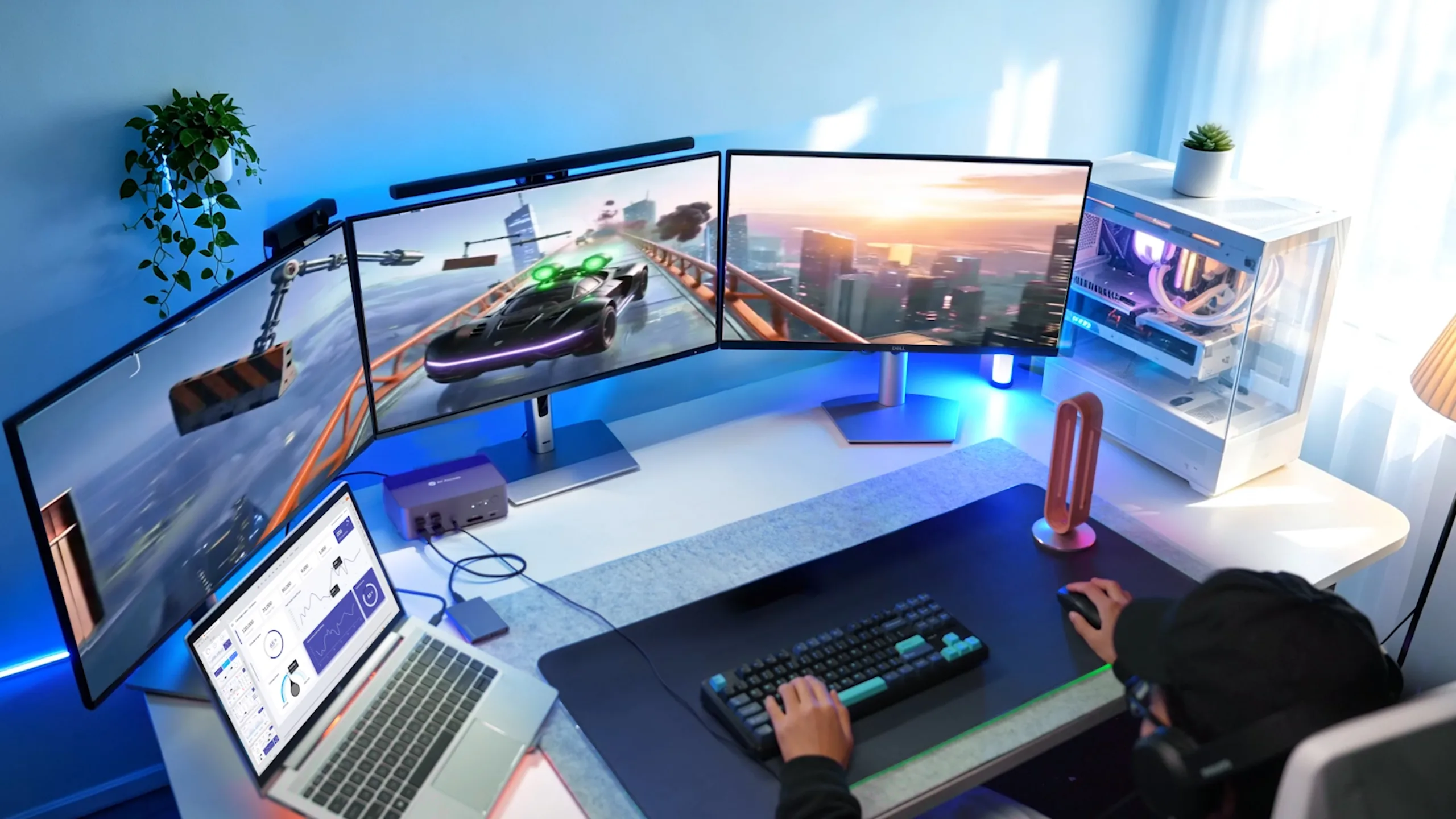
Quick Brief of the Article
Q: How Can Multi-PC Users Build a Better Gaming Desk Setup?
A: A better gaming desk setup for multi-PC users starts with creating one workspace that can support multiple computers without unnecessary cable switching. A KVM docking station allows users to share monitors, keyboard, mouse, and USB accessories between a gaming PC, laptop, or other devices, making it easier to switch between gaming, work, and creative workflows.
The right setup depends on your workflow:
Gaming PC + laptop users can use a dual-monitor KVM docking station to create a flexible hybrid workspace.
Triple-monitor users can choose a solution designed for expanded multi-screen setups.
Users with multiple computers and shared peripherals can simplify their desk with a centralized connection solution.
Managing Multiple Computers in One Gaming Desk Setup
A modern gaming desk is often more than a place for playing games.
Many users now rely on multiple computers throughout the day. A desktop PC may handle gaming, streaming, and other high-performance tasks, while a laptop is used for work, communication, or everyday productivity. Some users may even add another system for creative applications or specialized workflows.
This type of setup gives users more flexibility, but it also creates a common challenge: keeping everything connected and easy to manage.
When each computer has its own monitor connections, keyboard, mouse, and USB accessories, the workspace can quickly become complicated. Switching from a gaming session to a work task may require changing cables, adjusting monitor inputs, or using different sets of peripherals.
For multi-PC users, the goal is not simply to add more devices. A well-designed gaming desk setup should make different computers work together as part of one workspace.
A KVM docking station helps solve this challenge by allowing multiple computers to share the same displays and peripherals. Instead of maintaining separate setups for every device, users can create a more flexible workspace that adapts to different tasks.
Start Your Gaming Desk Setup by Understanding Your Multi-PC Workflow
The best multi-PC setups begin with understanding how each computer is used.
Not every device needs to perform the same role.
A common combination is a gaming desktop paired with a laptop.
The desktop PC is usually built around performance. It handles demanding games, high-resolution content, streaming, and applications that require dedicated hardware.
The laptop provides flexibility. It can be used for work meetings, communication, browsing, and tasks that do not require a full desktop environment.
Instead of replacing one computer with another, many users prefer keeping both systems available.
The challenge is creating a desk where both computers can access the same workspace.
A practical setup should allow you to use the same:
- monitors
- keyboard and mouse
- headset
- webcam
- USB accessories
without reconnecting everything each time you switch devices.
This is where a KVM docking station becomes useful. It creates a central connection point that allows multiple computers to share the same desk equipment.
Design Your Gaming Desk Setup Around the Right Monitor Configuration
Monitors define how a multi-PC workspace feels and functions.
The right configuration depends on how you divide your time between gaming, work, and creative tasks.
Dual Monitor Setup for Balanced Gaming and Productivity
A dual-monitor setup is one of the most common choices for multi-PC users.
For gaming, two monitors provide additional flexibility. One display can focus on the main game, while the second screen can be used for communication tools, streaming controls, guides, or system information.
For work, the same setup provides more room for multitasking. Users can keep documents, communication apps, research materials, or creative tools visible at the same time.
However, sharing two monitors between multiple computers can become difficult without a proper connection method.
Many users end up with multiple cables behind the desk or need to change monitor inputs when switching systems manually.
A well-planned gaming desk setup should make the transition between computers simple, rather than adding more steps to the workflow.
Triple Monitor Setup for Multi-PC Users Who Need More Screen Space
Some users need more than two displays.
Triple-monitor gaming desk setups are popular among streamers, creators, developers, and users who manage multiple applications at once.
Additional screens can help with:
- monitoring different applications
- managing streaming tools
- editing content
- comparing information
- creating a more immersive gaming environment
However, as the number of displays increases, so does the complexity of managing connections.
A larger setup requires more consideration around how computers, monitors, and peripherals are connected together.
For multi-PC users, organization becomes just as important as performance.
Create a Cleaner Multi-PC Gaming Desk Setup With Better Cable Management
Cable management is one of the biggest challenges in a multi-computer workspace.
A typical setup may include display cables, USB connections, charging cables, network cables, and multiple accessories.
When every computer has separate connections, the desk can become difficult to maintain.
The problem is not having multiple devices.
The problem is that each device needs access to the same workspace.
A KVM docking station changes the way these connections are organized.
Instead of connecting every accessory separately to every computer, users can create a more centralized setup.
The desktop PC and laptop connect through the KVM docking station, while monitors and peripherals remain ready for both systems.
This approach reduces unnecessary cable switching and creates a cleaner workspace that is easier to use every day.
Build a Gaming Desk Setup That Supports Both Gaming and Work
Many multi-PC users do not have separate spaces for gaming and productivity.
The same desk may be used for gaming after work, video editing, software development, content creation, or other professional tasks.
Because of this, a modern gaming desk setup needs to support different workflows without requiring constant adjustments.
For example:
During gaming sessions, the desktop PC provides the performance needed for demanding applications.
When work begins, the laptop can use the same monitors, keyboard, mouse, and other accessories.
For users with more advanced workflows, multiple computers can serve different purposes while sharing one organized workspace.
The goal is not to connect more devices.
The goal is to make those devices easier to manage.
A KVM docking station helps create that connection between different workflows.
Choose a KVM Docking Station Based on Your Multi-PC Gaming Desk Setup
Different multi-PC users have different workspace requirements.
The right KVM docking station depends on how your computers, monitors, and accessories are used together.
Instead of choosing based only on specifications, consider the type of workspace you want to build.
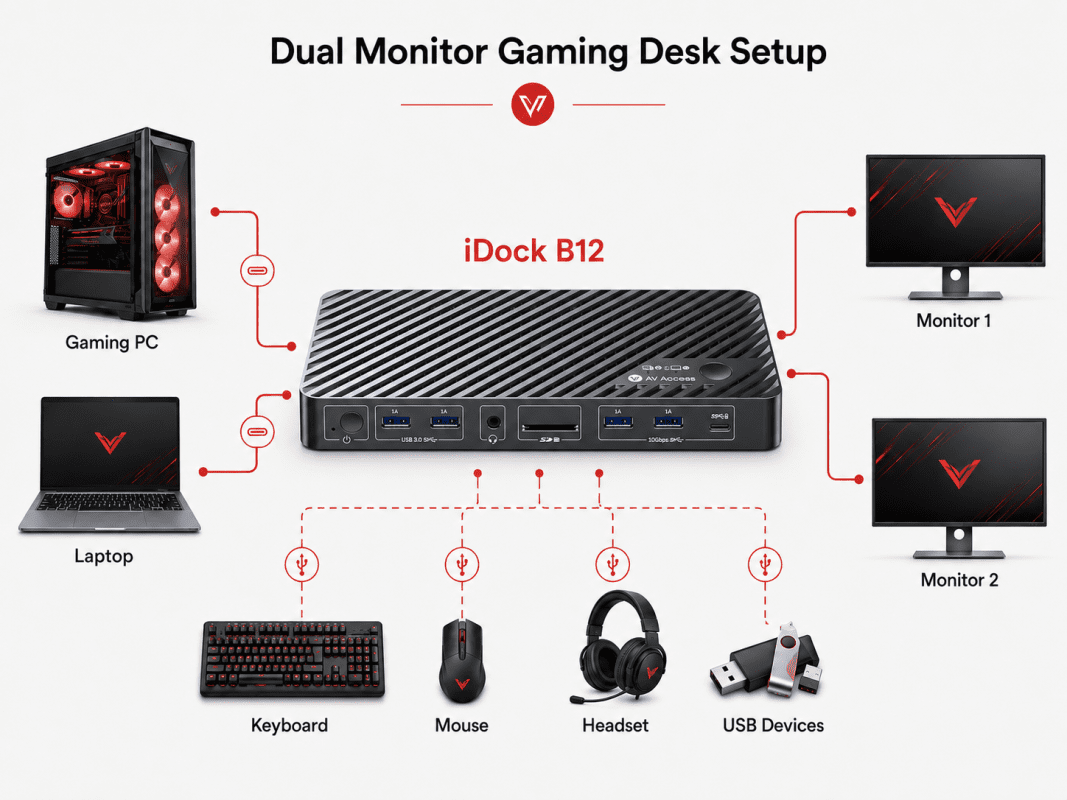
Gaming PC and Laptop Dual Monitor Setup: Choosing iDock B12 for a Hybrid Workspace
For users who combine a gaming desktop with a laptop, the main challenge is creating one workspace that can support both performance and productivity.
A typical setup includes a powerful desktop PC for gaming, streaming, or demanding applications, while a laptop handles work, communication, and everyday tasks. Instead of maintaining separate monitors, keyboards, and accessories for each device, many users prefer a single desk setup that can switch between both computers.
iDock B12 is designed for this type of hybrid gaming and productivity workspace. It allows users to connect a gaming desktop and laptop to the same dual-monitor setup while sharing essential peripherals such as keyboard, mouse, headset, and USB devices.
For users who need both gaming performance and daily productivity, iDock B12 also provides enhanced connectivity with 2.5Gb Ethernet, helping create a faster and more flexible desktop environment.
It is a suitable choice for users who:
- Switch between a gaming PC and laptop regularly
- Use dual monitors for gaming and productivity
- Need high refresh rate displays for gaming
- Want a cleaner workspace with shared peripherals
- Need faster network connectivity for modern workflows
With iDock B12, users can keep the performance of a dedicated gaming PC while maintaining the convenience of a laptop-based workflow in one connected desk setup.
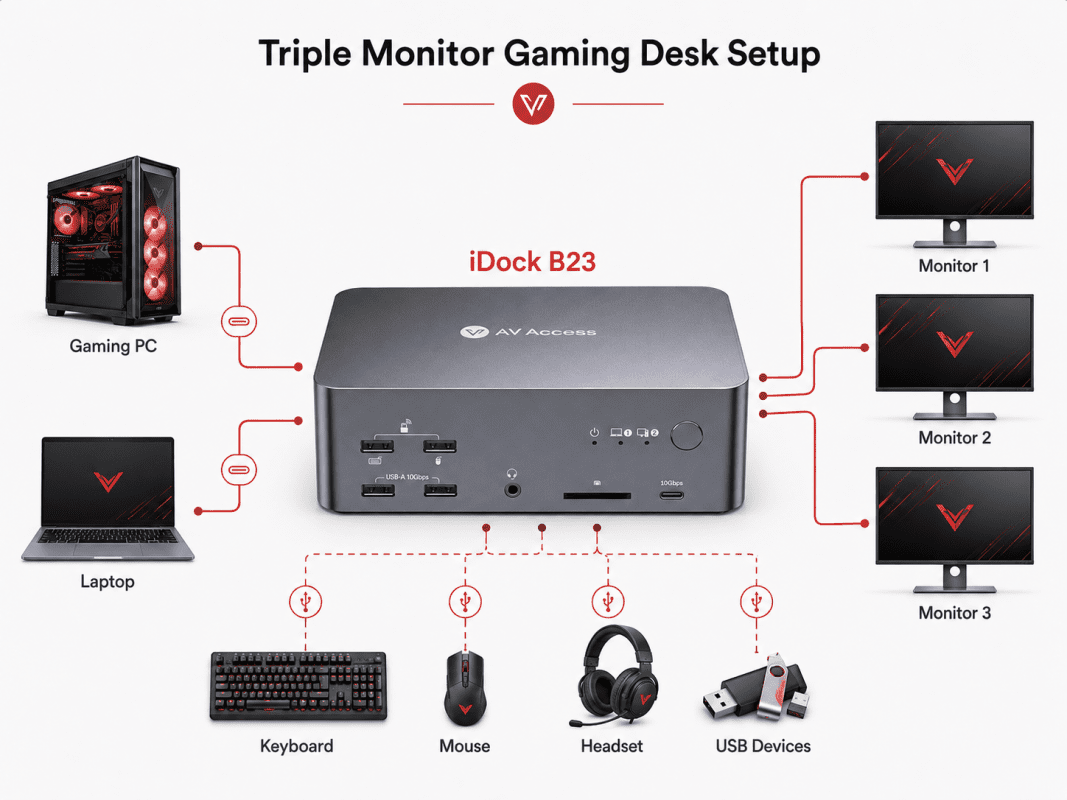
Triple Monitor Gaming Desk Setup: Choosing iDock B23 for Expanded Workspaces
For users who need more screen space, a triple-monitor setup can provide a more flexible environment for gaming, streaming, and multitasking.
Many advanced users rely on multiple displays to manage different tasks at the same time. A gaming monitor can focus on gameplay, while additional screens handle communication tools, streaming controls, creative applications, or productivity tasks.
However, managing multiple monitors across different computers can quickly become complicated without a centralized connection solution.
iDock B23 is designed for users building a triple-monitor multi-PC workspace. It allows a desktop PC and laptop to share an expanded display setup and common peripherals, helping users maintain a more organized desk environment.
It is a suitable choice for users who:
- Use three monitors for gaming or productivity
- Need more screen space for multitasking
- Combine gaming with streaming or content creation
- Want one workspace for both desktop and laptop workflows
With iDock B23, multi-PC users can build a more flexible triple-monitor gaming desk setup while keeping their displays and peripherals organized in one place.
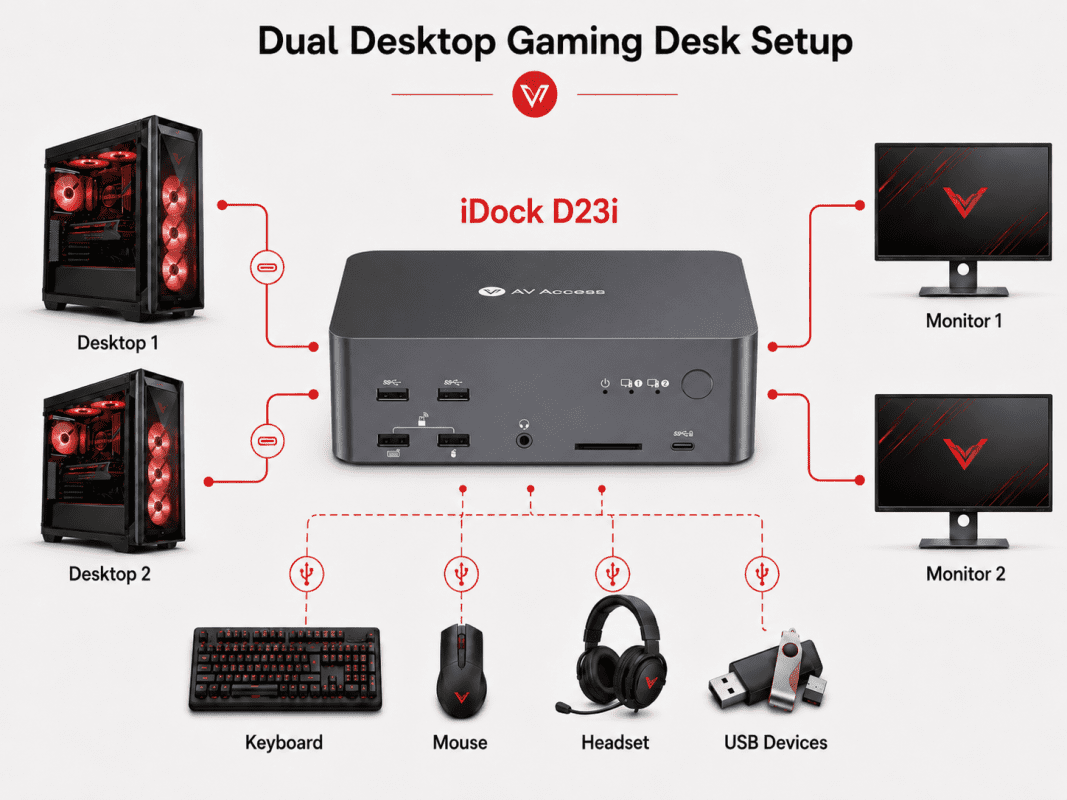
Dual Desktop Gaming Desk Setup: Choosing iDock D23i for Two Desktop Computers
For users who run two desktop PCs on the same desk, the challenge is different from a typical desktop-and-laptop setup.
A common example is a gaming PC paired with another desktop for streaming, content creation, AI workloads, or professional applications. Instead of creating two separate workstations with duplicate monitors and accessories, many users prefer sharing one complete desk setup between both systems.
iDock D23i is designed for this type of dual desktop workspace. It allows two desktop computers to share the same monitors and peripherals, helping users switch between different systems while keeping their workspace organized.
It is a suitable choice for users who:
- Use two desktop PCs for different workflows
- Combine gaming with streaming or professional tasks
- Need a shared multi-monitor desktop setup
- Want to manage multiple desktop systems from one workspace
With iDock D23i, users can maintain the performance of two dedicated desktop systems while creating a more efficient and organized multi-PC gaming desk setup.
 SpecificationiDock B12iDock B23iDock D23iComputer Support1 Desktop + 1 Laptop1 Desktop + 1 Laptop2 Desktop PCsMonitor SupportDual MonitorTriple MonitorTriple MonitorVideo InputDesktop: HDMI + DP
Laptop: USB CDesktop: HDMI + 2×DP
Laptop: USB CEach PC: HDMI + 2×DPVideo OutputDual DisplayHDMI + 2×DPHDMI + 2×DPMaximum ResolutionUp to 8K@60HzUp to 8K@60HzUp to 8K@60HzHigh Refresh Rate SupportUp to 4K@165Hz / 1080P@480Hz/360HzUp to 4K@165Hz / 1440P@480Hz/360HzUp to 4K@165Hz / 1080P@480Hz/360HzHDR SupportYesYesYesUSB Expansion USB-A 10Gbps ×3
USB-A 5Gbps ×2
USB C ×1USB-A 10Gbps ×4
USB-A 5Gbps ×2
USB C ×1USB-A 5Gbps ×3
USB-A 2.0 ×2
USB C ×1Ethernet2.5Gb Ethernet1Gb Ethernet1Gb EthernetSD Card ReaderYesYesYesAudio3.5mm Audio3.5mm Audio3.5mm AudioLaptop ChargingUp to 100W USB C PDUp to 100W USB C PDN/ASwitching MethodButton / RemoteButton / RemoteButton / Remote
Complete Your Multi-PC Gaming Desk Setup With the Right Accessories
A well-designed gaming desk setup depends on more than computers and monitors.
Small improvements can make daily use more comfortable and efficient.
Monitor ArmsMonitor arms help organize desk space and make it easier to adjust screen positions, especially for dual and triple-monitor setups.
Keyboard and MouseMany users invest heavily in their preferred keyboard and mouse.
Sharing these peripherals between multiple computers avoids unnecessary duplication and keeps the workspace consistent.
Audio and Communication DevicesHeadsets, microphones, and webcams are important for both gaming and remote work.
A centralized connection setup helps reduce the need to reconnect these devices manually.
Desk OrganizationA clean workspace improves both gaming and productivity.
Good cable routing and thoughtful placement make the setup easier to maintain and upgrade over time.
Conclusion: Build a Gaming Desk Setup That Works With Every Computer
A multi-PC gaming desk setup should not feel like managing several separate workspaces.
The best setups are built around flexibility.
Whether you are switching between a gaming desktop and laptop, expanding to multiple monitors, or creating a workspace for gaming and professional tasks, the goal is the same:
One desk. Multiple computers. A simpler workflow.
A KVM docking station helps multi-PC users bring different systems together into one organized workspace.
Instead of choosing between gaming performance and productivity, users can create a setup that supports the way they actually use their devices every day.
FAQs About Gaming Desk Setup for Multi-PC Users
1. What is the best gaming desk setup for multiple computers?The best setup depends on your workflow. Many multi-PC users combine a gaming PC with a laptop, using a KVM docking station to share monitors, keyboard, mouse, and USB accessories from one workspace.
2. How can I use two computers with the same monitor, keyboard, and mouse?A KVM docking station allows two computers to share the same displays and peripherals. Users can switch between devices without reconnecting cables or maintaining separate accessories.
3. Is a KVM docking station good for gaming setups?Yes. A KVM docking station is useful for gamers who switch between a gaming PC and another computer while keeping the same monitors and peripherals connected.
4. What is the difference between a KVM switch and a KVM docking station?A KVM switch focuses on switching control between computers, while a KVM docking station combines switching with additional connectivity for a more complete multi-device workspace.
5. Can I use multiple monitors with a KVM docking station?Yes. Many KVM docking stations support dual or triple-monitor setups. The supported display configuration depends on the model and your computer’s video capabilities.
6. How do I keep a multi-PC gaming desk setup clean?A centralized connection solution helps reduce cable clutter. A KVM docking station allows monitors and peripherals to stay connected while multiple computers share the same workspace.