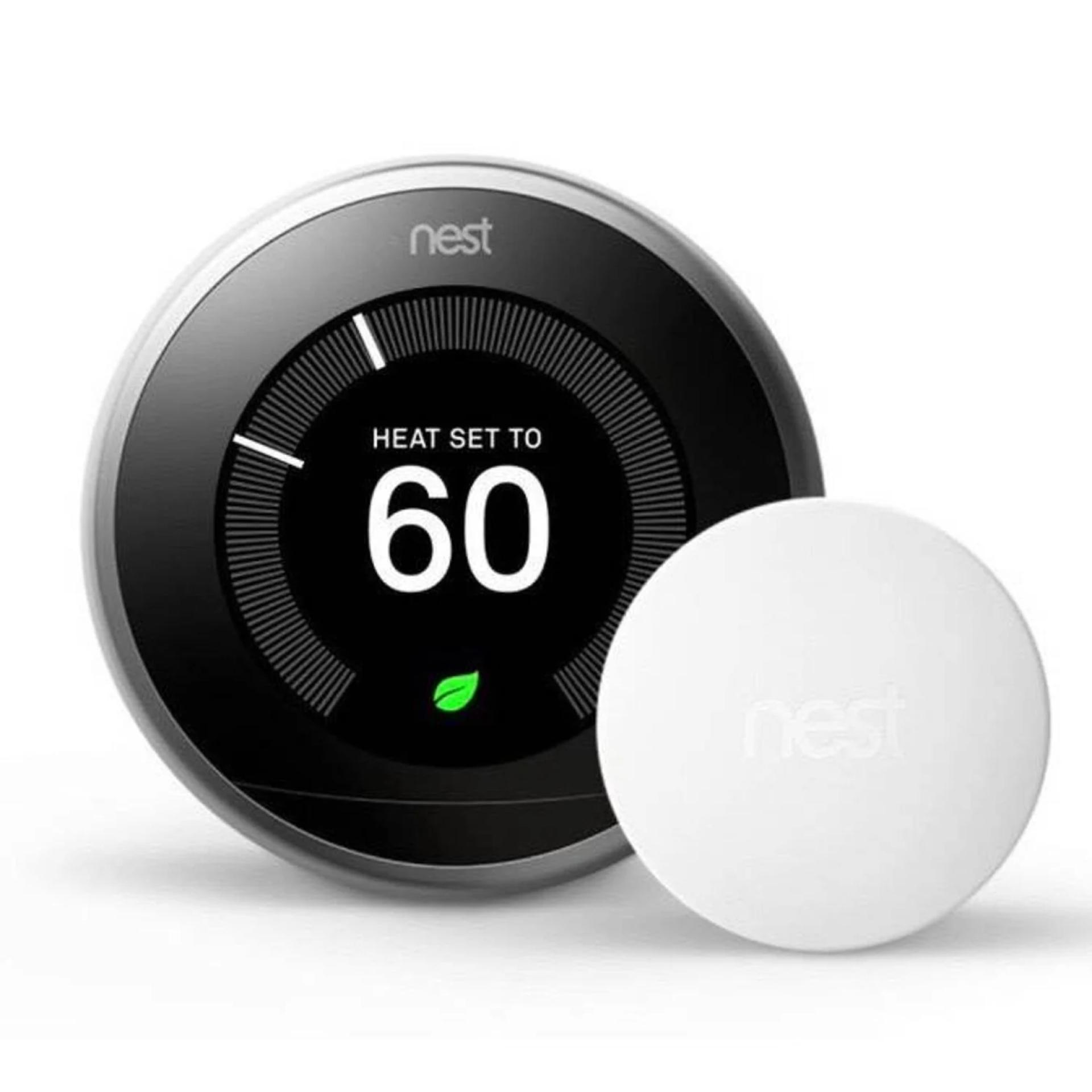
The Google Nest Temperature Sensor is a simple yet powerful accessory that enhances your smart home comfort. By allowing your Nest Thermostat to focus on specific rooms, it ensures consistent temperatures where they matter most. If you’ve just purchased one and want to get started, here’s a step-by-step guide on how to install and set up a Nest Temperature Sensor.
Step 1: Unbox and Prepare the Sensor
Inside the package, you’ll find the Nest Temperature Sensor and a quick-start guide. The device is small, sleek, and battery-powered, so no wiring or drilling is required. Make sure you have your smartphone with the Google Home app installed, as you’ll need it for the setup process.
Step 2: Check Compatibility
Before you begin, confirm that your Nest Thermostat model is compatible with the sensor. The Nest Temperature Sensor works with the following:
- Nest Thermostat E
- Nest Learning Thermostat (3rd Generation)
- If you’re using the newest Google Nest Thermostat (2020 model), keep in mind that it does not support external sensors.
Step 3: Open the Google Home App
On your smartphone, open the Google Home app or the Nest app, depending on which one your thermostat is set up with. Tap the “+ Add” button to begin adding a new device. Select Nest Temperature Sensor from the list and follow the prompts.
Step 4: Pair the Sensor with Your Thermostat
The app will guide you to scan the QR code on the back of the sensor. Once scanned, the sensor will automatically connect via Bluetooth to your Nest Thermostat. If scanning doesn’t work, you can enter the pairing code manually.
Step 5: Choose the Room for Your Sensor
After pairing, the app will ask you to assign the sensor to a room, such as “Bedroom,” “Living Room,” or “Office.” Naming the sensor by room helps you easily identify and control which area of your home gets priority temperature adjustments.
Step 6: Place the Sensor in the Desired Location
The placement of your Nest Temperature Sensor is crucial. Ideally, place it about three feet above the floor in a spot where you spend most of your time. Avoid putting it near vents, windows, direct sunlight, or behind furniture, as these can distort temperature readings. You can either place the sensor on a flat surface like a shelf or mount it to the wall using the included screw.
Step 7: Set a Schedule
Within the Google Home or Nest app, you can now set up a schedule for your sensor. For example, you may want your bedroom sensor prioritized at night and your living room sensor during the day. This flexibility ensures personalized comfort and energy savings.
Step 8: Test and Adjust
Once installed, monitor the performance for a few days. If one room still feels uncomfortable, consider adjusting the placement of the sensor or tweaking the schedule in the app.
Final Thoughts
Installing and setting up a Nest Temperature Sensor is quick, user-friendly, and requires no technical expertise. In just a few steps, you can enjoy precise climate control tailored to your lifestyle. By prioritizing the rooms where comfort matters most, you’ll get the full benefit of your Nest Thermostat system.