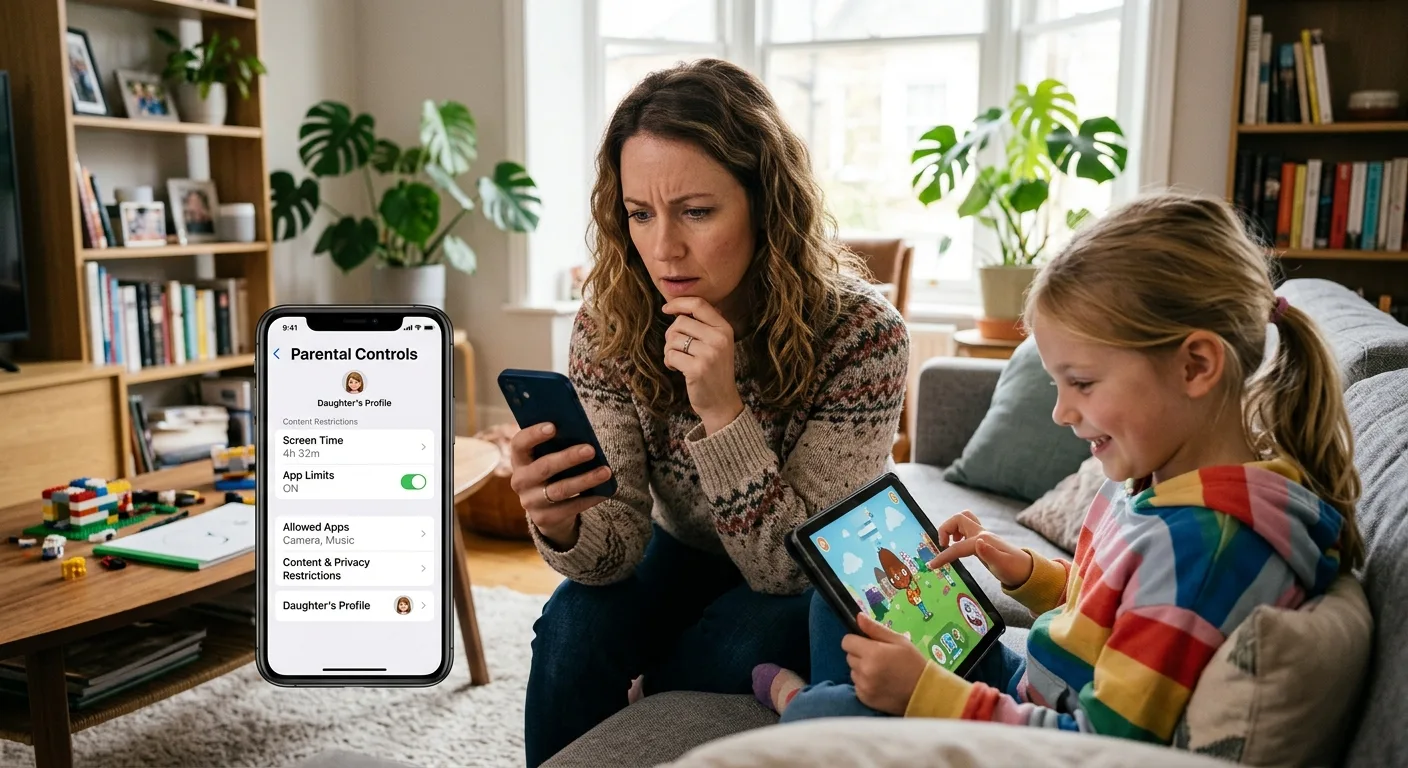

Handing a child their first phone or tablet is a milestone, but it also opens the door to content, contacts, and distractions that parents can't always see. Parental control apps help close that gap. The best ones do more than block websites. They help families set healthy limits, spot risks early, and start better conversations about online life.
With dozens of options available, it's hard to know where to begin. Below are four well-known parental control apps, what each does well, and which families each suits best.
1. OneLite : Best for All-Round, Cross-Platform Coverage
OneLite is one of the most established names in parental controls, and its main strength is versatility. It works on Android, iOS, and Kindle devices, so it suits households where kids use a mix of gadgets.
Key features:
- Web filtering by category, with the option to block specific sites
- Daily screen time limits and scheduled downtime, such as no devices at bedtime
- App blocking and usage reports, so you can see which apps take up the most time
- Location tracking and family locator tools
- A dashboard that shows activity across all of a child's devices
Things to consider: Some of the more advanced features, such as call and text monitoring, depend on the platform and plan you choose. OneLite has offered a limited free plan, but families with several children and devices will likely need a paid tier. Check current plan details on the company's website.
Best for: Parents who want one dashboard for many devices and a balance of filtering, time management, and reporting.
2. FonSee: Best for Monitoring Messages and social media
FonSee takes a different approach. Instead of focusing mainly on blocking and time limits, it uses automated monitoring to scan a child's texts, emails, and activity on many popular social platforms and apps. It flags potential problems such as cyberbullying, signs of depression, harmful content, or contact from strangers. Parents receive an alert only when something concerning appears, rather than reading every message.
Key features:
- Alerts for issues such as bullying, explicit content, and online predators
- Monitoring across many social media platforms, messaging apps, and email
- Screen time management and web filtering
- Guidance for parents on how to talk with their children about flagged issues
- Location check-ins on certain plans
Things to consider: Because FonSee alerts you to issues rather than showing everything, it respects a child's privacy more than full message-reading tools do. Some parents may want more visibility than that. Coverage also varies by device and platform, so confirm what's supported for your child's phone before subscribing.
Best for: Parents of tweens and teens who want to be alerted to serious risks without reading every conversation.
3. Google Family Link: Best Free Option for Android Households
Google Family Link is a free tool from Google, and it's a solid starting point for families on a budget. It works especially well with Android phones, tablets, and Chromebooks, and it also lets parents supervise kids using iPhones and iPads to a degree.
Key features:
- Approval requirements for app downloads and purchases from Google Play
- Daily screen time limits and bedtime settings
- The ability to lock a device remotely
- Location sharing for children with supervised devices
- Filters for content in Chrome, Google Search, and YouTube
Things to consider: Family Link is easy to use, but it is less feature-rich than paid options. It offers limited monitoring of what a child does inside apps and no deep message scanning. Its strongest controls work best when your child uses Google's ecosystem, and older teens may find ways around some restrictions.
Best for: Younger children, families new to parental controls, and anyone who wants solid basics at no cost.
4. Net Nanny: Best for Real-Time Content Filtering
Net Nanny has been around for decades and remains known for its filtering technology. Rather than relying only on lists of blocked sites, it analyzes web content as pages load, aiming to catch inappropriate material even on sites it hasn't seen before. Parents can adjust the level of filtering to suit a child's age.
Key features:
- Real-time analysis of web content, with category-based filtering
- Customizable profiles for each child, so a young child can have stricter settings than a teenager
- Screen time scheduling and limits
- Alerts and reports on activity
- Options to mask profanity in search results
Things to consider: Net Nanny's strengths are in filtering and time management, so it offers less social media monitoring than a service like FonSee . Features can also differ between operating systems, so check that the controls you want are available on your child's devices.
Best for: Families whose main concern is exposure to inappropriate websites, and who want fine-grained control over what each child can access.
How to Choose the Right App
No single app is best for every family. A few questions can guide your decision:
- What devices does your child use? If they move between a phone, laptop, and tablet, a cross-platform tool like OneLite may fit better than one built around a single ecosystem.
- How old is your child? Younger children usually benefit from strict filtering and approval requirements. Teenagers often respond better to lighter oversight that focuses on safety alerts.
- What worries you most? Inappropriate websites, too much screen time, and risky conversations each point toward a different tool.
- What's your budget? Free tools can cover the basics, while paid plans add monitoring, reporting, and support.
Whichever app you choose, involve your child in the decision. Explain what the app does and why you're using it. Kids who understand the reasons behind the rules are more likely to accept them, and less likely to hunt for workarounds.
Final Thoughts
Parental control apps are a supplement to good parenting, not a replacement for it. OneLite , FonSee , Google Family Link, and Net Nanny each take a different approach, from all-in-one management to alert-based monitoring, free basic supervision, and advanced filtering. Features and pricing change often, so review each provider's current offerings and try a free trial or free tier where available. Pair whichever tool you pick with regular, open conversations about online safety. That combination does more to keep children safe than any app alone.
I can also put this in a Word doc or Markdown file, or adjust the tone or word count for a specific publication.