
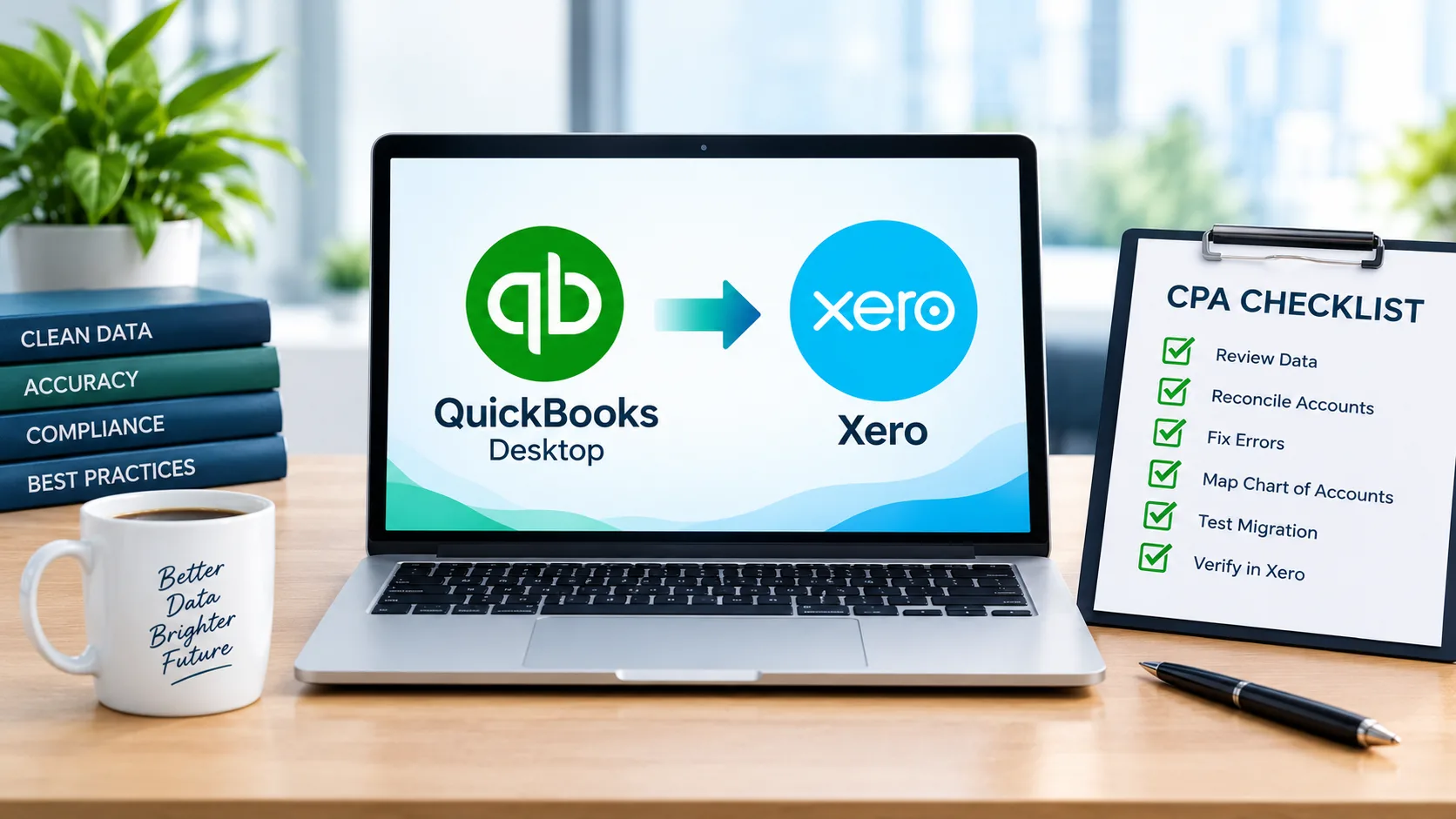
The difference between a migration that takes an afternoon and one that eats a week is almost always the prep. By the time a file is uploaded, the outcome is mostly decided. This checklist is the one an accountant can run through before, during, and after a QuickBooks Desktop to Xero migration so that the result ties out and the client never sees a wrong number.
Quick answer: A clean QuickBooks Desktop to Xero migration has three stages. Before: pick a conversion date, clean the file, and pull your source reports. During: map the chart of accounts, confirm what transfers and what does not, and run the conversion. After: validate the converted trial balance, balance sheet, and profit and loss against the source, then reconnect bank feeds and rebuild what did not come across.
Before the migration
The goal of this stage is a clean file and a clear cut-over point. Skip it and you spend the post-migration stage fixing problems you created here.
- Pick a conversion date and hold it. A fiscal year-end or a period-end is cleanest. Every report you pull and every balance that carries forward is tied to this date, so it cannot move once you start.
- Run the QuickBooks Desktop verify and rebuild utility. A file with data integrity errors converts those errors into Xero. Fix them in the source first.
- Reconcile the source file to the conversion date. Bank and credit card accounts should be reconciled up to the cut-over so the opening position in Xero is real.
- Clean up the chart of accounts. Merge duplicate accounts, mark inactive accounts you do not need, and fix obvious miscodings. A tidy chart of accounts maps far more cleanly than one that grew for ten years.
- Decide how much history you need. The current fiscal year plus three prior years is the standard scope. Confirm with the client whether they need more, because that changes cost and timing.
- Pull the source reports at the conversion date. Export the trial balance, balance sheet, and profit and loss as at the exact cut-over date. These are your proof documents. The migration is only done when the Xero versions match them.
- Note the complexity flags. Multi-currency, inventory assemblies, classes and tracking, and job costing all raise the difficulty. Flag them now so the conversion method you choose can handle them.
- Back up the source file. Keep a known-good copy of the .QBW file before anyone touches it. If anything goes wrong, you can start again from a clean source.
During the migration
This is where the chart of accounts gets mapped and the data moves. The theme is confirm, do not assume.
- Map the chart of accounts to Xero codes. Every source account gets a destination account and a code. QuickBooks Desktop nests accounts; Xero is flatter. Decide the mapping on purpose rather than letting a tool guess.
- Confirm the data types in scope. A full migration covers master lists (customers, suppliers, chart of accounts, items, classes, tax codes), transactions and payments (invoices, bills, payments, credit memos, estimates, purchase orders, journal entries, and more), and reporting history. Know which of these your method moves.
- Set currency handling for multi-currency files. Confirm each historical transaction converts at its original rate so foreign exchange gains and losses are real.
- Acknowledge what will not transfer. Bank feeds, payroll history, attachments, memorised transactions, reconciled status, and custom report layouts do not come across. This is not optional knowledge; it drives the post-migration task list.
- Run the conversion and keep the source untouched. Do not post new transactions in the source file during the conversion window. Record new activity in Xero from the cut-over date so nothing is entered twice.
After the migration
Validation is the stage that separates a finished migration from a hopeful one. Do not call it done until these pass.
- Validate the three statements. Compare the Xero trial balance, balance sheet, and profit and loss against the source reports you pulled at step six of the prep stage. They should tie to the cent. Validation here means confirming the converted data matches the source, which is different from reconciliation against a bank statement.
- Check retained earnings and opening equity. These are the accounts most likely to absorb a conversion difference. If they are off, something upstream did not map correctly.
- Spot-check high-value transactions. Pull the largest invoices, bills, and journal entries and confirm they landed in the right accounts with the right amounts and dates.
- Reconnect bank feeds in Xero. Feeds do not transfer, so set them up fresh and confirm the opening bank balance matches the reconciled source position.
- Rebuild what did not come across. Recreate memorised transactions as repeating templates, re-upload the attachments the client needs, and rebuild any custom report layouts.
- Set up payroll from scratch. Enter employees and pay settings in Xero. Keep the source file accessible for historical pay records.
- Document the migration. Record the conversion date, the scope, the validation results, and anything you corrected. If a question comes up in six months, this is the record that answers it.
Where the work gets outsourced, and where it should not
A firm can run this entire checklist in-house. The honest question is whether that is the best use of a senior accountant's hours, especially across a portfolio. The judgement steps, deciding scope, reviewing the mapping, signing off the validation, are yours to keep. The mechanical steps, the actual mapping and conversion and first-pass validation, are what a service like WOW BookSwitch is built to take off your desk.
WOW BookSwitch maps the chart of accounts with AI, moves the 22 data types, validates the output against the trial balance, balance sheet, and profit and loss, and has a trained accountant review the result and apply correcting entries. The file arrives balanced in one to three business days at $399 USD, with six months of WOW Backup and Restore included. GIFI code mapping for Canadian T2 returns is on the roadmap and not yet live, so confirm timing if a client needs it.
Run the checklist, skip the rework
If you would rather hand the mechanical steps to a service that validates every file, start with one. Send WOW BookSwitch a QuickBooks Desktop to Xero migration and get it back balanced against your trial balance, balance sheet, and profit and loss in one to three business days.
Frequently asked questions
What should I do before migrating QuickBooks Desktop to Xero?
Pick a conversion date, run the QuickBooks verify and rebuild utility, reconcile the source file, clean up the chart of accounts, decide how much history you need, and pull the trial balance, balance sheet, and profit and loss at the cut-over date.
How do I validate a QuickBooks Desktop to Xero migration?
Compare the Xero trial balance, balance sheet, and profit and loss against the same reports from the source file at the conversion date. They should tie to the cent. Then check retained earnings and spot-check high-value transactions.
What is the best conversion date for a migration?
A fiscal year-end or period-end is cleanest, because it gives a clear line between historical data in the source file and new activity recorded in Xero.
Do I need to reconcile the source file before migrating?
Yes. Reconcile bank and credit card accounts up to the conversion date so the opening position in Xero reflects a real, reconciled balance.
What does not transfer from QuickBooks Desktop to Xero?
Bank feeds, payroll history, attachments, memorised transactions, reconciled status, and custom report layouts. These all have to be reconnected or rebuilt in Xero after the migration.
How much QuickBooks history can I bring into Xero?
The standard scope with WOW BookSwitch is the current fiscal year plus three prior years, with additional years at $100 each per file up to ten years. Xero's free tool covers only the current and prior fiscal year.
Can I keep working in QuickBooks Desktop during the migration?
It is not recommended. Record new transactions in Xero from the conversion date so nothing is entered in both systems and the converted data stays clean.
How do I handle payroll in a QuickBooks to Xero migration?
Set payroll up fresh in Xero, since history does not transfer. Keep the source file accessible for historical pay records and year-end payroll filings.
What accounts are most likely to be wrong after a conversion?
Retained earnings and opening equity. They tend to absorb any conversion difference, so a discrepancy there usually points to a mapping or date problem upstream.
Should I migrate a client portfolio in-house or use a service?
Keep the judgement steps (scope, mapping review, validation sign-off) in-house. The mechanical conversion and first-pass validation across a portfolio are where a managed service saves the most senior time.