Imagine managing tasks at work, in studies, or in everyday life. Without the right tool, chaos quickly sets in: deadlines are missed, tasks get lost in the flow of information, and teamwork turns into endless messages and calls.
Online whiteboards help avoid this by turning chaos into a clearly organized process. They allow you to break projects into stages, assign responsibilities, track progress, and keep everything under control. This is especially useful if:
- In business, you need to distribute tasks among employees and plan projects. Online boards help organize workflows, set deadlines, monitor execution, and avoid confusion.
- In education, when you need to study a large amount of information. Instead of collecting lectures, videos, and notes separately, you can use an online board and work with all learning materials in one place.
- For tutors who conduct online lessons. An online whiteboard helps explain material directly on the board, upload files, leave notes, collaborate with students in real time, and check homework — all in one place.
- For personal use, such as taking notes, planning trips, and organizing many other aspects of daily life.
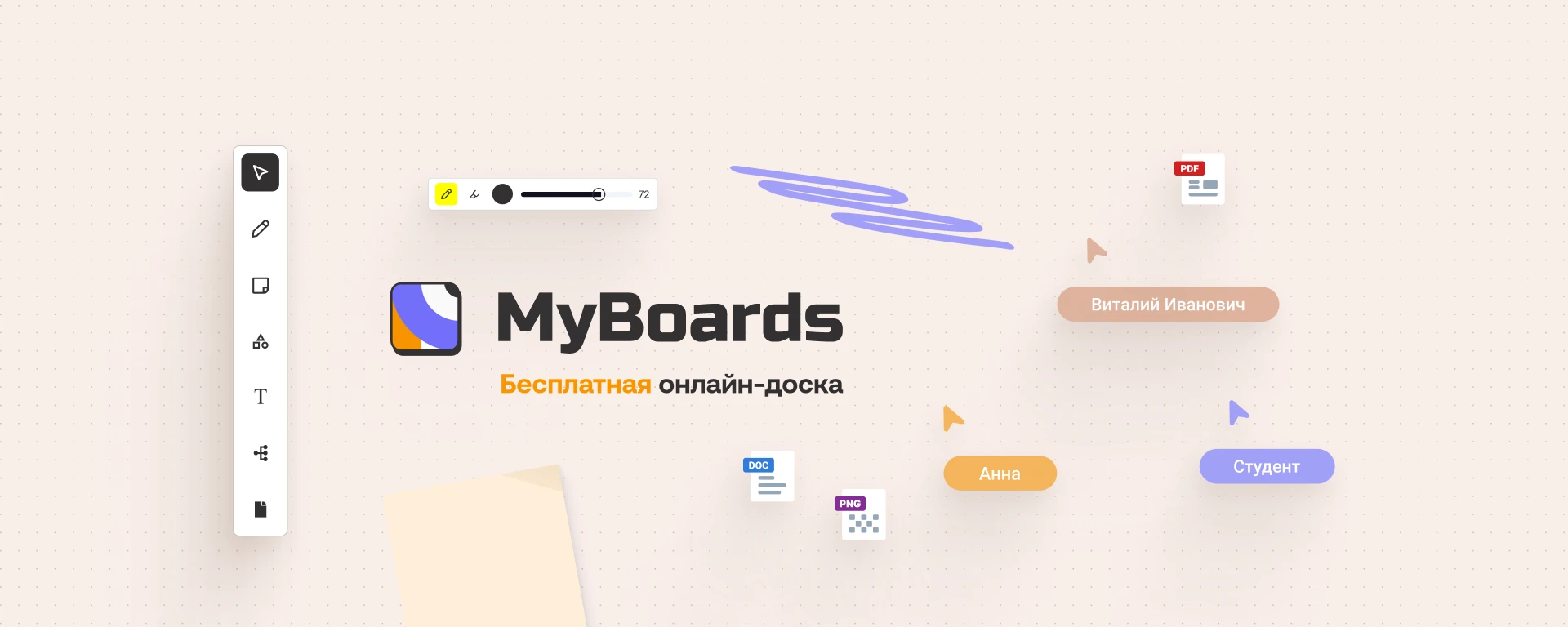
To work productively, it’s important that all tasks are collected in one place, easy to edit, and simple to track. These capabilities are offered by the MyBoards online whiteboard — a convenient and intuitive platform for task and project management.
Flexible templates for Kanban boards, mind maps, notes, and files make it easy to organize teamwork, learning, and personal projects. Simple navigation, user-friendly tools, and full access without limitations — from any device, completely free.
The free online whiteboard MyBoards is ideal if you struggle with task overload, missed deadlines, difficulties in teamwork, or working with large volumes of information. MyBoards helps bring order to your work, simplify planning, and make task management convenient and efficient. Let’s take a closer look at the functionality of the MyBoards online whiteboard.
Key Features of MyBoards
MyBoards is an online whiteboard that works like a traditional board, but with far greater functionality. You can draw with a marker, write, and make notes just as you would on a physical board. However, MyBoards offers much more: the ability to add files of various types, use shapes of different forms, change their colors, and flexibly customize the board to suit your needs.
The MyBoards online whiteboard combines familiar drawing tools with task organization and team collaboration features. This makes it a convenient tool for planning, learning, and collaborative work.
Drawing on the Board
In MyBoards, you can draw just like on a real board. Choose a marker or pencil tool, adjust line thickness and color to make your notes, diagrams, and drawings more visual and clear.
For example, when explaining a complex math problem, you can draw graphs, highlight key elements, or add notes directly on the board. This helps visualize information better and makes work more convenient.
Working with Files
MyBoards allows you to upload and download files directly from the canvas. This makes working with documents much easier. You can share documents, presentations, spreadsheets, and other files with your team. Colleagues can download them, edit them, and upload updated versions without leaving the workspace.
All files are stored in one place, helping to avoid confusion and save time searching for the right documents.
Mind Maps for Structuring Information
For convenient data organization, MyBoards offers a mind map template. It is useful for project planning, idea mapping, and data analysis.
For example, when preparing a presentation, a mind map helps distribute main ideas, subtasks, and details in a clear and structured format. This makes the workflow more efficient and improves information perception.
MyBoards offers many features and tools that can be applied across various fields. No special requirements are needed to use the platform — it’s suitable for anyone who works with information.
Whether you manage projects, teach students, plan personal tasks, or simply want to organize your thoughts, MyBoards provides everything you need for effective work.
Collaboration and Discussion Tools
One of the key features of MyBoards is the ability to organize collaborative work online. All project participants can edit the board simultaneously, add tasks, comments, files, and make changes in real time. Editing permissions and access restrictions are configured individually for each participant.
The platform also includes a discussion tool that allows communication directly on the board. You can leave comments on tasks, ask questions, and share ideas without leaving the interface. This makes teamwork more convenient, speeds up decision-making, and helps avoid misunderstandings.
Task Organization with Kanban
For convenient task management, MyBoards supports the Kanban method. The platform offers a ready-made template that allows you to quickly create and customize a board. You can create columns for workflow stages (for example, “To Do”, “In Progress”, “Done”) and move cards as tasks are completed.
This approach helps track progress, control task execution, and avoid confusion. It is useful both for teams and for personal project management.
Interface and Functionality
The platform offers a simple and intuitive interface. All features are available in one place. In this section, we’ll take a closer look at the key interface elements of MyBoards that help organize individual tasks, project planning, and team collaboration.
MyBoards Dashboard
The dashboard is the central place for managing all your boards. Here you can easily create new boards, edit their names, and delete existing ones. Boards can also be added to favorites for quick access.
The dashboard allows you to display boards as tiles or in a list view, depending on your preference. For convenience, there are sorting options by name or creation date, as well as a search function by board name, which simplifies navigation.
MyBoards Toolbar
The toolbar is located on the left side of the screen and provides access to all core features. All tools are grouped by category, making navigation simple and intuitive. Using the toolbar, you can easily add tasks, draw diagrams, work with files, and use other features for organizing and managing projects.
To use any tool, simply click it in the toolbar and choose a place on the canvas. The tool will be added to the selected area, and you can start working with it immediately.
- Drawing — allows you to make notes, draw diagrams, or create illustrations. You can choose different line types, colors, and thicknesses.
- Sticker — lets you add sticky notes to highlight important tasks, ideas, or comments.
- Shapes — includes 7 shapes: rectangle, circle, triangle, cylinder, diamond, hexagon, and parallelogram, useful for diagrams and visual organization.
- File — allows you to upload documents of any format (PDF, Word, Excel, etc.) directly to the board.
- Templates — provides ready-made solutions such as Mind Map and Kanban Board templates, saving time when creating new boards.
- Discussions — allows you to comment on tasks and exchange ideas directly on the board.
MyBoards Zoom Panel
Located in the bottom-right corner of the screen, the zoom panel allows you to adjust the board view using the + and − buttons. This is useful for working with large projects when you need to examine details or see the entire board at once.
You can also enable a mini-map that shows all board elements in miniature, helping you quickly navigate the space without losing sight of important details.
A full-screen mode is available as well, allowing you to focus on work without interface distractions — especially useful when maximum concentration is required.
The Focus button returns you to the center of the canvas, which is particularly helpful when working with large boards or if you’ve moved far away from the main area.
Participant Invitation Panel
Located in the upper-right corner of the screen, this panel allows you to manage board access. You can enable the display of other participants’ cursors, making collaboration more visual and convenient.
The panel also lets you configure access rights for each participant. Three access levels are available:
- View — the participant can only view the board.
- Editor — the participant can edit board content.
- Full Access — the participant can edit the board and invite other users.
To invite a new participant, simply enter their email address, select the appropriate role, and click Add. The invited user will receive an email notification with access to the board.
This invitation panel makes collaboration even more convenient by allowing flexible access and interaction management within the team.
The MyBoards online whiteboard is completely free and available right now. The service is actively developing, regularly updated, and takes user feedback into account.
Thanks to flexible settings, real-time collaboration, and tools such as Kanban boards, mind maps, drawing, and file management, MyBoards is suitable for anyone who works with information — individual users, small teams, or large companies aiming for efficient project management and optimized workflows.
With MyBoards, chaos becomes a thing of the past, and your ideas and tasks finally become structured and accessible at any time. Give it a try — move your notes to a digital format and organize your work on a whole new level! 🚀