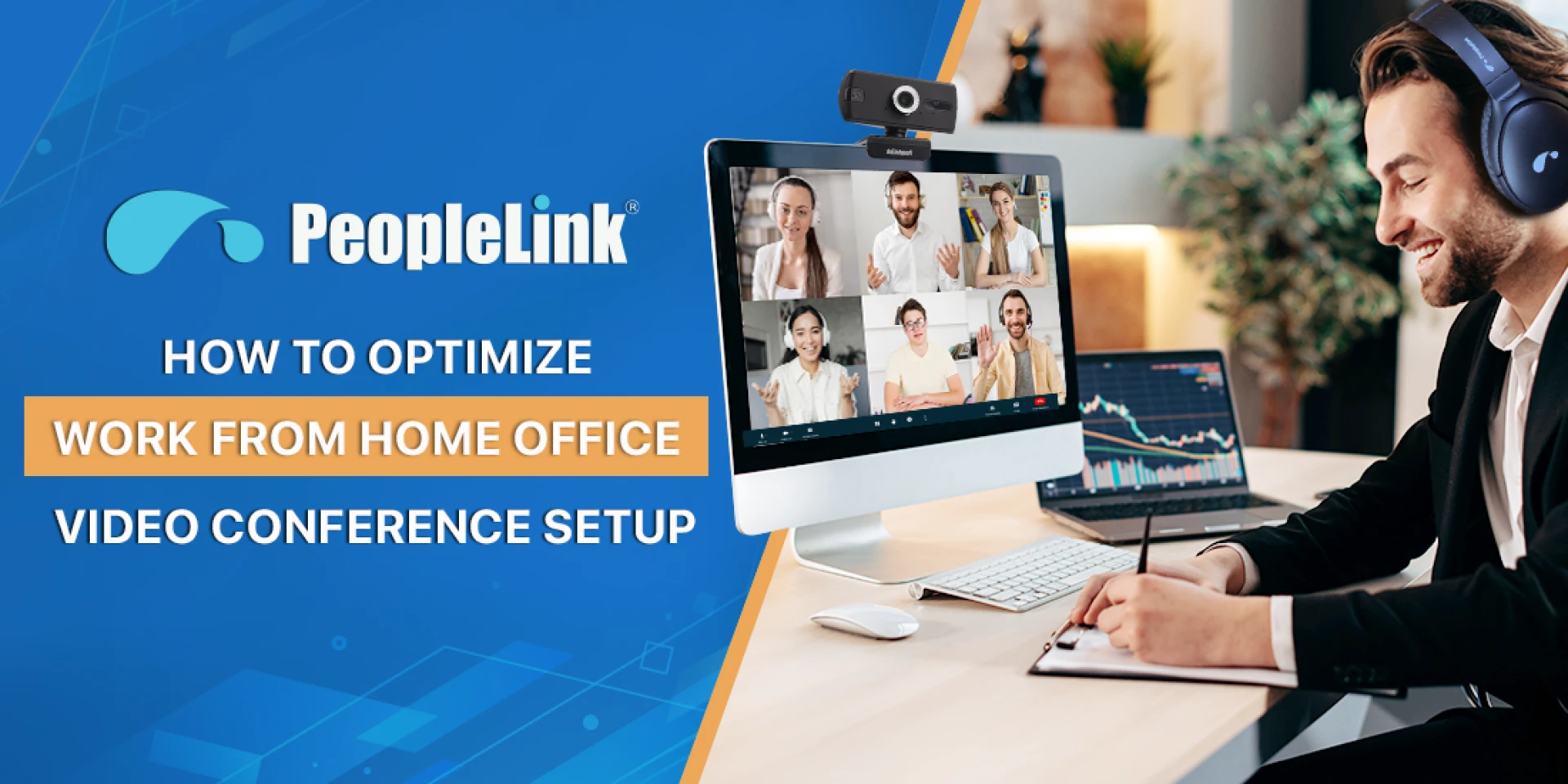
Boost Productivity and Collaboration with the Right Conference Room Setup
The workplace has evolved. Whether you're operating from home, transitioning between remote and in-office days, or fully embracing a hybrid model, having the right conference setup is no longer optional—it's essential. An optimized setup ensures smoother communication, productive meetings, and minimal tech hiccups.
Here’s a clear, point-by-point guide to help you build or upgrade your WFH and hybrid conference environment.
1. Prioritize Audio Clarity First
A professional meeting starts with great audio. People are more likely to forgive a fuzzy video than poor sound.
- Invest in high-quality microphones (preferably noise-cancelling).
- Use dedicated speakerphones or all-in-one audio solutions for clarity.
- Ensure the space is treated to reduce echo or ambient noise.
2. Choose the Right Video Solution
Clear video ensures better engagement during meetings, especially when team members are spread across locations.
- Opt for HD or 4K cameras with wide-angle lenses.
- For shared spaces, look for auto-framing and AI-based tracking features.
- For personal setups, webcams with ring lights or natural lighting help maintain a professional image.
3. Optimize Lighting in Your Space
Lighting dramatically affects how professional your video feed looks.
- Avoid sitting with your back to a window—this creates silhouettes.
- Use soft, diffused lighting to reduce harsh shadows.
- Desk ring lights or panel lights help even in small WFH setups.
4. Build a Clutter-Free Background
Your background matters more than you think, especially in video meetings.
- Keep it simple—plain walls, plants, or branded backgrounds work well.
- Consider using virtual backgrounds, but only if your computer supports them smoothly.
- Avoid distractions like cluttered bookshelves or noisy spaces.
5. Use Collaboration Tools That Match Your Workflow
The right software can make or break your hybrid productivity.
- Platforms like Zoom, Microsoft Teams, or PeopleLink ensure smooth conferencing.
- Integrate with calendars and project management tools.
- Choose software with screen sharing, whiteboarding, and breakout features for dynamic meetings.
6. Design the Right Meeting Room Layout
If you're setting up a hybrid conference room, layout matters for both in-person and remote attendees.
- Use U-shaped or roundtable layouts for better eye contact and mic pickup.
- Ensure all participants are visible to the camera.
- Position displays at eye level and ensure all participants can see shared content clearly.
7. Ensure Stable and Fast Connectivity
Connection issues disrupt flow and create frustration.
- Use wired internet connections where possible.
- Upgrade routers or install mesh networks for larger homes/offices.
- Prioritize video traffic using QoS settings if working from shared networks.
8. Don’t Forget Room Acoustics and Furniture
Sound-absorbing materials and comfortable seating contribute to a better meeting experience.
- Use acoustic panels, rugs, or curtains to reduce noise.
- Ergonomic chairs and adjustable desks help maintain posture during long meetings.
- Wall-mounted mics or ceiling speakers help declutter and improve performance.
9. Train Teams on Technology Use
Even the best tech fails if people don’t know how to use it.
- Offer short training sessions for new tools.
- Create a basic troubleshooting guide.
- Ensure IT support is reachable during key meetings.
10. Plan for Scalability and Future-Proofing
Your setup should adapt as your team grows or needs change.
- Choose modular and upgradable devices.
- Consider cloud-based solutions for easy updates and remote management.
- Plan AV integrations that allow adding extra screens, cameras, or microphones.
Conclusion
An effective WFH or hybrid meeting setup combines the right technology, space design, and workflow tools. Whether you're a solo professional or managing a distributed team, these practical upgrades can turn every meeting into a productive and seamless experience.