Embroidery is no longer just for seasoned pros with years of experience. Thanks to modern technology, anyone with a creative spark can turn their favorite images into stunning embroidered designs. One game-changer in this space is the ability to convert image to PES for embroidery, a process that transforms digital artwork into a format your embroidery machine can understand. In this article, we’ll break down everything you need to know about image-to-PES conversion in a casual, approachable way. Whether you’re a hobbyist or a small business owner, this guide will help you master this embroidery hack and create professional-grade designs with ease.
What Is Image to PES Conversion?
Let’s start with the basics. PES is a file format used by many embroidery machines, especially Brother and Baby Lock models. It’s essentially a set of instructions that tells the machine where to place stitches, what colors to use, and how to execute the design. Converting an image to PES for embroidery means taking a digital image—like a JPEG, PNG, or vector file—and turning it into a stitch-ready PES file using specialized software.
his process is a modern embroidery hack because it saves time, simplifies design creation, and opens the door to endless creative possibilities. Instead of manually drawing stitch patterns, you can take a logo, photo, or sketch and let the software do the heavy lifting. But it’s not as simple as clicking “convert.” Let’s dive into how it works and how to do it right.
Why Convert Image to PES for Embroidery?
Why go through the trouble of converting an image to PES? Here are a few reasons this technique is a game-changer:
- Customization: Turn personal photos, logos, or artwork into embroidered designs for shirts, hats, or bags.
- Time-Saving: Skip the tedious process of manually digitizing designs from scratch.
- Accessibility: Even beginners can create complex designs without advanced embroidery skills.
- Versatility: PES files work with many popular embroidery machines, making them widely compatible.
Whether you’re stitching a custom gift or building a brand, image-to-PES conversion makes embroidery more approachable and efficient.
Choosing the Right Image for Conversion
Not every image is ideal for embroidery. To get the best results when you convert an image to PES for embroidery, you need to start with the right artwork. Here’s what to look for:
High-Quality Images
Clear, high-resolution images (at least 300 DPI) work best. Blurry or pixelated images lead to messy stitch patterns. Vector files (like SVG or AI) are even better, as they scale without losing quality and provide clean lines for digitizing.
Simple Designs
Embroidery thrives on simplicity. Complex images with tiny details, gradients, or too many colors can overwhelm the stitching process. Opt for bold, defined shapes and limited color palettes. For example, a logo with solid shapes and 3-5 colors will stitch cleaner than a photo with intricate shading.
Contrast Is Key
High-contrast images—think black text on a white background or a bright red logo—translate better to embroidery. Low-contrast designs may lose definition when converted to stitches.
Tools You Need to Convert Image to PES
To convert an image to PES for embroidery, you’ll need the right tools. Here’s what you’ll typically use:
- Embroidery Digitizing Software: Programs like Wilcom EmbroideryStudio, Hatch Embroidery, Brother PE-Design, or Bernina ArtLink are popular choices. Some, like SewArt or Ink/Stitch, are more budget-friendly or even free.
- Embroidery Machine: Ensure your machine supports PES files (most Brother, Baby Lock, and some Janome models do).
- Computer: You’ll need a computer to run the digitizing software and transfer the PES file to your machine.
- Optional Graphic Software: Programs like Adobe Illustrator or Inkscape can help clean up images before conversion.
Free tools like Ink/Stitch are great for beginners, while professional software like Wilcom offers advanced control for complex designs. Choose based on your skill level and budget.
Step-by-Step Guide to Convert Image to PES for Embroidery
Ready to turn your image into a PES file? Follow these steps to create a stitch-ready design that looks professional.
1. Prepare Your Image
Before you start, clean up your image. Use graphic software to simplify details, remove backgrounds, or adjust colors. For example, if you’re working with a logo, isolate the main elements and reduce the color count to 3-5 shades. Save the image as a high-resolution JPEG, PNG, or vector file.
2. Import the Image into Digitizing Software
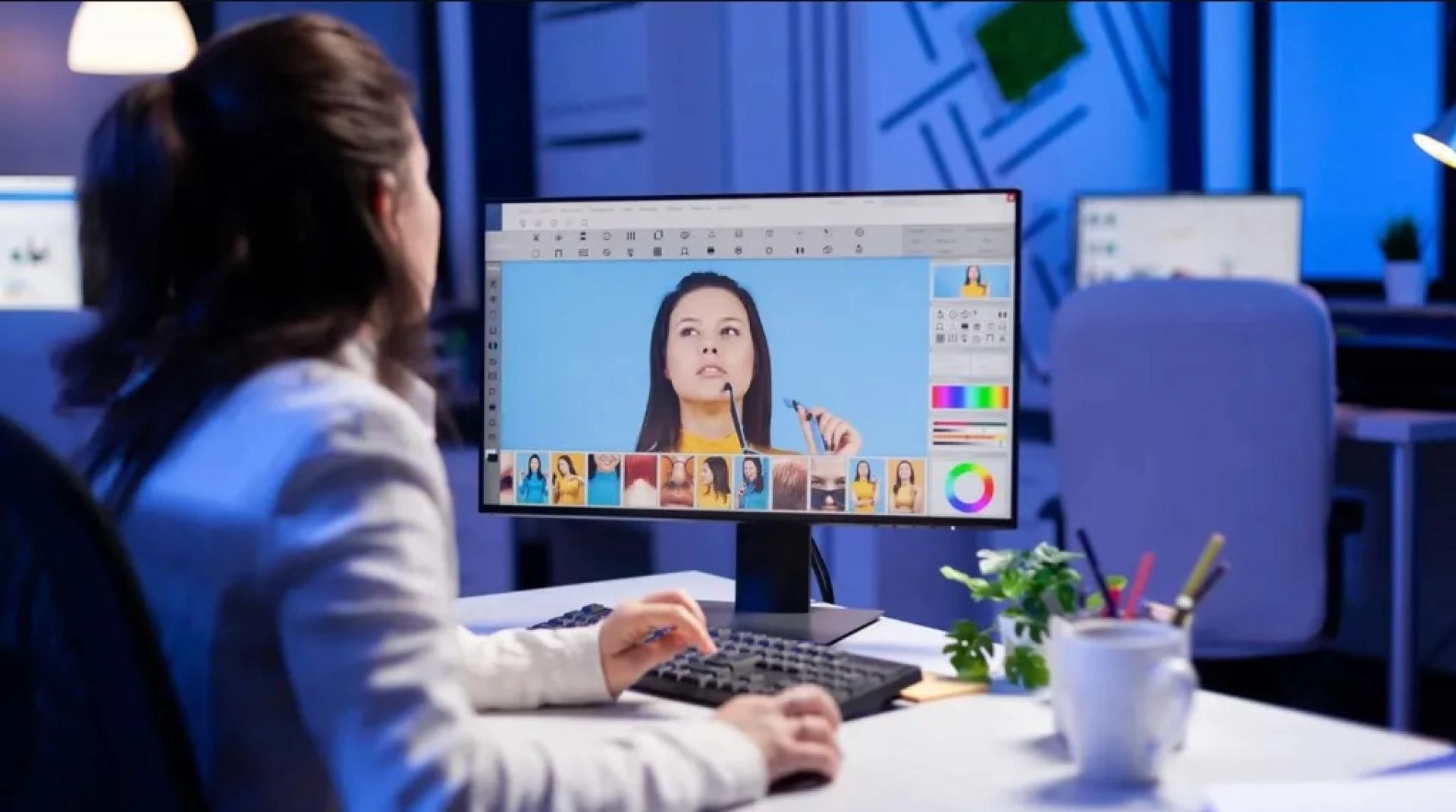
Open your embroidery software and import the image. Most programs let you drag and drop or use an “Import” function. Once loaded, set the embroidery area to match your project (e.g., 4” x 4” for a shirt or 2.5” x 4” for a hat). This ensures the design fits your fabric.
3. Trace the Design
Most digitizing software has an auto-trace or auto-digitize feature that converts your image into stitch paths. Here’s how to use it:
- Auto-Trace: The software analyzes the image and creates stitch outlines. Adjust settings like color tolerance to capture the right details.
- Manual Tracing: For more control, manually trace shapes using tools like the pen or shape tool. This is ideal for complex designs.
4. Assign Stitch Types
Different parts of your design need different stitch types. Here’s a quick guide:
- Satin Stitches: Perfect for borders, text, or thin lines. Keep stitch width between 1-4mm for clean results.
- Fill Stitches: Use for larger areas, like the body of a logo. Lower stitch density (0.4-0.5mm) prevents puckering.
- Running Stitches: Great for outlines or connecting elements, but use sparingly to avoid thread breaks.
When you convert an image to PES for embroidery, the software will suggest stitch types, but always review and tweak them for better results.
5. Adjust for Fabric
The fabric you’re embroidering on affects the design. For example, stretchy fabrics like knits need more underlay stitches to stabilize the design, while thick materials like denim require lower stitch density. Adjust pull compensation (to account for fabric stretch) and underlay settings in your software.
6. Preview and Test
Before saving, preview the design in your software’s stitch simulator. This shows how the stitches will look on fabric. Then, save the file as a PES and do a test stitch-out on scrap fabric. Check for issues like puckering, gaps, or misaligned stitches, and tweak the design if needed.
7. Save and Transfer
Once you’re happy with the design, save it as a PES file. Transfer it to your embroidery machine via USB, memory card, or direct connection, depending on your machine’s setup. Load the file, hoop your fabric, and start stitching!
Common Mistakes to Avoid
Even with the best software, mistakes happen. Here’s how to dodge common pitfalls when you convert an image to PES for embroidery:
- Using Low-Quality Images: Blurry or pixelated images lead to poor stitch quality. Always start with high-resolution artwork.
- Overloading Details: Too many tiny elements make the design look cluttered. Simplify for clarity.
- Ignoring Fabric Type: Different fabrics need different stitch settings. Test on similar material first.
- Skipping Test Runs: Never skip the test stitch-out. It catches issues before you ruin your final piece.
Tips for Pro-Level Results
Want to take your PES conversions to the next level? Try these tips:
- Use Vector Files: Vectors (SVG, AI) give cleaner results than raster images (JPEG, PNG) because they’re easier to trace.
- Experiment with Stitch Angles: Adjust stitch angles to add texture or depth, like diagonal fills for a dynamic look.
- Add 3D Puff Embroidery: For bold designs, use foam underlay to create a raised effect. Check if your software and machine support this.
- Organize Colors: Group similar colors to reduce thread changes, saving time and minimizing errors.
Best Software for Image to PES Conversion
Choosing the right software is key to success. Here are some top picks for converting images to PES for embroidery:
- Wilcom EmbroideryStudio: Professional-grade with advanced features, ideal for complex designs.
- Hatch Embroidery: User-friendly and versatile, great for beginners and pros.
- SewArt: Affordable and intuitive, perfect for hobbyists.
- Ink/Stitch: A free, open-source option for budget-conscious users, though it requires more manual tweaking.
Each program has its strengths, so pick one that matches your skill level and project needs.
Why PES Conversion Is a Game-Changer
Converting an image to PES for embroidery streamlines the creative process, making it easier to bring your ideas to life. It’s a hack that saves time, reduces the learning curve, and lets you focus on creativity rather than technical details. Whether you’re stitching logos for a business, gifts for friends, or designs for your Etsy shop, this technique opens up endless possibilities.
Caring for Your Embroidered Creations
To keep your embroidered pieces looking fresh, follow these care tips:
- Wash Gently: Use a delicate cycle or hand-wash to protect stitches.
- Avoid Heat: Air-dry your items to prevent shrinking or thread damage.
- Store Properly: Keep embroidered items in a cool, dry place to avoid fading.
Final Thoughts
Converting an image to PES for embroidery is like unlocking a superpower for your embroidery machine. With the right image, software, and techniques, you can transform any design into a stitch-ready masterpiece. Keep it simple, test your designs, and don’t be afraid to experiment. Whether you’re embroidering for fun or profit, this modern hack makes the process faster, easier, and way more fun. So grab your favorite image, fire up your software, and start stitching something amazing today!