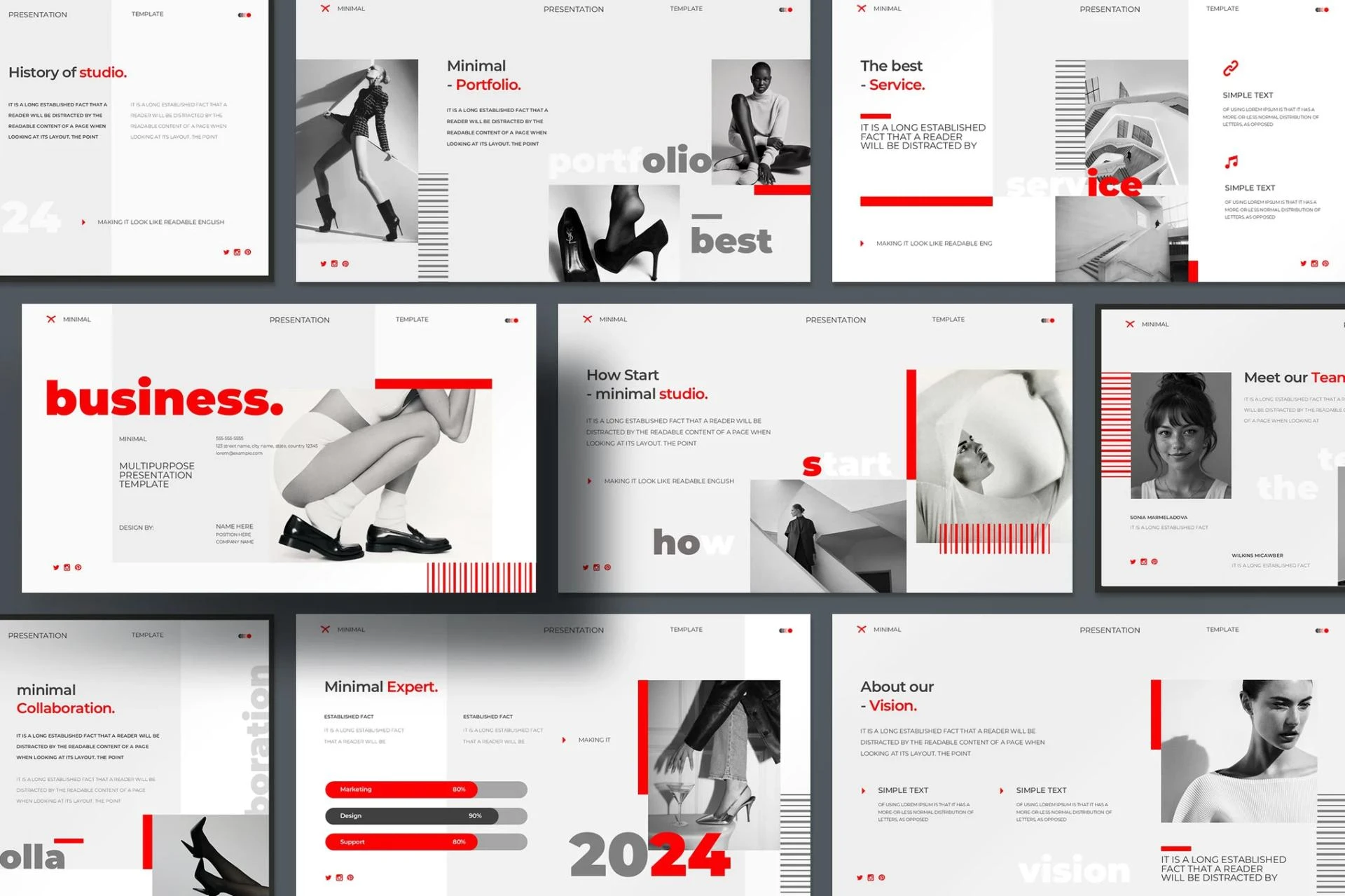
Creating a professional PowerPoint presentation is much easier when you start with a well-designed template. Whether you are a business professional, educator, or student, having a reusable and customizable PowerPoint template can save time, ensure consistency, and enhance your presentation's visual appeal. But what exactly goes into designing a PowerPoint template that is both flexible and reusable?
In this comprehensive guide, we will walk you through how to make your own reusable and customizable PowerPoint templates. We'll cover design principles, slide master usage, layout creation, and customization options that allow for long-term use and adaptability across various presentation topics and styles.
Understanding the Purpose of a PowerPoint Template
Before diving into design, it's essential to understand what makes a good template. A PowerPoint template is more than just a set of pretty slides—it's a framework that governs how content appears throughout your presentation. Templates can include fonts, colors, layouts, placeholder text, and even animation settings.
Reusable templates are designed for repeated use across different presentations, while customizable templates allow you to adjust them for different branding or topics without redesigning from scratch. By mastering both aspects, you can build a toolkit that makes presentation creation fast, efficient, and professional-looking.
Step 1: Plan Your Template Structure
Start by identifying the types of slides you regularly use. Common slide types include:
- Title slide
- Agenda or table of contents
- Section headers
- Content slides with text and images
- Charts and graphs
- Quote slides
- Call-to-action or summary slides
- Thank you/contact slides
Think about the layout needs of each. For instance, do you often use two-column slides? Do you present a lot of data visuals? Your template should be designed to support these specific use cases.
Also, consider your audience. A template meant for internal corporate use may differ from one designed for marketing pitches or client presentations.
Step 2: Set Up the Slide Master
The Slide Master is the core of any PowerPoint template. It controls the default appearance of all slides, including fonts, colors, and placeholders.
To access the Slide Master:
- Open PowerPoint and start a new presentation.
- Go to the View tab.
- Click Slide Master.
This opens the master slide and a list of layouts associated with it. The top-most slide is the actual Slide Master; changes made here affect all layouts beneath it.
Key Elements to Customize in the Slide Master:
- Fonts: Choose consistent fonts for titles, subtitles, and body text. Use no more than two font families to maintain simplicity and readability.
- Colors: Create a custom color scheme that includes your primary, secondary, and accent colors. You can do this under Colors > Customize Colors.
- Backgrounds: Set a professional yet subtle background. Avoid patterns or images that make text hard to read.
- Placeholders: Add placeholders for titles, content, images, charts, and footers in each layout type.
- Logo and Branding: Add your company or organization’s logo to the master or specific layouts if required.
Once you’ve set up your Slide Master, the rest of your slides will automatically inherit these properties, saving you from repetitive formatting.
Step 3: Design Consistent Layouts
After setting up the Slide Master, customize the individual layouts. PowerPoint allows you to create multiple layout variations based on your needs. This is where your creativity and organizational needs come into play.
Examples of layout types you might create:
- Title + Subtitle
- Title + Two Content Blocks
- Title + Full Image
- Content + Chart
- Quote Slide
- Checklist Layout
- Team Introduction Layout
For each layout:
- Use consistent spacing and alignment.
- Keep margins consistent.
- Use guides and gridlines to ensure elements are properly positioned.
- Use icons or simple visuals where appropriate to guide the viewer’s attention.
If you need to use specific slide types often, such as a data-heavy chart or image gallery, build dedicated layouts for those.
Step 4: Build In Flexibility
A good customizable PowerPoint template allows the user to tweak and adjust without breaking the design.
To achieve this:
- Use placeholder text instead of fixed content.
- Group design elements (like icons and shapes) so they can be easily moved or resized together.
- Avoid locking down every element—allow room for text growth and content changes.
- Include optional variations within the layout (e.g., “Title + Image” and “Image + Title”).
You might also consider including example slides in your template file. These can act as inspiration or guidance for other users while using the template.
Step 5: Save and Distribute Your Template
When your design is complete, save your file as a PowerPoint Template (.potx):
- Click File > Save As.
- Choose the location.
- Select PowerPoint Template (.potx) from the “Save as type” dropdown.
This ensures the file opens as a new, untitled presentation each time someone uses it—preserving your original template.
For broader use across a team or organization:
- Store it in a shared drive or cloud storage (e.g., OneDrive, Google Drive).
- Upload it to a shared presentation library.
- Provide a brief how-to or slide guide within the template.
Step 6: Maintain and Update Your Template
Even the best templates may need occasional updates. As your branding evolves or your content needs change, revisit your PowerPoint template to:
- Adjust colors or fonts.
- Add new layout types.
- Remove outdated content blocks or branding elements.
- Incorporate new design trends (like minimalism or dynamic gradients).
It’s also smart to collect feedback from users. Are there slide types they frequently need that aren’t included? Are there pain points when customizing it?
Regular updates ensure your template remains effective and relevant.
Tips for Better Template Design
- Less is more: Avoid overly complex or busy designs. Clean and minimal often communicates professionalism best.
- Use whitespace: Give elements room to breathe. Crowded slides can overwhelm audiences.
- Standardize iconography: Use a consistent icon style—flat, outline, or filled—to avoid visual inconsistency.
- Make use of themes: PowerPoint allows you to define a theme (fonts, colors, effects) that applies to all slides and new content blocks. This maintains consistency even when new slides are added.
- Use animation sparingly: If you add animations to your layouts, ensure they serve a purpose. Subtle transitions often work better in professional settings.
Example Use Cases
Here’s how different professionals can benefit from reusable and customizable templates:
- Marketing Teams: Build campaign decks with layouts for goals, KPIs, and creative assets.
- Educators: Create templates for lectures with defined spots for objectives, content, and quizzes.
- Startups: Maintain brand consistency across pitch decks, investor presentations, and internal updates.
- Project Managers: Track progress and timelines with Gantt chart slides and milestone markers.
Each use case may require slightly different layouts or content types, but starting from a shared template ensures a cohesive brand and message.
Final Thoughts
Creating reusable and customizable PowerPoint templates doesn’t require expert-level design skills. With a clear structure, thoughtful layouts, and an understanding of Slide Master functionality, you can build templates that enhance productivity and ensure consistency across all your presentations.
While there are countless pre-made PowerPoint templates available online, designing your own gives you control over branding, style, and usability. More importantly, it ensures that your presentations always look polished, professional, and on-message—no matter who’s creating them.
By investing time in setting up a solid template today, you’ll save hours of design work in the future. Whether you’re presenting to a boardroom or a classroom, a well-crafted template will help you communicate more effectively and confidently.