
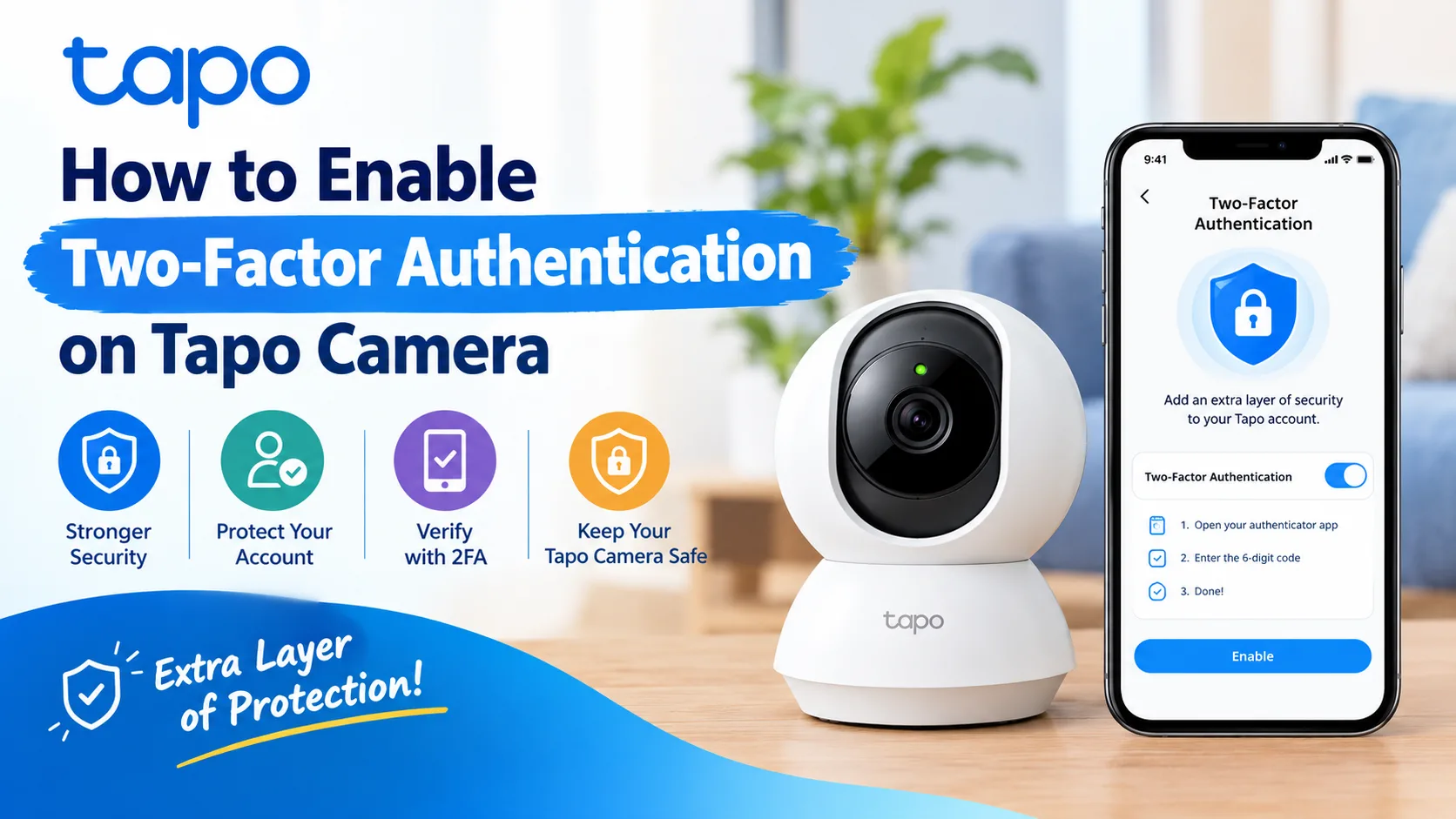
Open the Tapo app → Me → View Account → Login Security → Two-Step Verification, then follow the verification steps. Once enabled, 2FA adds an extra security check when a new device signs in to your Tapo account.
Your Tapo camera can help you keep an eye on your home, kids, pets or office. But your camera account also needs good security.
One easy step is to Enable 2FA on Tapo Camera. Tapo calls this feature Two-Step Verification. It adds another check when a new device logs in to your TP-Link account.
So, even if someone gets your password, they still need the verification code to access the account from a new device. This guide explains the process in simple steps. It also covers Tapo camera login, family sharing and common problems.
When Should You Enable 2FA on Tapo Camera?
You should turn on 2FA as soon as possible, especially if your Tapo camera is connected to your main home account.
It is also useful if you:
- Use Tapo cameras in more than one room.
- Share Tapo camera with Family members.
- Log in to Tapo from different phones.
- Have several smart home devices under one TP-Link ID.
- Want an extra layer of account protection.
Tapo says new devices may need a time-sensitive verification code after Two-Step Verification is enabled.
What Is Tapo 2FA and Why Should You Use It?
WhatWhy it mattersTwo-Step VerificationAdds another login checkVerification codeHelps confirm it is really youTrusted deviceCan skip repeated verification on that deviceEmail verificationGives you another way to receive a codeLogin SecurityLets you manage account security settingsThe important point is simple: 2FA protects your TP-Link ID, which you use to sign in to the Tapo app. It is not the same as the separate Tapo camera account used for some third-party platforms such as NAS, RTSP or ONVIF software.
How Do You Enable 2FA on Tapo Camera?
Follow these steps for Tapo two-factor authentication setup.
Step 1: Open the Tapo App
Open the Tapo app on your phone. Make sure you are signed in with the TP-Link account that manages your camera.
Step 2: Open Your Account Settings
Tap. Depending on your Tapo app version, the Me button may appear at the bottom right or through your account icon at the top.
Step 3: Open Login Security
Tap View Account or your account icon. Now look for Login Security.
Step 4: Turn On Two-Step Verification
Find Two-Step Verification and turn the switch on. Tapo will ask you to verify your account through email when you enable the feature for the first time.
Step 5: Complete the Verification
Check your registered email address. Enter the verification code shown in the email. Once the process is complete, 2FA is enabled for your Tapo account.
Step 6: Check Trusted Devices
Tapo also lets you manage trusted devices. If you see a device, you do not recognize, remove it from the trusted-device list. A removed device will need verification the next time it signs in.
How Can You Share Tapo Camera With Family Safely?
You do not need to give your main TP-Link password to family members. Instead, use Tapo's Device Sharing feature. The family member should have their own TP-Link ID. In the Tapo app, you can select the camera, choose Share and enter the person's TP-Link ID. The other person then accepts the invitation in their Tapo app.
Tapo's newer Device Sharing 2.0 system can also offer different permission levels. Availability may depend on your account because the feature is being rolled out gradually.
This is safer than sharing your Tapo camera login or main TP-Link password.
Can You Share a Tapo Camera With Another Relative?
Can I share my camera?Yes. Use Device Sharing in the Tapo app.Does the relative need an account?Yes. They need their own TP-Link ID.Should I share my password?No. Use the sharing feature instead.Can I remove access later?Yes. The owner can stop sharing.Can permissions differ?Device Sharing 2.0 supports different permission levels where available.For older Device Sharing setups, Tapo cameras could be shared with up to five TP-Link accounts. Newer sharing options may vary by account and rollout status.
Why Is My Tapo 2FA Code Not Arriving?
If the verification code does not arrive, do not panic.
Try these fixes:
- Check your Spam or Junk folder.
- Make sure you are checking the email linked to your TP-Link account.
- Tap Resend if the option is available.
- Make sure Tapo notifications are allowed on your phone if you use app verification.
- Check that your Tapo app is updated.
- Try again after a few minutes.
TP-Link also recommends adding its verification email address to your safe-sender list if email codes are not reaching your inbox.
Can You Turn Off Tapo Two-Factor Authentication?
Yes. Open the Tapo app and go to Me → Account → Login Security → Two-Step Verification. Then turn the feature off. Still, keeping 2FA enabled gives your account an additional security check.
FAQs
Does Tapo camera have two-factor authentication?
Yes. Tapo supports Two-Step Verification for the TP-Link account used with the Tapo app. After you enable it, a new device may need a verification code before it can complete the Tapo camera login.
How do I enable 2FA on my Tapo account?
Open the Tapo app and go to Me → View Account → Login Security → Two-Step Verification. Turn it on, then complete the email verification step. The exact location of the Me button can vary by app version.
Can I share my Tapo camera without sharing my password?
Yes. Use Tapo Device Sharing. Give the family member their own TP-Link ID and send an invitation through the Tapo app. This lets you share supported camera access without giving away your main account password.
What is the difference between TP-Link ID and Tapo camera login?
Your TP-Link ID is used for the Tapo app. A separate Tapo camera account can be created for certain third-party access, such as NAS, RTSP, ONVIF or PC camera software. They are different credentials.
Why does Tapo ask for a code on a new phone?
That is part of Two-Step Verification. When a new device signs in, Tapo can ask for a time-sensitive verification code. The code can be delivered through app verification or email, depending on the available verification method.
Final Thoughts
Learning how to Enable 2FA on Tapo Camera takes only a few minutes. Go to Tapo app → Me → View Account → Login Security → Two-Step Verification and complete the verification. Also, avoid sharing your main password. If you want to share Tapo camera with Family, use Device Sharing and give each person their own TP-Link account.
That gives you a cleaner and safer way to manage your Tapo camera access.