
You've built the website. You've written the content. You've even shared it everywhere you can think of. But when you search for your own business on Google — nothing. Your competitors are right there on page one, and you're nowhere to be found.
Before you rewrite all your content or overhaul your entire strategy, stop. The problem might not be what you're publishing — it might be whether Google can even access it.
Crawl and indexing errors are one of the biggest hidden threats to search visibility, and most businesses never catch them. They're silent, invisible to visitors, and devastatingly effective at keeping your pages out of search results.
The good news? Google gives you a free tool to find and fix every single one of them — Google Search Console.
Here's exactly how to use it.
Why Google Might Be Missing Your Pages
Google discovers and ranks content through a two-step process.
First comes crawling — Googlebot, Google's automated spider, travels across the web following links and visiting pages. Then comes indexing — Google reads what it found, evaluates it, and decides whether to store it in its searchable database.
Your page can only appear in search results if it successfully passes through both stages. A failure at either point and your page is effectively invisible — no matter how good the content is, no matter how well you've promoted it.
This is exactly why so many well-built websites with solid content still struggle to rank. The content isn't the problem. The access is.
Start Here: The Pages Report in Google Search Console
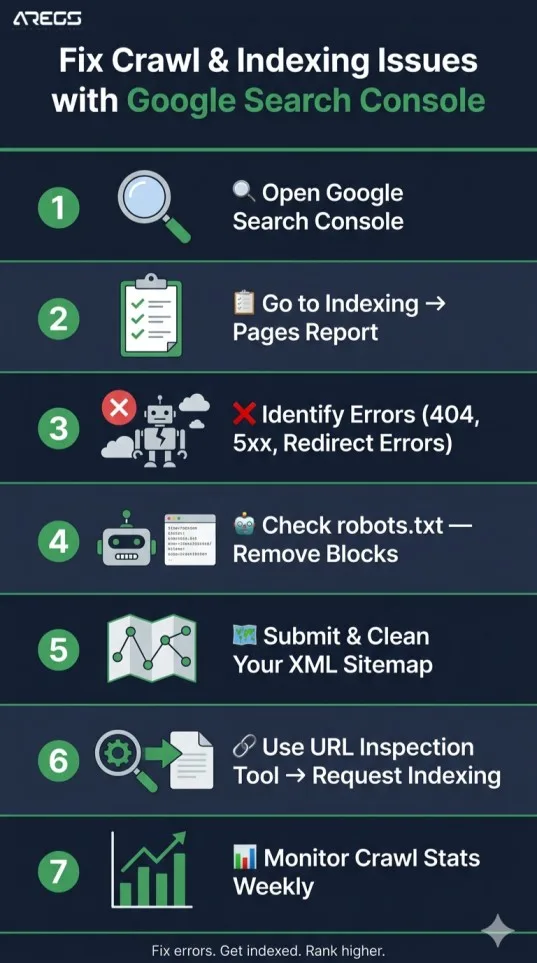
Log into Google Search Console and head to Indexing → Pages in the left sidebar.
This report is your ground zero for diagnosing crawl and indexing problems. Every URL Google knows about on your site is sorted into four categories:
- Valid — Indexed and appearing in search results. These pages are working.
- Valid with Warnings — Indexed but flagged for something worth reviewing.
- Error — Not indexed due to a problem. Fix these first.
- Excluded — Skipped by Google, either on purpose or by mistake.
Click straight into the Error tab. That's where your lost rankings are hiding.
Decoding the Errors: What Google Is Actually Telling You
Each error type in GSC tells you something specific. Here's what they mean and how to fix them:
"Submitted URL not found (404)"
A URL in your sitemap leads nowhere — the page has been deleted, moved, or never existed. Google arrived and found an empty room.
Fix it: Redirect the broken URL to a relevant live page using a 301 redirect. If the page was deleted accidentally, restore it. Remove the dead URL from your sitemap either way.
"Server error (5xx)"
Googlebot tried to visit your page but your server didn't respond. It was down, overloaded, or misconfigured at the time of the visit.
Fix it: Check your hosting dashboard and server error logs. If this is happening regularly, your current hosting plan may not be keeping pace with your site's needs. Contact your provider.
"Redirect error"
Your redirects are caught in a loop — Page A redirects to Page B which redirects back to Page A — or they form a chain so long Googlebot gives up and moves on without indexing anything.
Fix it: Audit your redirects and ensure every old URL points directly to its final destination. No chains, no loops. One redirect, one destination.
"Blocked by robots.txt"
Your robots.txt file contains a rule that's telling Googlebot to avoid certain pages — pages you actually want indexed. This happens silently and is especially common after website migrations or CMS updates.
Fix it: Go to Settings → robots.txt in GSC and use the built-in tester. Find the rules blocking important pages and remove them.
"Crawled — currently not indexed"
Google visited the page and read it — but decided it wasn't valuable enough to add to its index. This usually points to thin content, duplicate content, or a page that doesn't offer anything meaningfully different from what already exists in Google's index.
Fix it: Rewrite the page with more depth, more original insight, and a clearer focus. Strengthen internal links pointing to it from other pages on your site.
Don't Overlook the Excluded Tab
The Excluded section in the Pages report isn't always a problem — but it always deserves attention.
Noindex tag detected: A noindex meta tag somewhere on the page is instructing Google to skip it. This is often added accidentally by SEO plugins, CMS themes, or developers. Find the source and remove it if the page should be indexed.
Canonical pointing to another URL: Canonical tags tell Google which version of a page is the authoritative one. If yours are pointing to the wrong URL, Google ignores your actual content in favour of wherever that canonical leads.
Discovered — currently not indexed: Google knows the page exists but hasn't crawled it yet. This is a crawl budget issue — the page isn't getting enough internal link authority to be prioritised. Fix it by linking to it more prominently from within your site.
Use the URL Inspection Tool for Individual Pages
For any specific page you're worried about, the URL Inspection Tool gives you a full picture. Paste any URL into the search bar at the top of GSC and you'll see:
- Whether it's currently indexed
- When Googlebot last visited
- A rendered view — what the page actually looks like to Googlebot
That rendered view is critical. If your site relies heavily on JavaScript to load content, Googlebot may be seeing a blank page or missing large sections of your content entirely. If the rendered HTML doesn't match what you see in your browser, you have a JavaScript rendering issue that needs to be resolved.
Always Request Indexing After a Fix
Once you've resolved an issue, don't wait for Google to stumble across the update on its own schedule.
In the URL Inspection Tool, click "Request Indexing" after fixing any page. This signals Google to prioritise a re-crawl — usually within a few days rather than weeks.
Make this part of your workflow every time you publish new content, update an existing page, or resolve a technical error. It's a small habit that consistently accelerates results — especially important after working with a website design company on a major update, migration, or relaunch.
Your Sitemap Is Your Roadmap — Keep It Clean
Your XML sitemap is the official list of pages you're handing to Google and saying "these matter." A disorganised sitemap full of dead URLs, redirected pages, and noindex content sends conflicting signals and wastes your crawl budget.
Go to Indexing → Sitemaps in GSC. Submit your sitemap URL and check for any errors flagged in the report.
The rule is simple: your sitemap should only include pages you genuinely want indexed — no 404s, no redirects, no noindex pages. Strip it back to your most important content and let that guide Googlebot's priorities.
Page Experience Affects How Often Google Visits
Crawl frequency isn't just about whether Google can access your pages — it's also about how often it chooses to. And that's influenced by your page experience signals.
Inside GSC, check two areas:
Experience → Core Web Vitals — Pages with poor loading speed, layout instability, or slow interactivity get crawled less frequently and ranked lower. Fix anything flagged as "Poor."
Experience → Mobile Usability — Google uses mobile-first indexing, meaning it evaluates your mobile experience before your desktop one. Any rendering issues on mobile directly affect your search visibility.
If your site hasn't been updated in years or was built without performance in mind, this is often where the hidden damage lives. A professionally built site from an experienced designing company addresses these fundamentals from the ground up — before problems ever appear.
Keep an Eye on Crawl Stats
Under Settings → Crawl Stats in Google Search Console, you get a behind-the-scenes view of Googlebot's visits to your site — how many pages it crawls per day, your server's average response time, and which file types it's spending time on.
Watch for sudden changes. A drop in crawl frequency often signals a problem — a robots.txt change, a server slowdown, or a drop in site authority. A spike in crawl errors alongside falling impressions in your Performance report almost always means something recently broke.
Review your Crawl Stats monthly. Catching a problem early is far easier than recovering from months of lost rankings.
A Simple Maintenance Routine to Stay Ahead
Fixing these issues once isn't enough. New pages get published, settings change, plugins update, and errors creep back in. Here's the minimum maintenance rhythm every site should follow:
- Weekly — Check the Pages report for new errors and resolve them promptly
- After every publish — Use URL Inspection to request indexing on new pages
- After any site change — Review robots.txt and resubmit your sitemap
- Monthly — Review Core Web Vitals, mobile usability, and Crawl Stats for any regressions
The Bottom Line
Crawl and indexing errors are quiet. They don't show up as broken pages for your visitors. They just silently remove your content from Google's search results while your site looks perfectly normal on the surface.
Google Search Console is the only tool that makes these invisible problems visible. The data is free, the interface is accessible, and the fixes — while sometimes technical — are almost always straightforward once you know what you're looking at.
If you're building a new site or dealing with persistent visibility problems on an existing one, the smartest move is getting the technical foundation right from the start. A reliable website design partner who understands both development and SEO will make sure these issues never become a problem in the first place.
Check your Pages report today. Fix what's broken. Request indexing. And stop letting technical errors keep Google away from your best content.
Dealing with a specific crawl or indexing error you can't figure out? Leave a comment below and let's work through it together.