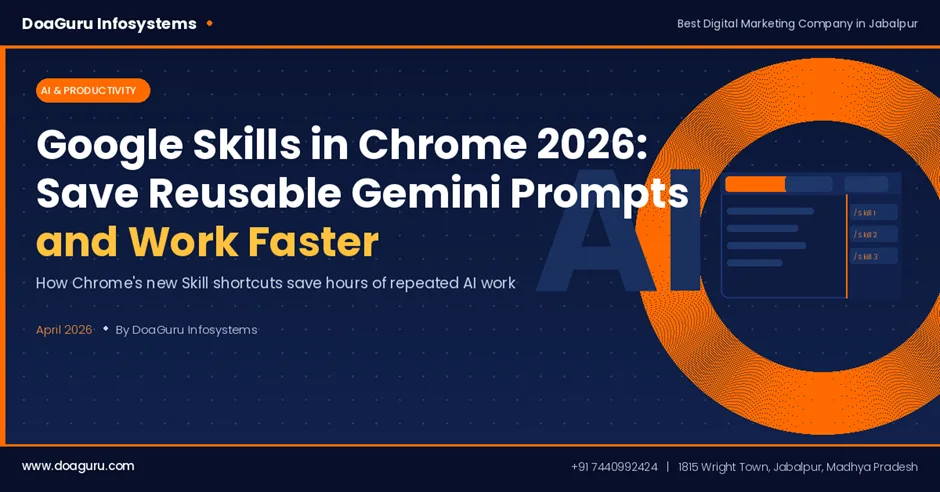
Google Skills in Chrome 2026: Save Reusable Gemini Prompts and Work Faster
Infocus
Most people use AI tools the same way every day. Open a chat, type a detailed prompt, get an answer, close the window. The next day, they do the same thing again from scratch. Multiply that across a five-day week and you are looking at hours lost to repetition.
Google Skills in Chrome is built to fix exactly that. Launched on April 14, 2026, this free feature inside the Chrome browser lets you save your most-used Gemini AI prompts as named, one-click shortcuts. Run them on any webpage, across multiple open tabs, without rewriting anything. No paid plan, no third-party software, no technical setup.
For digital marketers, small business owners, and content teams in Jabalpur and across Madhya Pradesh, this is a practical productivity tool worth understanding properly.
What Are Google Skills in Chrome?
Google Skills is a prompt-saving system built into the Gemini sidebar inside Chrome. You write a prompt, save it under a short name, and it becomes a reusable command available any time you are browsing.
The feature works on desktop: Mac, Windows, and ChromeOS. It requires a standard Google account and Chrome updated to the latest version. English US is the recommended language setting for the full feature rollout. There is no subscription required.
Google also ships a built-in library of over 50 pre-made Skills covering common tasks: summarising YouTube videos, evaluating job listings, suggesting recipe modifications, comparing products across multiple tabs, and more. You can use these as-is or as starting points for your own custom prompts.
The underlying mechanism is straightforward. When you run a Skill, Gemini reads the live content of your current page (or multiple selected tabs) and processes your saved prompt against that content in real time. It is not working from cached data or guesswork — it is reading what is actually on the screen.
How to Set Up Google Skills: Step-by-Step
The full setup takes under five minutes the first time.
Open Gemini in Chrome Click the sparkle icon in the top-right corner of any Chrome window. This opens the Gemini sidebar on the right side of your browser.
Write your prompt and save it as a Skill Type the prompt you want to reuse. Be specific. Vague prompts produce vague output. A good example for marketers: "Scan all open competitor tabs and list their top services, primary keywords, and gaps in their content compared to my site." Once Gemini responds, click "Save as Skill," give it a clear name, and save.
Run your Skill whenever you need it In the Gemini sidebar, type a forward slash (/) or click the plus button. Your saved Skills appear in a list. Select the one you want, choose which open tabs to include if the task requires multiple pages, and run it. Gemini processes the live content and delivers the output directly in the sidebar.
Browse and manage your Skills library Go to chrome://skills/browse in your address bar to view your full library, browse Google's pre-made Skills, and manage everything you have saved. Skills sync automatically across all devices signed in to your Google account. You can edit or delete any Skill at any time.
A practical tip: build your first three to five Skills around the tasks you repeat most often. For most marketers and business owners, that is competitor research, content summarisation, and product or service comparison.
Where Google Skills Is Most Useful
Competitor and Market Research
This is where Skills produce the most immediate return. Instead of visiting five competitor websites and manually noting down what each one covers, you open all five tabs and run a single prompt: "Compare the services, pricing structure, and content approach across all open tabs and identify what this website is missing."
A well-written Skill for this purpose, run consistently each week, gives you a reliable snapshot of how your competitors are positioning themselves without any of the manual copying and cross-referencing.
For SEO professionals, this has direct applications in keyword gap analysis, content audit comparisons, and tracking how competitor pages evolve over time.
Content Research and Brief Creation
Writers and content teams typically work across multiple reference sources before writing anything. With Google Skills in Chrome, you can save a prompt like "Extract the key claims, data points, and source references from all open tabs and organise them by topic" and apply it to every research session.
The output is not a finished article — it is a clean, organised brief. That is the point. Skills handle the grunt work of gathering and structuring information so the actual writing can start from a more informed position.
For businesses that produce regular blog content, social media posts, or product descriptions, this cuts the pre-writing research phase significantly.
Multi-Tab Comparison Tasks
Skills are particularly effective when your task involves reading and comparing content across multiple pages. Shopping comparisons, supplier evaluations, news aggregation, vendor shortlisting: any task that currently has you switching between tabs and taking notes manually is a candidate for a saved Skill.
The prompt runs on live page content, so the output reflects current pricing, current availability, and current information rather than anything that was true six months ago.
Local Business and Small Team Applications
For small business owners in Jabalpur who do not have a dedicated marketing department, the value of Skills is in reducing the time spent on tasks that need to happen regularly but do not need to be rebuilt from scratch each time.
A medical clinic reviewing health articles for social media content, a retailer monitoring competitor pricing, a school administrator checking what peer institutions are publishing — all of these are repeatable workflows that can be reduced to a single click once the prompt is saved correctly.
The fact that the feature is free removes any budget consideration. It is simply a matter of spending thirty minutes setting up the prompts that matter most to your workflow.
Limitations to Know Before You Start
Google Skills is a prompt shortcut system. That distinction matters.
It does not act autonomously or on a schedule. It does not connect to external databases, CRMs, or APIs. It does not carry context or memory between sessions. Each time you run a Skill, it reads the current page content and applies your saved prompt — nothing more.
If you need scheduled reporting, multi-step automated workflows, or integrations with tools like Google Sheets or your CRM, you will need to look beyond Skills for that. For straightforward, on-demand research and analysis tasks inside the browser, however, it is a clean and capable tool.
FAQ
Is Google Skills in Chrome free to use? Yes. It is available at no cost with a standard Google account on the latest version of Chrome. No paid subscription is required.
Can I use Skills across multiple tabs at once? Yes. When running a Skill, you can select multiple open tabs. Gemini will read the content across all selected tabs and process your prompt against all of it simultaneously.
Can I share Skills with colleagues or team members? Not through a native sharing feature. Skills sync across your own signed-in devices, but there is currently no built-in option to share a saved Skill directly with another user.
Does Google Skills work on mobile browsers? No. At present, the feature is available only on desktop Chrome running on Mac, Windows, or ChromeOS.
Conclusion
Google Skills in Chrome removes a small but constant source of friction from daily digital work. For anyone who uses Gemini regularly for research, content, or competitive analysis, saving those prompts and running them in one click rather than retyping them every time is a genuine improvement to how that work gets done.
The setup is quick, the feature is free, and the applications are broad enough to be useful across almost any business function that involves reading and analysing content online.
At DoaGuru Infosystems, we help businesses in Jabalpur and across Madhya Pradesh build practical digital strategies that account for how tools like this fit into real workflows. If you want to understand where AI tools belong in your marketing operations, we can help you figure that out.
Visit us at 1815 Wright Town, Jabalpur, call us on +91 7440992424, or explore our full range of services at www.doaguru.com. Book a free 30-minute strategy consultation and we will review your current digital presence and show you where the clearest improvements are.