A memorable stream starts with a strong visual identity. Overlays are the centerpiece of that identity — they frame your content, guide viewer attention, and communicate your brand before you even say a word. At GreatOverlays, we design overlay systems that turn one-off broadcasts into recognizable channels. This guide collects the best overlay ideas, practical setup tips for OBS Studio and Streamlabs, and concrete examples so you can build a consistent, professional brand across Twitch, YouTube, and beyond.
Why overlay ideas matter for brand identity
Overlays are more than decoration. Thoughtful overlays:
- Reinforce channel branding and visual identity across scenes.
- Improve viewer engagement by making alerts and chat readable and attractive.
- Create consistency across Twitch scenes, YouTube streams, panels, and social assets.
- Help viewers immediately recognize your channel in clips, highlights, and thumbnails.
GreatOverlays focuses on overlay concepts that are modular, brand-first, and easy to implement so you get professional results without reinventing every scene.
1. Signature Webcam Frames (Identity anchors)
A signature webcam frame is the most-visible branding element on your live broadcast.
Ideas:
- Clean border frame with logo and color accent for minimal, professional channels.
- Themed frames (neon, cyberpunk, retro pixel) that match a seasonal or series aesthetic.
- Dynamic frames that subtly animate on scene entry or follower alerts.
- Face-tracking-friendly frames for VTubers or creators using facial tracking.
Design notes:
- Keep the frame thin enough to preserve gameplay visibility.
- Reserve a small corner for your logo and social handle so it appears in clips.
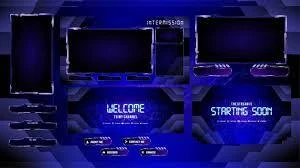
2. Branded Starting Soon / Ending Scenes (First & Last Impressions)
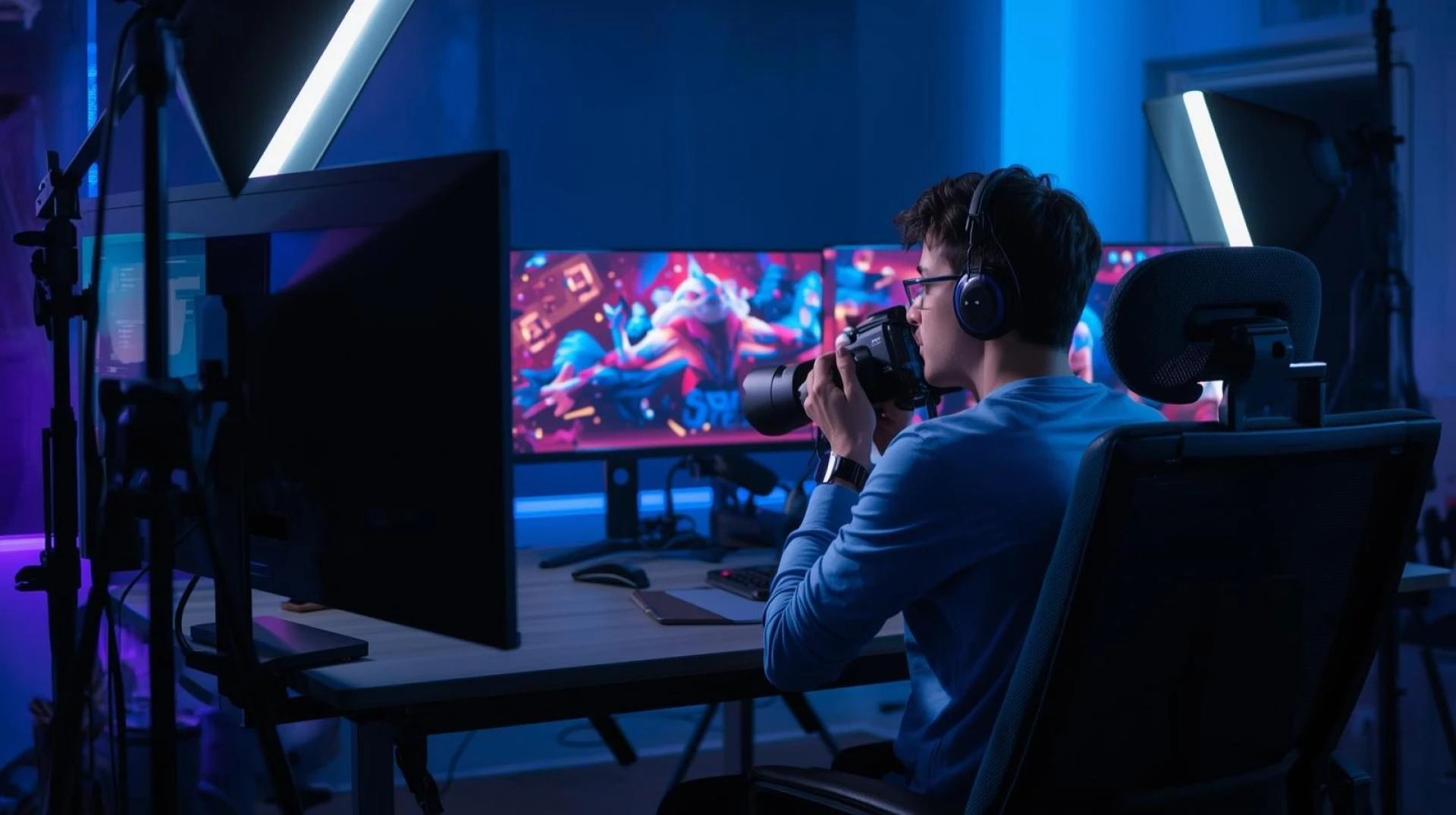
Starting and ending scenes are prime opportunities to define your brand tone.
Ideas:
- Animated “Starting Soon” with a looping background, countdown timer, and brand tagline.
- Ending scene with a call-to-action: follow, subscribe, social links, and next-stream schedule.
- “Replay mode” ending scene that highlights recent clips or top chat moments.
Design notes:
- Include channel branding (logo, palette, fonts) and a clear CTA.
- Use a short stinger or logo animation to launch into the Live scene for high polish.
3. Modular Overlay Packs (Flexible Branding)
Design overlays as modular systems so you can mix-and-match for different content types.
Ideas:
- Core overlay (webcam, alert zone, recent events) + optional modules (chat, sponsor badges, goal tracker).
- Compact overlay variants for tournaments or game HUD-heavy titles.
- Expandable overlays for talk shows or multi-host streams.
Design notes:
- Build with consistent spacing, margins, and safe zones to adapt across games and resolutions.
- Provide PNG + WEBM (alpha) versions so overlays are both static and animated-ready.
4. Animated Alerts and Alert Zones (Engagement Drivers)
Alerts are engagement moments — make them branded, clear, and fun.
Ideas:
- Tiered alert animations (small, medium, epic) to celebrate different events.
- Custom sound alerts that match your brand vibe (subtle chime, retro beep, cinematic hit).
- Visual alert widgets: recent follower, top donation, and subscriber goals that fit overlay color palette.
Design notes:
- Offer quick dismiss or duration controls so alerts never obstruct gameplay for too long.
- Keep animation short (1–3 seconds) and lightweight (WebM) for performance.
5. Scene Templates for Every Moment (Scene Flow)
Pre-made scene templates ensure consistent branding across your entire stream flow.
Ideas:
- Gameplay / Live Scene: webcam, recent events, sponsor area, killfeed-safe margins.
- Intermission / BRB: animated background, social links, music display, donation goal bar.
- Interview / Co-op Scene: two or more webcam frames with unified overlays and nameplates.
- Stream Starting Soon and Ending scenes as discussed above.
Design notes:
- Save scene collections for OBS Studio and Streamlabs to quickly load the right layout.
- Use matching stinger transitions to connect these scenes smoothly.
6. Themed and Seasonal Packs (Campaigns & Events)
Seasonal overlays help you run campaigns without losing brand coherence.
Ideas:
- Holiday-themed overlays that swap primary accents while keeping logo and layout identical.
- Event packs (anniversary, charity streams) that include special alerts and donation trackers.
- Limited-time aesthetic shifts (neon summer, retro winter) to keep long-term viewers engaged.
Design notes:
- Keep the underlying layout identical so viewers always find information in the same place.
7. Minimalist and Monochrome Overlays (Professional Simplicity)
For creators who want a refined look that prioritizes content.
Ideas:
- Thin-line webcam frames, monochrome palette with one accent color.
- Subtle animated lower-thirds for names and recent events.
- Clean panels for schedule and social links with plenty of negative space.
Design notes:
- Minimal overlays increase readability on mobile devices and in VODs.
8. Themed Narrative Packs (Creative & Immersive)
Overlays that tell a story or match a series’ theme.
Ideas:
- Space / Galaxy overlays for sci-fi streams, with animated starfields and subtle parallax.
- Synthwave & vaporwave packs with gradient backgrounds and neon glows.
- Retro / Pixel overlays for classic gaming series, including pixelated frames and chiptune alert sounds.
Design notes:
- Keep motion consistent across overlays and alerts for a cohesive experience.
9. HUD & Game-Specific Overlays (Esports & Competitive)

When game UI matters, design overlays that respect the in-game HUD.
Ideas:
- HUD-safe overlay templates for Fortnite, Valorant, and other competitive titles.
- Match overlays with in-game colors or team logos for esports branding.
- Scoreboards and round indicators that update via chat commands or bot integrations.
Design notes:
- Test with live gameplay to confirm nothing blocks critical information.
10. Interactive Scene Overlays (Viewer Participation)
Make scenes that react to viewers to increase retention and interactivity.
Ideas:
- Poll overlays and on-screen vote graphics tied to chat or extension results.
- Leaderboards and interactive mini-games displayed in overlay modules.
- Animated overlays that respond to donation milestones or goal progress.
Design notes:
- Use browser sources for dynamic, data-driven overlays; minimize CPU load by consolidating widgets.
11. Overlay Animation Techniques (Subtle Motion)
Motion increases production value when used deliberately.
Ideas:
- Micro-interactions: button hover, subtle glow on new follower, tiny parallax on background layers.
- Looping WebM animated accents: moving gradients, particle overlays, or sliding vignette.
- Stinger transitions that incorporate your logo for scene switches.
Design notes:
- Export WebM with alpha channel for lightweight, transparent animations. GreatOverlays optimizes assets for performance.
12. Logo Integration and Motion (Branding Consistency)
Your logo should be visible but never overpowering.
Ideas:
- Small logo watermark in the corner as a persistent identity anchor.
- Short logo reveal stinger used when switching into Live scene.
- Animated lower-third with logo and stream labels for guest introductions.
Design notes:
- Keep logo placement consistent across all assets to strengthen recognition.
13. Panels, Overlays, and Social Integration (Off-stream Branding)
Extend overlay style to your channel panels and social banners.
Ideas:
- Panel templates that match overlay color palette and font choices.
- Social endcards and video thumbnails that echo your stream overlays for cross-platform cohesion.
Design notes:
- Centralize brand assets (fonts, colors, logos) into a style guide to keep visuals consistent.
14. Facial Tracking & Dynamic Overlays (Advanced Ideas)
Use face tracking or observer tools to make overlays dynamic.
Ideas:
- Face-tracking webcam frames that follow motion for aesthetic effect.
- Dynamic nameplates that highlight active chatters or recent supporters.
- Alert-triggered scene elements that animate when specific keywords are used.
Design notes:
- Face-tracking requires testing and should never obscure gameplay.
15. Implementation: OBS Studio and Streamlabs Setup Tips
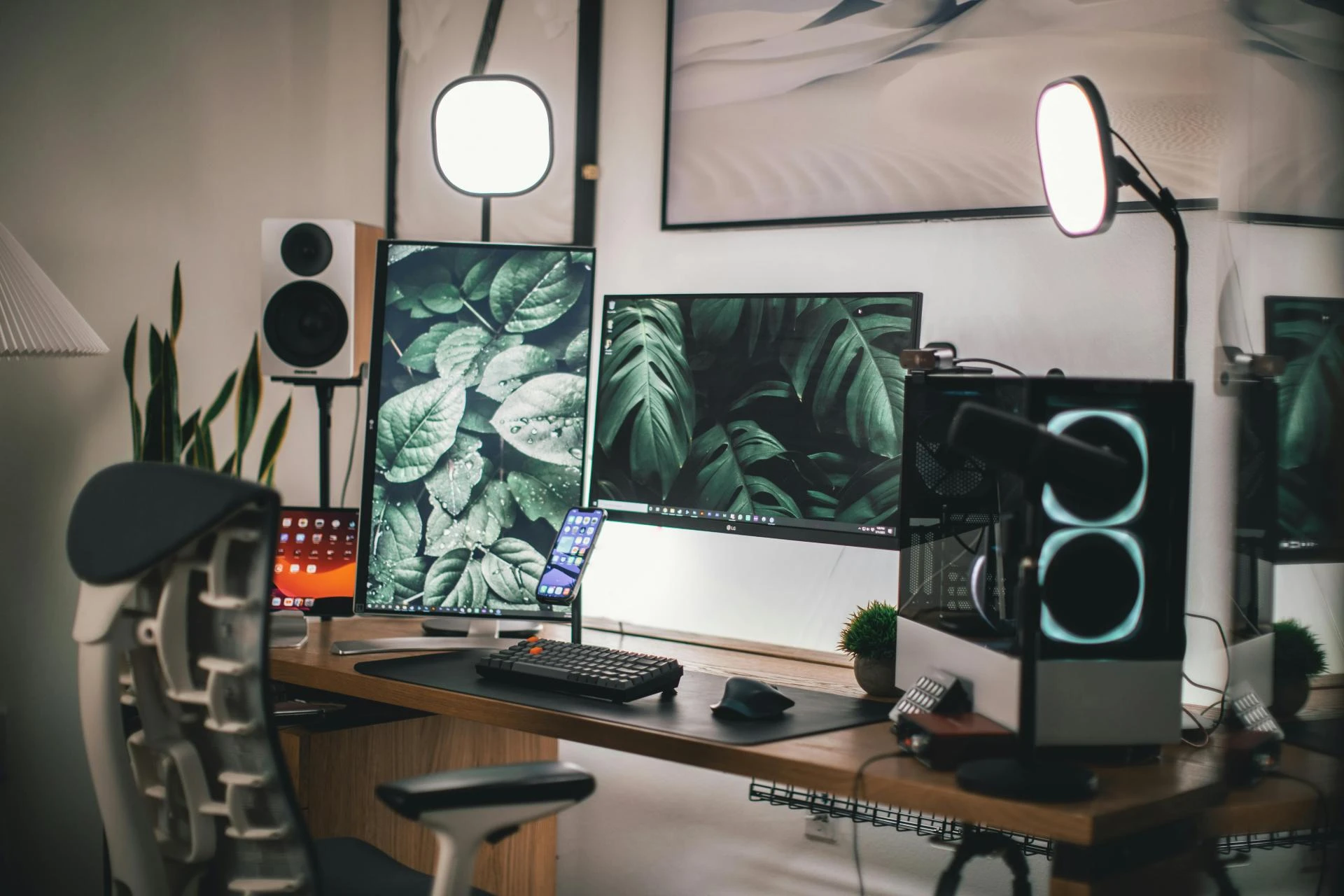
Practical steps to implement overlay ideas:
- Organize assets in named folders: overlays/, animated/, stingers/, widgets/.
- OBS Studio: add static PNGs as Image sources, WebM as Media Sources, and widget URLs as Browser Sources. Save Scene Collections for each overlay pack.
- Streamlabs: import overlay packs or paste widget URLs into Browser Sources. Use the editor to test alert triggers.
- Use scene collections and hotkeys to quickly swap overlay modules during live events.
- For dynamic / data-driven overlays, consolidate multiple widgets into a single browser source to reduce CPU.
- Test at multiple resolutions (1080p, 720p) and on mobile to ensure readability and layout viability.
GreatOverlays provides preconfigured scene files and installation guides to streamline this process.
16. Performance and Optimization
Design with performance in mind:
- Use WebM for animated overlays with alpha channels instead of GIFs.
- Keep animations short and looped.
- Limit the number of active browser sources.
- Test with your typical bitrate and encoding settings; monitor CPU/GPU usage in OBS.
- Offer lightweight alternative overlays (compact mode) for tournaments or resource-constrained setups.
17. Common mistakes and how to avoid them
- Overcrowding the screen — keep essential gameplay areas clear.
- Inconsistent motion — mismatched animation styles break cohesion.
- Ignoring mobile — small text and packed overlays are unreadable on phones.
- Unoptimized assets — large GIFs or uncompressed MOVs can drop frames.
- Hiding important info under alerts — test timing and placement of alert animations.
18. Testing and Iteration (Grow with data)
- Do dry runs and record test sessions to spot layout issues.
- Ask viewers for feedback and iterate overlays based on retention and chat response.
- Use A/B testing: try a minimalist layout vs a themed layout for a week and compare engagement metrics.
- Update your overlays seasonally or for milestone events to keep content fresh while maintaining the same structural layout.
Final Checklist — Ready to Apply Overlay Ideas
- Brand colors, fonts, and logo centralized in a style guide.
- Core overlay modules created: Live, Starting Soon, BRB, Ending, Interview.
- Animated alerts and stinger transitions exported as WebM with alpha.
- Scene collections saved for OBS and Streamlabs.
- Performance tests completed at your target resolution and bitrate.
- Mobile readability verified.
- Backup asset folder and scene collection exported.
FAQs — Top Stream Overlay Ideas to Build a Strong Brand Identity
Q1: Can one overlay pack be used across Twitch and YouTube?
Yes. Design with safe zones and adaptable layouts so the same pack works on Twitch, YouTube Live, and other platforms. GreatOverlays creates multiplatform packs compatible with both OBS Studio and Streamlabs.
Q2: What file formats are best for animated overlays?
WebM with alpha is the preferred format for animated overlays and stingers. PNG is ideal for static elements. Avoid large GIFs when possible.
Q3: How do I keep overlays from hurting performance?
Use optimized WebM files, minimize browser sources, and test with your encoding settings. Provide a compact overlay variation for low-resource streams.
Q4: Should I redesign overlays often?
Make small updates seasonally or for events, but keep the core layout consistent. Consistency is key for brand recognition.
Q5: How do I make alerts feel unique to my brand?
Customize alert visuals, messages, and sounds to match your brand voice and color palette. Offer distinct animations for different tiers (follower vs. donation).