


Managing storage used to be a job reserved for IT professionals. Today, with larger hard drives, multiple operating systems, SSDs, and external storage devices, disk management has become something everyday users also need to understand. That’s where a software partition manager comes in.
Whether you’re running out of space on your system drive, setting up a new computer, or trying to recover from a disk-related mistake, the right partition management tool can save time, protect data, and reduce stress. In this guide, we’ll break down what a software partition manager is, how it works, why it matters, and how to choose the best one for your needs.
What Is a Software Partition Manager?
A software partition manager is a utility designed to help users create, resize, delete, format, and organize disk partitions on storage devices. In simple terms, it allows you to divide a physical hard drive or SSD into logical sections so your data is better organized and easier to manage.
Understanding Disk Partitions
A disk partition is a defined storage area on a hard drive or SSD. Each partition acts like a separate drive, even though it’s part of the same physical disk. For example:
- One partition may contain the operating system
- Another may store personal files
- A third could be used for backups or recovery
Partitioning helps improve organization, security, and performance when done correctly.
Why You Need a Software Partition Manager
Many operating systems include basic disk management tools. While these built-in utilities are useful, they often lack flexibility and advanced features. A dedicated software partition manager provides more control and safer operations.
Common Reasons to Use Partition Management Software
- Running out of space on your system drive
- Installing multiple operating systems on one PC
- Migrating from HDD to SSD
- Recovering lost or deleted partitions
- Improving disk performance and organization
For both beginners and advanced users, a reliable partition manager simplifies tasks that would otherwise be risky or complex.
Key Features of a Software Partition Manager
Not all partition tools are created equal. Understanding the core features helps you pick the right solution.
Create, Resize, and Merge Partitions
One of the most common uses of a software partition manager is resizing partitions without losing data. This is especially useful when your C: drive is full but another partition has unused space.
You can also:
- Create new partitions for better organization
- Merge smaller partitions into one larger volume
Format and Delete Partitions Safely
Formatting is sometimes necessary when setting up a new drive or fixing file system errors. A good partition manager supports multiple file systems such as NTFS, FAT32, exFAT, and EXT formats.
Disk Conversion Tools
Modern partition managers often include conversion features, such as:
- MBR to GPT conversion (and vice versa)
- Primary to logical partition changes
- File system conversions without data loss
These tools are especially useful when upgrading systems or installing newer operating systems.
Benefits of Using a Software Partition Manager
Using a specialized tool offers advantages beyond basic disk management.
Improved Data Organization
Separating system files from personal data makes backups easier and reduces the risk of total data loss during system crashes or OS reinstallations.
Better System Performance
Proper partitioning can reduce file fragmentation and improve access speeds, particularly on traditional hard drives.
Reduced Risk of Data Loss
Manual disk operations can be dangerous. A trusted software partition manager minimizes risk by offering previews, undo options, and data protection mechanisms.
Free vs Paid Software Partition Managers
Many users wonder whether free tools are enough or if premium software is worth the investment.
Free Partition Manager Software
Free versions are usually suitable for:
- Basic resizing and formatting
- Simple partition creation and deletion
- Home users with minimal needs
However, they may lack advanced features or impose limitations.
Paid Partition Manager Software
Premium tools often include:
- Advanced recovery options
- OS migration features
- Technical support
- Business-use licensing
If you manage multiple systems or critical data, paid software may offer better long-term value.
How to Choose the Right Software Partition Manager
Choosing the right tool depends on your experience level and requirements.
Ease of Use
A clean interface and step-by-step guidance are essential, especially for beginners. Look for software that explains actions clearly and offers visual previews before changes are applied.
Compatibility and Support
Make sure the software partition manager supports your operating system, disk type (HDD or SSD), and file systems. Regular updates and active support are also signs of reliable software.
Safety Features
Data protection should always be a priority. Features such as rollback options, error checking, and backup prompts reduce the risk of irreversible mistakes.
Common Use Cases for Partition Management Software
Understanding real-world scenarios can help you see the practical value of partition tools.
Upgrading to a Larger Drive
When upgrading storage, a partition manager can clone existing partitions and adjust sizes without reinstalling the operating system.
Dual-Boot System Setup
If you want to run multiple operating systems on one machine, a software partition manager helps allocate space correctly and avoid boot issues.
Fixing Disk Space Issues
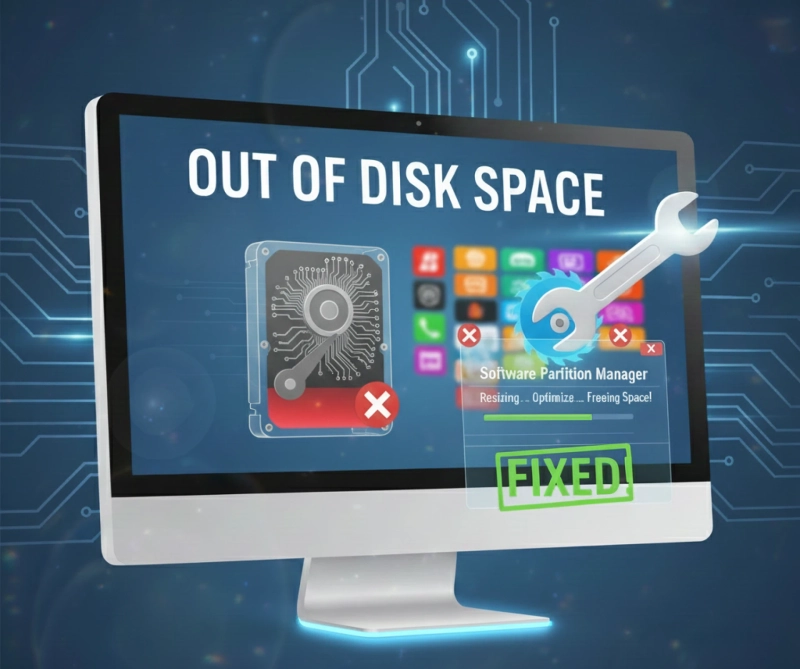
When system drives fill up unexpectedly, resizing partitions is often faster and safer than reinstalling everything from scratch.
Best Practices When Using a Software Partition Manager
While these tools are powerful, careful usage is important.
Always Back Up Important Data
Even the safest operations carry some risk. Backing up ensures peace of mind.
Avoid Interruptions During Operations
Partition changes can take time. Interrupting the process due to power loss or forced shutdown can damage data.
Read Warnings Carefully
Most partition managers display warnings before critical actions. Take a moment to review them instead of clicking through quickly.
Future Trends in Partition Management Software
As storage technology evolves, so does partition management.
SSD and NVMe Optimization
Modern software partition manager tools are increasingly optimized for SSDs and NVMe drives, ensuring alignment and performance optimization.
Cloud and Virtual Disk Support
Some advanced tools now support virtual disks and cloud-based environments, reflecting the shift toward virtualization and hybrid storage setups.
Conclusion: Why a Software Partition Manager Is Worth It
A software partition manager is more than just a utility—it’s a practical solution for organizing, optimizing, and protecting your storage. Whether you’re a casual home user or a professional managing multiple systems, the right tool can save hours of frustration and prevent costly data loss.
By offering flexibility, safety, and advanced disk control, partition management software turns complex storage tasks into manageable steps. With careful selection and responsible use, it becomes an essential part of modern computing.
Frequently Asked Questions (FAQ)
1. What does a software partition manager do?
A software partition manager allows users to create, resize, format, delete, and manage disk partitions without reinstalling the operating system or losing data.
2. Is it safe to use a software partition manager?
Yes, when used correctly. Most reputable tools include safety features such as previews, warnings, and rollback options. Backups are still recommended before making changes.
3. Can I resize partitions without losing data?
Most modern partition managers support resizing partitions without data loss, as long as there is enough free space and the process is not interrupted.
4. Do I need technical knowledge to use a partition manager?
Basic tools are beginner-friendly and designed for everyday users. Advanced features may require some understanding of disk structures, but clear instructions are usually provided.
5. Is a free software partition manager enough for home users?
For simple tasks like resizing or formatting, free versions are often sufficient. Advanced features may require a paid version, depending on your needs.