



There's nothing more frustrating than watching your screen freeze mid-task. Your cursor won't move, applications won't respond, and you're left staring at a spinning wheel of death wondering if your computer is ever going to work again. "Computer not responding" errors are among the most common issues that plague both home and business users, and they can strike at the most inconvenient times.
If you're experiencing this problem, you're not alone. Whether you're a Burwood resident trying to meet a work deadline or a business owner with multiple machines running sluggishly, understanding what causes these freezes and knowing how to fix them can save you valuable time and money. In this comprehensive guide, we'll walk you through everything you need to know about diagnosing and resolving these frustrating issues.
Understanding What "Computer Not Responding" Really Means
When your computer displays the "not responding" message, it's essentially telling you that an application or the entire system has stopped communicating properly. Your computer hasn't necessarily crashed—it's just temporarily unable to process your inputs or complete tasks efficiently.
This can happen for various reasons. Sometimes it's a single misbehaving application hogging all your system resources. Other times, it's a deeper issue with your hardware, drivers, or operating system. The key is identifying what's causing the freeze so you can implement the right solution.
Common Causes of Computer Freezing and Non-Response
Before diving into solutions, it's important to understand the underlying causes. When your computer isn't responding, one or more of these factors are usually at play:
Software Conflicts and Memory Issues represent one of the most frequent culprits. When applications consume excessive RAM or conflict with each other, your system can grind to a halt. A simple browser with multiple tabs open, for instance, can cause dramatic performance drops.
Malware and Virus Infections are increasingly common threats that don't always announce themselves loudly. Instead, they quietly consume your system resources, causing your computer to become sluggish and unresponsive. Ransomware, spyware, and other malicious programs can wreak havoc on your device.
Outdated Drivers often go unnoticed but can severely impact system performance. When your graphics card, network adapter, or other hardware drivers become outdated, they may cause conflicts that result in freezing and crashes.
Hard Drive Problems present a more serious concern. A failing hard drive or disk that's nearing full capacity can cause your entire system to behave unpredictably, leading to frequent freezes and non-responsive errors.
Overheating Issues are particularly common in Burwood's warmer months. When your computer's cooling system is compromised by dust buildup or component failure, your processor throttles down to prevent damage, causing significant performance degradation.
Insufficient System Resources occur when your RAM is maxed out or your processor is overwhelmed. Running too many applications simultaneously or having background processes consuming excessive resources can trigger this issue.
Immediate Steps to Take When Your Computer Stops Responding
When your computer freezes, don't panic. Your first instinct might be to force a shutdown, but there are several steps you can try first that might revive your system without data loss.
Force Quit Unresponsive Applications by using the Task Manager (on Windows) or Force Quit menu (on Mac). Press Ctrl+Alt+Delete on Windows, then select Task Manager. Look for any applications showing "Not Responding" status and select them to end the task. This often resolves the issue if a single program is causing the freeze.
Restart Your Computer Properly by holding the power button for 10 seconds until the system shuts down completely. Wait 30 seconds, then power it back on. This simple restart frequently resolves temporary glitches and memory-related issues.
Check Your Storage Space by opening your file explorer and checking available hard drive space. If you're running with less than 10% free space, your computer will struggle. Delete unnecessary files or move data to external storage to free up space.
Disable Startup Programs that may be consuming resources at boot time. In Windows, you can access the Startup tab through Task Manager and disable unnecessary programs from launching automatically.
Run a Virus Scan using your installed antivirus software or Windows Defender. Many freezing issues stem from malware infections, and a comprehensive scan might identify and remove harmful programs.
When to Seek Professional Help: Computer repairs Burwood
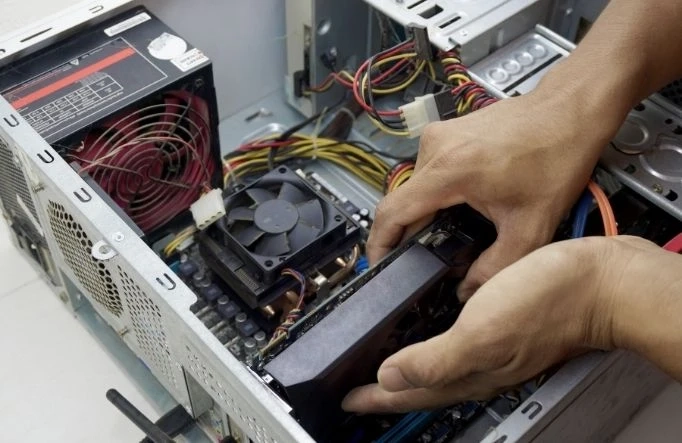
While these DIY steps work for many situations, some computer problems require professional expertise. Computer repairs Burwood specialists can diagnose complex issues that go beyond standard troubleshooting. If you've tried the steps above and your computer continues to freeze, it's time to call in the professionals.
Professional technicians have advanced diagnostic tools that can identify hardware failures, driver conflicts, and persistent software issues that aren't immediately obvious. They can also safely perform repairs involving internal components, backup critical data before major fixes, and implement lasting solutions rather than temporary patches.
For Burwood residents and businesses, professional repair services offer peace of mind knowing your computer will be properly restored and optimized. Specialists can also provide recommendations for preventing future issues and improving overall system performance.
Advanced Troubleshooting Techniques
If you're comfortable diving deeper before seeking professional help, these advanced techniques might resolve your issues:
Update All Drivers through Device Manager or manufacturer websites. Outdated drivers, particularly for graphics cards and network adapters, frequently cause system instability. Restart your computer after updating drivers to apply changes.
Scan for Hard Drive Errors using built-in Windows utilities. Run Check Disk (chkdsk) by opening Command Prompt as Administrator and typing "chkdsk /f /r" to identify and repair potential hard drive issues.
Monitor System Temperature to rule out overheating. Download free software like HWMonitor to track your CPU and GPU temperatures. If they're consistently above 80°C, your cooling system may need attention or cleaning.
Clean Your Registry using reputable software to remove corrupted entries that might cause conflicts. Be cautious with registry edits—creating a backup beforehand is essential.
Perform a Clean Boot to identify which startup programs or services are causing issues. A clean boot loads Windows with only essential services, allowing you to gradually re-enable programs to pinpoint the troublemaker.
Preventing Future "Computer Not Responding" Issues
Prevention is always better than cure. Once you've resolved your current freezing issues, implementing these practices will help avoid future problems:
Maintain a regular maintenance schedule that includes disk cleanup, temporary file removal, and update installations. Set reminders to perform these tasks monthly to keep your system running smoothly.
Keep your operating system and all software updated with the latest security patches and improvements. Enable automatic updates so you don't miss critical fixes that might prevent future issues.
Install and maintain reliable antivirus and anti-malware software. Run regular scans and keep your virus definitions current to protect against emerging threats.
Monitor your system performance regularly using built-in tools or third-party applications. Watch for signs of degradation or unusual resource consumption that might indicate developing problems.
Invest in adequate cooling solutions, especially if you live in a warm climate. Ensure your computer's vents aren't blocked by dust and consider adding extra fans if your system tends to run hot.
Back up your important data consistently using cloud services or external drives. If you do experience a critical failure, you won't lose valuable information.
When Hardware Replacement Becomes Necessary
Sometimes, troubleshooting and software fixes simply aren't enough. If your computer continues freezing despite thorough troubleshooting, you may be dealing with failing hardware that requires replacement.
RAM Failure can cause random freezes and "not responding" errors. A professional technician can test your memory modules and replace defective ones quickly and affordably.
Hard Drive Deterioration is particularly concerning because it can lead to data loss. If diagnostic tests indicate drive failure, professionals can either repair the drive or migrate your data to a new drive while recovering what you can.
Power Supply Issues might cause your system to freeze unpredictably as it struggles to deliver consistent power to components. A replacement power supply is a routine repair that dramatically improves stability.
Motherboard Damage is more serious and sometimes requires sending your computer to specialized repair facilities, but professionals can make this determination and arrange proper repairs.
The Bottom Line: Solving Computer Freezing Issues
"Computer not responding" errors don't have to spell disaster. By understanding the causes and implementing appropriate solutions—whether through DIY troubleshooting or professional repairs—you can get your system back to peak performance.
For Burwood residents and businesses experiencing persistent computer problems, professional repair services offer expertise, advanced diagnostics, and reliable solutions. Don't let freezing issues disrupt your productivity or put your data at risk. Take action today, and enjoy a computer that runs smoothly and responds reliably to your needs.
Whether you choose to troubleshoot on your own or seek professional assistance, the most important step is taking action. A responsive, reliable computer is within reach—and it's worth the effort to achieve it.