



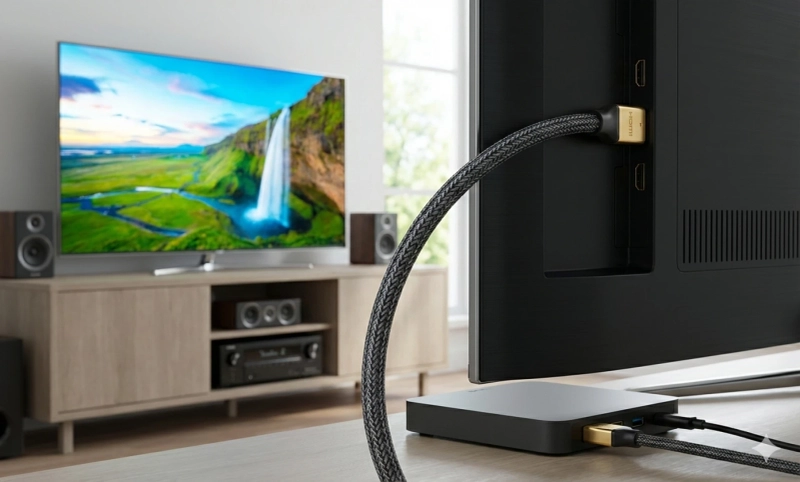
When you unbox a new television, streaming stick, or gaming console, you'll often find a cable tucked inside. But should you actually use it? The short answer is: sometimes yes, sometimes no. Understanding when that bundled cable works perfectly and when you need to upgrade can save you from frustration and ensure you get the best performance from your devices.
Understanding What Comes in the Box
Manufacturers include cables with their products for convenience. These bundled accessories allow you to set up your device immediately without making an extra trip to the store. However, not all included cables meet the same quality standards.
Streaming devices like Roku, Amazon Fire Stick, or Apple TV often include basic cables designed to establish a connection. Television manufacturers sometimes bundle a computer HDMI cable with their products, though this practice has become less common as manufacturers look to reduce packaging costs.
The cable you receive typically represents the minimum specification needed to make the device function. This doesn't necessarily mean it's inadequate—it simply means the manufacturer chose a cable that meets their baseline requirements.
When the Bundled Cable Works Just Fine
You can confidently continue using your included cable in several scenarios:
For Basic Streaming If you're watching standard streaming content on Netflix, Hulu, or YouTube, the bundled cable usually performs perfectly. Most streaming happens at 1080p resolution, which even older HDMI standards handle effortlessly. Your included cable will deliver crisp images and clear audio without issues.
Short Distance Connections When your streaming device sits directly next to your television—within three to six feet—cable quality matters less. Signal degradation becomes problematic over longer distances, but short runs work reliably even with basic cables.
Older Display Technology If you're using a 1080p television or monitor, your bundled cable likely exceeds your display's capabilities. These screens can't take advantage of premium cable features, so upgrading won't improve your viewing experience.
Non-Gaming Applications For general computer use, presentations, or casual media consumption, standard cables perform admirably. You don't need premium specifications for everyday tasks like browsing the internet or working with documents.
When You Should Consider Upgrading
Certain situations demand more from your cables than bundled options provide:
4K and 8K Content High-resolution content requires significant bandwidth. If you own a 4K or 8K television and want to enjoy Ultra HD movies or shows, you need a cable rated for these specifications. Many bundled cables support only basic HDMI standards that cap at 1080p or lower 4K refresh rates.
Your computer HDMI cable becomes especially critical when connecting a high-performance PC to a 4K monitor. Gaming at 4K resolution with high frame rates demands HDMI 2.1 specifications, which many included cables don't meet.
Gaming at High Refresh Rates Modern gaming consoles and gaming PCs output at 120Hz or even 144Hz for smoother gameplay. This requires cables certified for high-bandwidth applications. If you notice screen tearing, stuttering, or your display won't activate its highest refresh rate mode, your cable might be the bottleneck.
HDR and Advanced Features High Dynamic Range (HDR) content displays richer colors and deeper contrasts, but it requires cables that support these data-intensive features. Variable Refresh Rate (VRR), Auto Low Latency Mode (ALLM), and Enhanced Audio Return Channel (eARC) all depend on proper cable specifications.
Longer Cable Runs If you need to route your cable through walls, across rooms, or over distances exceeding 10 feet, quality becomes paramount. Longer distances amplify signal degradation, causing visual artifacts or connection failures. Premium cables use better shielding and materials to maintain signal integrity.
Identifying Cable Specifications
Not all HDMI cables look different, but their capabilities vary dramatically. Here's how to determine what you're working with:
Check the cable itself for printed specifications. Quality manufacturers print the HDMI version directly on the cable jacket. Look for markings like "High Speed," "Premium High Speed," or "Ultra High Speed."
If you're connecting a computer HDMI cable between your PC and monitor, verify it supports your intended resolution and refresh rate combination. A cable adequate for 4K at 30Hz fails when you need 4K at 120Hz.
The HDMI Licensing Administrator certifies cables that meet specific performance standards. Certified cables display a holographic label on their packaging, guaranteeing they'll perform as advertised.
Common Problems with Inadequate Cables
Using an insufficient cable creates recognizable symptoms:
Visual Artifacts Sparkles, snow, or flickering on your screen indicate signal loss. These issues often worsen when displaying complex or fast-moving images.
No Signal Your display might intermittently lose connection or fail to recognize the source device. This happens when the cable can't maintain a stable handshake between devices.
Limited Resolution Options Your device settings might not display your television's maximum resolution. The system automatically limits output to what your cable can reliably transmit.
Audio Dropouts Sound cutting in and out suggests bandwidth limitations. Audio and video travel together through HDMI, and inadequate cables affect both.
Making the Right Choice
If you decide to upgrade from your bundled cable, focus on these factors:
Purchase cables certified for your specific needs. HDMI 2.1 cables support everything current technology offers, including 8K resolution and 120Hz refresh rates. These cables work backward compatibly with older devices.
Buy from reputable manufacturers or retailers. The cable market contains many counterfeit products that claim specifications they don't actually meet. Stick with known brands or purchase from authorized sellers.
Consider your current and future needs. Technology advances quickly. Buying a cable that exceeds your current requirements ensures compatibility as you upgrade your devices.
Don't overspend on unnecessary features. While premium cables offer benefits in demanding situations, you don't need gold-plated connectors or exotic materials for typical home use. A properly certified cable at a reasonable price performs identically to expensive boutique options.
The Bottom Line
The cable that came with your device works fine for many users. If you're experiencing no problems and your usage doesn't demand high-end features, continue using what you have. However, if you're investing in premium display technology, pursuing competitive gaming, or experiencing connection issues, upgrading your computer HDMI cable or other HDMI connections makes practical sense.
Evaluate your specific situation honestly. Match your cable to your actual needs rather than following blanket recommendations. This approach ensures you get optimal performance without wasting money on unnecessary upgrades.
Other Sources: https://www.ranksrocket.com/how-to-upgrade-your-tv-experience-with-hdmi-cables/